> ## Documentation Index
> Fetch the complete documentation index at: https://docs.t3gemstone.org/llms.txt
> Use this file to discover all available pages before exploring further.
# Introduction
> Components, Peripheral Devices, and Usage Examples
export const func_0 = "FUNCTION"
export const pins_0 = "PINS"
This section will demonstrate examples of how to use the sensors and data lines on the board.\
All examples will be performed via the Terminal/Console after establishing a serial port connection,
so it is assumed that you have read the explanations about Terminal usage in the [Quick Start](../../../quickstart)
section. You may choose one of the methods described in the relevant section: connecting to the Desktop image via a
browser, connecting via SSH/Ethernet, or connecting via the console over the serial port.
## Power Connection
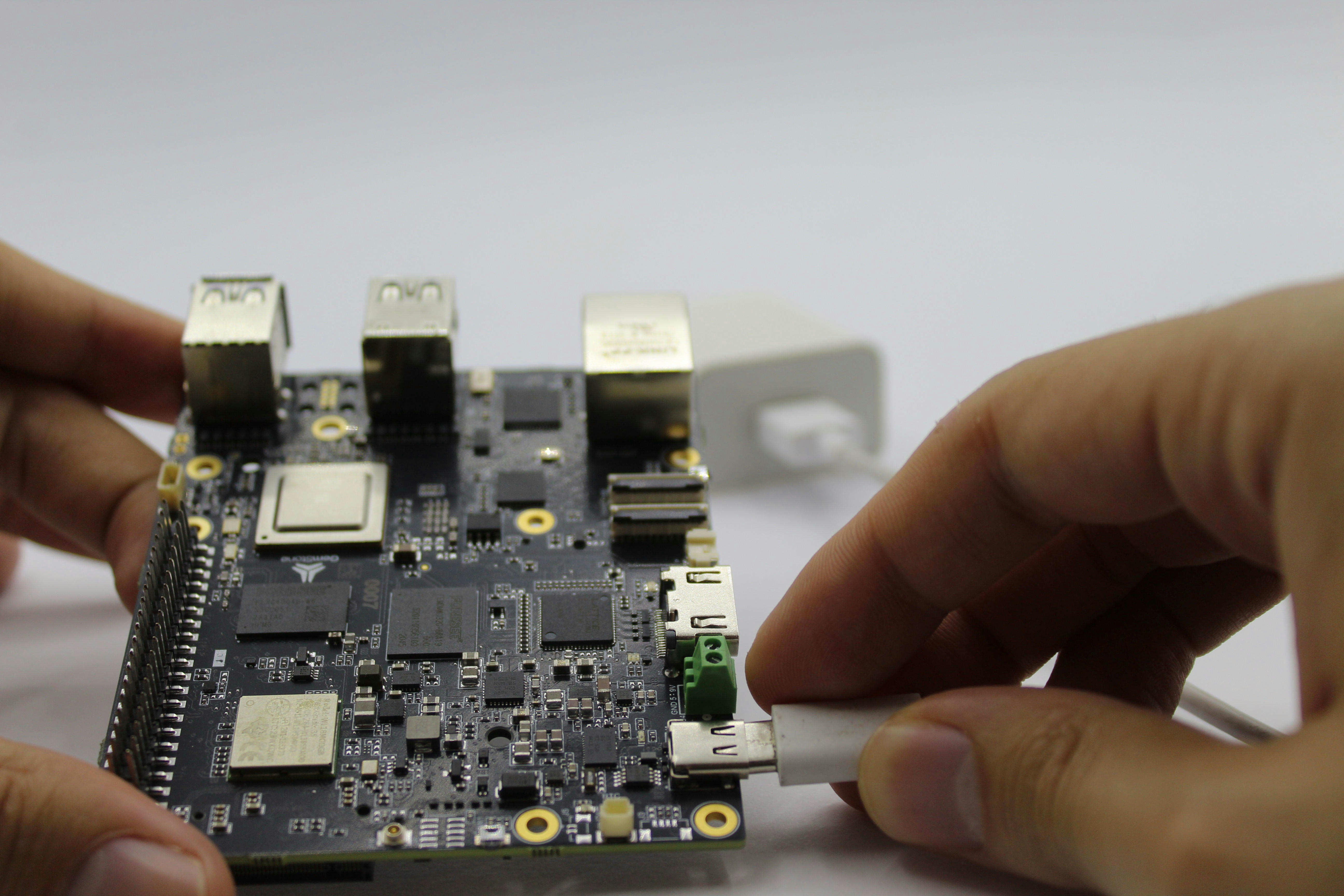
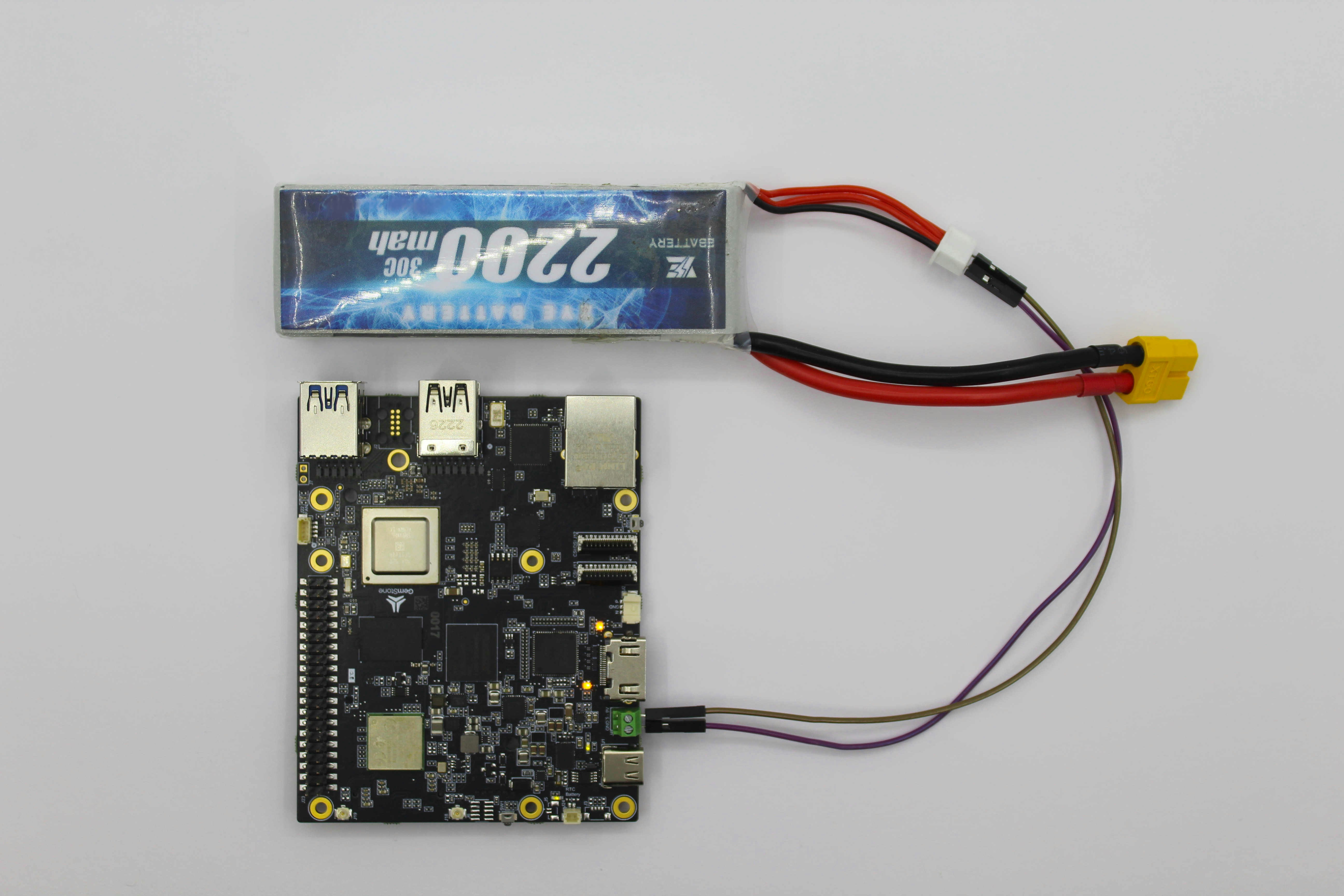 The Gemstone O1 development board's external power input is designed to operate within the 5V–12V / 5A range. Any suitable external power source within this range can be connected. On the USB side, the USB PD (Power Delivery) IC is set to 9V. If the connected device supports 9V, the development board is powered at 9V / 3A; if the device is not compatible, the board continues to draw power at 5V / 3A.
When the battery is connected and a USB is plugged in, the power source automatically switches to the USB and the battery is disabled. When the USB is removed, the battery automatically re-engages and continues to supply power to the development board.
When USB is not connected, the development board is protected against reverse polarity connection to the 12V battery. However, this protection does not provide complete assurance, so the user must connect it carefully.
If the 12V battery is connected backwards while the USB is plugged in, the development board may be seriously damaged and there may even be a risk of fire. Therefore, the polarity must be checked before connecting the battery while the power connection is via USB.
## 1. Pinout
The Gemstone O1 development board's external power input is designed to operate within the 5V–12V / 5A range. Any suitable external power source within this range can be connected. On the USB side, the USB PD (Power Delivery) IC is set to 9V. If the connected device supports 9V, the development board is powered at 9V / 3A; if the device is not compatible, the board continues to draw power at 5V / 3A.
When the battery is connected and a USB is plugged in, the power source automatically switches to the USB and the battery is disabled. When the USB is removed, the battery automatically re-engages and continues to supply power to the development board.
When USB is not connected, the development board is protected against reverse polarity connection to the 12V battery. However, this protection does not provide complete assurance, so the user must connect it carefully.
If the 12V battery is connected backwards while the USB is plugged in, the development board may be seriously damaged and there may even be a risk of fire. Therefore, the polarity must be checked before connecting the battery while the power connection is via USB.
## 1. Pinout
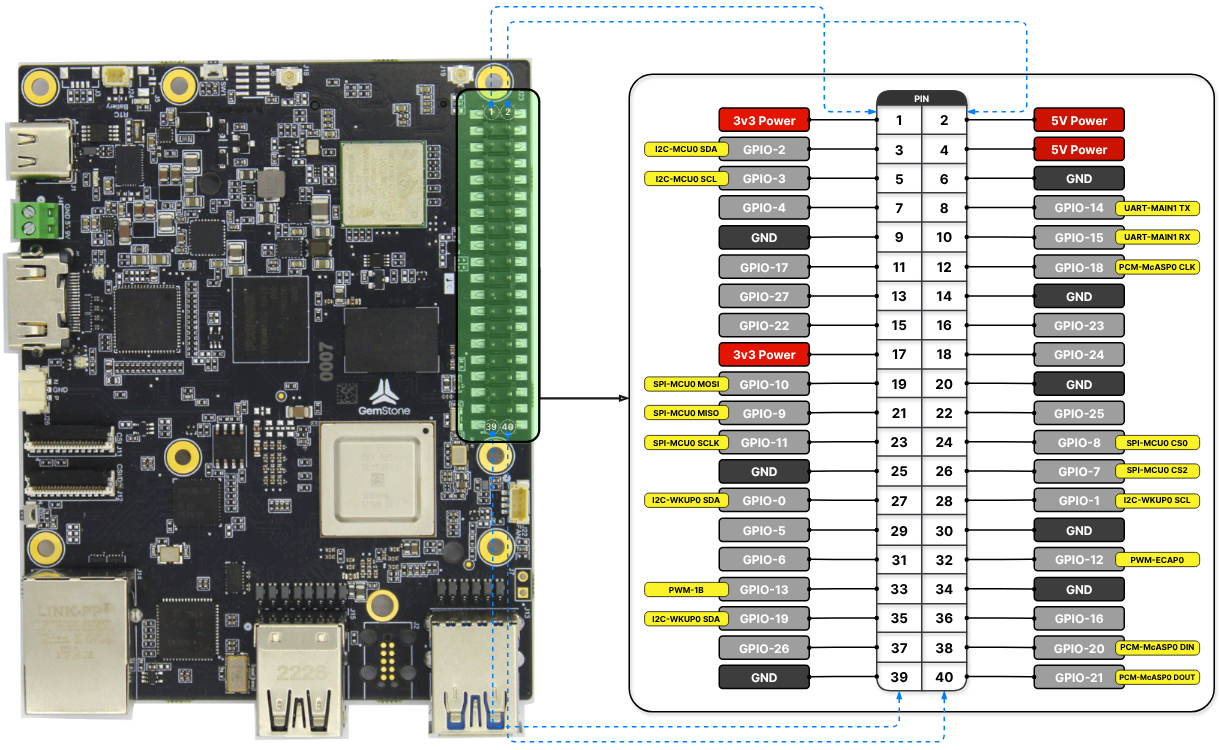 The Input/Output (I/O) pins on the board, referred to as the **40-pin expansion header**, provide interfaces such
as UART (serial port), I2C, SPI, PWM, and PCM. The purposes of the 40-pin I/O ports and their default interface
assignments will be explained. In the next section, it will be described how the pins can be reconfigured for
different uses using [Device Tree Overlay](/en/faq#what-is-device-tree-overlay) files.
For example, the pin named `GPIO-7` is configured as `SPI-MCU0 CS2` by default but can be converted to
the `UART-WKUP0 RX` function by activating a file called [Device Tree Overlay](/en/faq#what-is-device-tree-overlay).
Similarly, in the [Gemstone VTOL](../../../projects/vtol) project, since Bluetooth was not needed,
the relevant pins were disabled and converted to `UART-MAIN6`.
| {func_0} | {pins_0} | {pins_0} | {func_0} |
| -----------------------: | :-----------: | :----------: | :----------------------- |
| 3v3 Power | **3v3 Power** | **5v Power** | 5v Power |
| I2C-MCU0 SDA | **GPIO-2** | **5v Power** | 5v Power |
| I2C-MCU0 SCL | **GPIO-3** | **GND** | GND |
| | **GPIO-4** | **GPIO-14** | UART-MAIN1 TX |
| GND | **GND** | **GPIO-15** | UART-MAIN1 RX |
| | **GPIO-17** | **GPIO-18** | PCM-McASP0 CLK |
| | **GPIO-27** | **GND** | GND |
| | **GPIO-22** | **GPIO-23** | |
| 3v3 Power | **3v3 Power** | **GPIO-24** | |
| SPI-MCU0 MOSI | **GPIO-10** | **GND** | GND |
| SPI-MCU0 MISO | **GPIO-9** | **GPIO-25** | |
| SPI-MCU0 SCLK | **GPIO-11** | **GPIO-8** | SPI-MCU0 CS0 |
| GND | **GND** | **GPIO-7** | SPI-MCU0 CS2 |
| I2C-WKUP0 SDA (reserved) | **GPIO-0** | **GPIO-1** | I2C-WKUP0 SCL (reserved) |
| | **GPIO-5** | **GND** | GND |
| | **GPIO-6** | **GPIO-12** | PWM-ECAP0 |
| PWM-1B | **GPIO-13** | **GND** | GND |
| PCM-McASP0 FS | **GPIO-19** | **GPIO-16** | |
| | **GPIO-26** | **GPIO-20** | PCM-McASP0 DIN |
| GND | **GND** | **GPIO-21** | PCM-McASP0 DOUT |
#### 1.1. UART-MAIN1
This UART interface can be accessed via the `/dev/ttyS3` device on the Gemstone board.
To test the UART line from the command line, you can use the `picocom` program.\
`picocom` is a serial terminal application that sends characters typed on the keyboard in real time to the
specified serial port while also displaying data received from the other end. After connecting the `TX` and `RX` pins
with a jumper cable, you can run the following command. If the connections are correct, you should see the characters
you type on the screen.
```bash theme={"system"}
gemstone@t3-gem-o1:~$ picocom -b 115200 /dev/ttyS3
# picocom v3.1
#
# port is : /dev/ttyS6
# flowcontrol : none
# baudrate is : 115200
# parity is : none
# databits are : 8
# stopbits are : 1
# escape is : C-a
# local echo is : no
# noinit is : no
# noreset is : no
# hangup is : no
# nolock is : no
# send_cmd is : sz -vv
# receive_cmd is : rz -vv -E
# imap is :
# omap is :
# emap is : crcrlf,delbs,
# logfile is : none
# initstring : none
# exit_after is : not set
# exit is : no
#
# Type [C-a] [C-h] to see available commands
# Terminal ready
# Hello World
```
#### 1.2. I2C-MCU0
This I2C interface can be accessed via the `/dev/i2c-1` device on the Gemstone board.
To view the peripheral devices connected to the bus, you can use the `i2cdetect` command.\
An example output is provided below. In the command output, peripheral devices marked with `UU` (e.g., `0x30`) are
connected to the I2C bus but are in use by the Linux kernel, while those with a numeric address (e.g., `0x6b`) are
connected and idle.
```bash theme={"system"}
gemstone@t3-gem-o1:~$ i2cdetect -r -y 1
# 0 1 2 3 4 5 6 7 8 9 a b c d e f
# 00: -- -- -- -- -- -- -- --
# 10: -- -- -- -- -- -- -- -- -- -- -- -- -- -- -- --
# 20: -- -- -- -- -- -- -- -- -- -- -- -- -- -- -- --
# 30: UU -- -- -- -- -- -- -- -- -- -- -- -- -- -- --
# 40: -- -- -- -- -- -- -- -- -- -- -- -- -- -- -- --
# 50: -- -- -- -- -- -- -- -- -- -- -- -- -- -- -- --
# 60: -- -- -- -- -- -- -- -- -- -- -- 6b -- -- -- --
# 70: -- -- -- -- -- -- -- --
```
#### 1.3. I2C-WKUP0
This I2C interface is used to identify **Hardware Attached on Top (HAT)** devices connected to the board via the
**40-pin expansion header**. During boot, the EEPROM on the HAT is queried, and the device information is read. If
no HAT will be connected to the board, these pins should be left unconnected.
#### 1.4. SPI-MCU0
This SPI interface can be accessed via the `/dev/spidev0.0` and `/dev/spidev0.2` devices on the Gemstone board.\
`/dev/spidev0.0` corresponds to SPI-MCU0 CS0, and `/dev/spidev0.2` corresponds to SPI-MCU0 CS2.
To test the SPI line from the command line, you can use the `spi-pipe` program.\
`spi-pipe` sends data from stdin to the SPI line specified by the `--device` setting and outputs the data received
from the line to stdout. After connecting the `MOSI` and `MISO` pins with a jumper cable, you can run the following
command. If the connections are correct, you should see the text "Hello World" on the screen.
```bash theme={"system"}
gemstone@t3-gem-o1:~$ printf '\x48\x65\x6c\x6c\x6f\x20\x57\x6f\x72\x6c\x64' | spi-pipe --device /dev/spidev0.0 --speed 1000000
# Hello World
```
#### 1.5. PWM-1B
This PWM interface can be accessed via the `/sys/class/pwm/pwmchip5/pwm1` device on the Gemstone board.
For this device to be created, the `export` command must first be executed.\
Then, the `period` and `duty_cycle` values in nanoseconds can be set to the desired values as shown in the example
below. After enabling the device with the `enable` command, the PWM output can be obtained.
```bash theme={"system"}
gemstone@t3-gem-o1:~$ echo 1 | sudo tee /sys/class/pwm/pwmchip5/export
# 1
gemstone@t3-gem-o1:~$ echo 2000000 | sudo tee /sys/class/pwm/pwmchip5/pwm1/period # 500 Hz
# 2000000
gemstone@t3-gem-o1:~$ echo 1000000 | sudo tee /sys/class/pwm/pwmchip5/pwm1/duty_cycle # 50%
# 1000000
gemstone@t3-gem-o1:~$ echo 1 | sudo tee /sys/class/pwm/pwmchip5/pwm1/enable
# 1
```
#### 1.6. PWM-ECAP0
This PWM interface can be accessed via the `/sys/class/pwm/pwmchip0/pwm0` device on the Gemstone board.
```bash theme={"system"}
gemstone@t3-gem-o1:~$ echo 0 | sudo tee /sys/class/pwm/pwmchip0/export
# 0
gemstone@t3-gem-o1:~$ echo 2000000 | sudo tee /sys/class/pwm/pwmchip0/pwm0/period # 500 Hz
# 2000000
gemstone@t3-gem-o1:~$ echo 1000000 | sudo tee /sys/class/pwm/pwmchip0/pwm0/duty_cycle # 50%
# 1000000
gemstone@t3-gem-o1:~$ echo 1 | sudo tee /sys/class/pwm/pwmchip0/pwm0/enable
# 1
```
#### 1.7. PCM-McASP0
Pulse-code Modulation (PCM), or Multichannel Audio Serial Port (McASP) as it is called in Texas Instruments SoCs,
can be used in real-time audio processing applications requiring low-latency and high-quality digital audio
streaming. The `FS` pin provides a frame-sync signal to an external audio device like a DAC, while the `CLK`
pin similarly provides a clock signal. The `DIN` pin allows data input from a digital audio device like an
I2S microphone, and the `DOUT` pin allows data output to a digital audio device like a DAC.
## 2. Device Tree
The configurations (UART, PWM, I2C, GPIO, ...) that the 40-pin I/O ports on the board can be used for are defined
in files called [Device Tree Overlay](/en/faq#what-is-device-tree-overlay). To activate the desired configuration(s), the relevant overlay files
must be found and provided to the bootloader as a list.
For Texas Instruments ARM64-based SoCs, the source code for all overlay files is located in the
[t3gemstone/linux](https://github.com/t3gemstone/linux) project under the `arch/arm64/boot/dts/ti` directory.
Those for the T3-GEM-O1 board are named in the format `k3-am67a-t3-gem-o1-.dtso`. Each overlay
file includes information at the beginning about its purpose.
### 2.1. Example: Routing UART6 signals to the 40-pin HAT
By default, the T3-GEM-O1's 40-pin HAT has only one serial port. For projects requiring multiple serial ports,
other pins on the 40-pin HAT must be converted to serial ports.
#### 2.1.1. Examining the Pinout
When examining the T3-GEM-O1's pinout, it can be seen that pins 7 and 11 on the HAT can be used as UART6\_RX and UART6\_TX.
#### 2.1.2. Finding the Relevant Overlay File
The next step is to determine which [Device Tree Overlay](/en/faq#what-is-device-tree-overlay) file provides the
desired configuration. All [Device Tree Overlay](/en/faq#what-is-device-tree-overlay) files are located in
the `/boot/overlays` folder on the development board. They can be listed by running the `ls /boot/overlays` command.
```bash lines theme={"system"}
├── boot
│ ├── overlays
│ │ ├── k3-am67a-t3-gem-o1-csi0-imx219.dtbo
│ │ ├── k3-am67a-t3-gem-o1-dsi-rpi-7inch-panel.dtbo
│ │ ├── k3-am67a-t3-gem-o1-dsi-waveshare-10-1inch-panel.dtbo
│ │ ├── k3-am67a-t3-gem-o1-dsi-waveshare-11-9inch-panel.dtbo
│ │ ├── k3-am67a-t3-gem-o1-dsi-waveshare-13-3inch-2lane-panel.dtbo
│ │ ├── k3-am67a-t3-gem-o1-dsi-waveshare-13-3inch-4lane-panel.dtbo
│ │ ├── k3-am67a-t3-gem-o1-dsi-waveshare-2-8inch-panel.dtbo
│ │ ├── k3-am67a-t3-gem-o1-dsi-waveshare-3-4inch-panel.dtbo
│ │ ├── k3-am67a-t3-gem-o1-dsi-waveshare-4-0inch-c-panel.dtbo
│ │ ├── k3-am67a-t3-gem-o1-dsi-waveshare-4-0inch-panel.dtbo
│ │ ├── k3-am67a-t3-gem-o1-dsi-waveshare-5-0inch-panel.dtbo
│ │ ├── k3-am67a-t3-gem-o1-dsi-waveshare-6-25inch-panel.dtbo
│ │ ├── k3-am67a-t3-gem-o1-dsi-waveshare-7-9inch-panel.dtbo
│ │ ├── k3-am67a-t3-gem-o1-dsi-waveshare-7inch-h-panel.dtbo
│ │ ├── k3-am67a-t3-gem-o1-dsi-waveshare-7inch-panel.dtbo
│ │ ├── k3-am67a-t3-gem-o1-dsi-waveshare-8-0inch-panel.dtbo
│ │ ├── k3-am67a-t3-gem-o1-dsi-waveshare-8-8inch-panel.dtbo
│ │ ├── k3-am67a-t3-gem-o1-gpio-fan.dtbo
│ │ ├── k3-am67a-t3-gem-o1-i2c1-400000.dtbo
│ │ ├── k3-am67a-t3-gem-o1-pwm-ecap0-gpio12.dtbo
│ │ ├── k3-am67a-t3-gem-o1-pwm-ecap1-gpio16.dtbo
│ │ ├── k3-am67a-t3-gem-o1-pwm-ecap2-gpio18.dtbo
│ │ ├── k3-am67a-t3-gem-o1-pwm-epwm0-gpio14.dtbo
│ │ ├── k3-am67a-t3-gem-o1-pwm-epwm0-gpio5.dtbo
│ │ ├── k3-am67a-t3-gem-o1-pwm-epwm0-gpio5-gpio14.dtbo
│ │ ├── k3-am67a-t3-gem-o1-pwm-epwm1-gpio13.dtbo
│ │ ├── k3-am67a-t3-gem-o1-pwm-epwm1-gpio6.dtbo
│ │ ├── k3-am67a-t3-gem-o1-pwm-epwm1-gpio6-gpio13.dtbo
│ │ ├── k3-am67a-t3-gem-o1-spidev0-1cs.dtbo
│ │ ├── k3-am67a-t3-gem-o1-spidev0-2cs.dtbo
│ │ ├── k3-am67a-t3-gem-o1-uart-ttys0.dtbo
│ │ └── k3-am67a-t3-gem-o1-uart-ttys6.dtbo
```
#### 2.1.3. Updating the uEnv.txt File
In this example, the `k3-am67a-t3-gem-o1-uart-ttys6.dtbo` overlay file will be used. For the bootloader to load
this file before the operating system starts, it must be added to the `overlays` section in the `/boot/uEnv.txt`
file as shown below. Overlay file names are added with a space between them.
The Input/Output (I/O) pins on the board, referred to as the **40-pin expansion header**, provide interfaces such
as UART (serial port), I2C, SPI, PWM, and PCM. The purposes of the 40-pin I/O ports and their default interface
assignments will be explained. In the next section, it will be described how the pins can be reconfigured for
different uses using [Device Tree Overlay](/en/faq#what-is-device-tree-overlay) files.
For example, the pin named `GPIO-7` is configured as `SPI-MCU0 CS2` by default but can be converted to
the `UART-WKUP0 RX` function by activating a file called [Device Tree Overlay](/en/faq#what-is-device-tree-overlay).
Similarly, in the [Gemstone VTOL](../../../projects/vtol) project, since Bluetooth was not needed,
the relevant pins were disabled and converted to `UART-MAIN6`.
| {func_0} | {pins_0} | {pins_0} | {func_0} |
| -----------------------: | :-----------: | :----------: | :----------------------- |
| 3v3 Power | **3v3 Power** | **5v Power** | 5v Power |
| I2C-MCU0 SDA | **GPIO-2** | **5v Power** | 5v Power |
| I2C-MCU0 SCL | **GPIO-3** | **GND** | GND |
| | **GPIO-4** | **GPIO-14** | UART-MAIN1 TX |
| GND | **GND** | **GPIO-15** | UART-MAIN1 RX |
| | **GPIO-17** | **GPIO-18** | PCM-McASP0 CLK |
| | **GPIO-27** | **GND** | GND |
| | **GPIO-22** | **GPIO-23** | |
| 3v3 Power | **3v3 Power** | **GPIO-24** | |
| SPI-MCU0 MOSI | **GPIO-10** | **GND** | GND |
| SPI-MCU0 MISO | **GPIO-9** | **GPIO-25** | |
| SPI-MCU0 SCLK | **GPIO-11** | **GPIO-8** | SPI-MCU0 CS0 |
| GND | **GND** | **GPIO-7** | SPI-MCU0 CS2 |
| I2C-WKUP0 SDA (reserved) | **GPIO-0** | **GPIO-1** | I2C-WKUP0 SCL (reserved) |
| | **GPIO-5** | **GND** | GND |
| | **GPIO-6** | **GPIO-12** | PWM-ECAP0 |
| PWM-1B | **GPIO-13** | **GND** | GND |
| PCM-McASP0 FS | **GPIO-19** | **GPIO-16** | |
| | **GPIO-26** | **GPIO-20** | PCM-McASP0 DIN |
| GND | **GND** | **GPIO-21** | PCM-McASP0 DOUT |
#### 1.1. UART-MAIN1
This UART interface can be accessed via the `/dev/ttyS3` device on the Gemstone board.
To test the UART line from the command line, you can use the `picocom` program.\
`picocom` is a serial terminal application that sends characters typed on the keyboard in real time to the
specified serial port while also displaying data received from the other end. After connecting the `TX` and `RX` pins
with a jumper cable, you can run the following command. If the connections are correct, you should see the characters
you type on the screen.
```bash theme={"system"}
gemstone@t3-gem-o1:~$ picocom -b 115200 /dev/ttyS3
# picocom v3.1
#
# port is : /dev/ttyS6
# flowcontrol : none
# baudrate is : 115200
# parity is : none
# databits are : 8
# stopbits are : 1
# escape is : C-a
# local echo is : no
# noinit is : no
# noreset is : no
# hangup is : no
# nolock is : no
# send_cmd is : sz -vv
# receive_cmd is : rz -vv -E
# imap is :
# omap is :
# emap is : crcrlf,delbs,
# logfile is : none
# initstring : none
# exit_after is : not set
# exit is : no
#
# Type [C-a] [C-h] to see available commands
# Terminal ready
# Hello World
```
#### 1.2. I2C-MCU0
This I2C interface can be accessed via the `/dev/i2c-1` device on the Gemstone board.
To view the peripheral devices connected to the bus, you can use the `i2cdetect` command.\
An example output is provided below. In the command output, peripheral devices marked with `UU` (e.g., `0x30`) are
connected to the I2C bus but are in use by the Linux kernel, while those with a numeric address (e.g., `0x6b`) are
connected and idle.
```bash theme={"system"}
gemstone@t3-gem-o1:~$ i2cdetect -r -y 1
# 0 1 2 3 4 5 6 7 8 9 a b c d e f
# 00: -- -- -- -- -- -- -- --
# 10: -- -- -- -- -- -- -- -- -- -- -- -- -- -- -- --
# 20: -- -- -- -- -- -- -- -- -- -- -- -- -- -- -- --
# 30: UU -- -- -- -- -- -- -- -- -- -- -- -- -- -- --
# 40: -- -- -- -- -- -- -- -- -- -- -- -- -- -- -- --
# 50: -- -- -- -- -- -- -- -- -- -- -- -- -- -- -- --
# 60: -- -- -- -- -- -- -- -- -- -- -- 6b -- -- -- --
# 70: -- -- -- -- -- -- -- --
```
#### 1.3. I2C-WKUP0
This I2C interface is used to identify **Hardware Attached on Top (HAT)** devices connected to the board via the
**40-pin expansion header**. During boot, the EEPROM on the HAT is queried, and the device information is read. If
no HAT will be connected to the board, these pins should be left unconnected.
#### 1.4. SPI-MCU0
This SPI interface can be accessed via the `/dev/spidev0.0` and `/dev/spidev0.2` devices on the Gemstone board.\
`/dev/spidev0.0` corresponds to SPI-MCU0 CS0, and `/dev/spidev0.2` corresponds to SPI-MCU0 CS2.
To test the SPI line from the command line, you can use the `spi-pipe` program.\
`spi-pipe` sends data from stdin to the SPI line specified by the `--device` setting and outputs the data received
from the line to stdout. After connecting the `MOSI` and `MISO` pins with a jumper cable, you can run the following
command. If the connections are correct, you should see the text "Hello World" on the screen.
```bash theme={"system"}
gemstone@t3-gem-o1:~$ printf '\x48\x65\x6c\x6c\x6f\x20\x57\x6f\x72\x6c\x64' | spi-pipe --device /dev/spidev0.0 --speed 1000000
# Hello World
```
#### 1.5. PWM-1B
This PWM interface can be accessed via the `/sys/class/pwm/pwmchip5/pwm1` device on the Gemstone board.
For this device to be created, the `export` command must first be executed.\
Then, the `period` and `duty_cycle` values in nanoseconds can be set to the desired values as shown in the example
below. After enabling the device with the `enable` command, the PWM output can be obtained.
```bash theme={"system"}
gemstone@t3-gem-o1:~$ echo 1 | sudo tee /sys/class/pwm/pwmchip5/export
# 1
gemstone@t3-gem-o1:~$ echo 2000000 | sudo tee /sys/class/pwm/pwmchip5/pwm1/period # 500 Hz
# 2000000
gemstone@t3-gem-o1:~$ echo 1000000 | sudo tee /sys/class/pwm/pwmchip5/pwm1/duty_cycle # 50%
# 1000000
gemstone@t3-gem-o1:~$ echo 1 | sudo tee /sys/class/pwm/pwmchip5/pwm1/enable
# 1
```
#### 1.6. PWM-ECAP0
This PWM interface can be accessed via the `/sys/class/pwm/pwmchip0/pwm0` device on the Gemstone board.
```bash theme={"system"}
gemstone@t3-gem-o1:~$ echo 0 | sudo tee /sys/class/pwm/pwmchip0/export
# 0
gemstone@t3-gem-o1:~$ echo 2000000 | sudo tee /sys/class/pwm/pwmchip0/pwm0/period # 500 Hz
# 2000000
gemstone@t3-gem-o1:~$ echo 1000000 | sudo tee /sys/class/pwm/pwmchip0/pwm0/duty_cycle # 50%
# 1000000
gemstone@t3-gem-o1:~$ echo 1 | sudo tee /sys/class/pwm/pwmchip0/pwm0/enable
# 1
```
#### 1.7. PCM-McASP0
Pulse-code Modulation (PCM), or Multichannel Audio Serial Port (McASP) as it is called in Texas Instruments SoCs,
can be used in real-time audio processing applications requiring low-latency and high-quality digital audio
streaming. The `FS` pin provides a frame-sync signal to an external audio device like a DAC, while the `CLK`
pin similarly provides a clock signal. The `DIN` pin allows data input from a digital audio device like an
I2S microphone, and the `DOUT` pin allows data output to a digital audio device like a DAC.
## 2. Device Tree
The configurations (UART, PWM, I2C, GPIO, ...) that the 40-pin I/O ports on the board can be used for are defined
in files called [Device Tree Overlay](/en/faq#what-is-device-tree-overlay). To activate the desired configuration(s), the relevant overlay files
must be found and provided to the bootloader as a list.
For Texas Instruments ARM64-based SoCs, the source code for all overlay files is located in the
[t3gemstone/linux](https://github.com/t3gemstone/linux) project under the `arch/arm64/boot/dts/ti` directory.
Those for the T3-GEM-O1 board are named in the format `k3-am67a-t3-gem-o1-.dtso`. Each overlay
file includes information at the beginning about its purpose.
### 2.1. Example: Routing UART6 signals to the 40-pin HAT
By default, the T3-GEM-O1's 40-pin HAT has only one serial port. For projects requiring multiple serial ports,
other pins on the 40-pin HAT must be converted to serial ports.
#### 2.1.1. Examining the Pinout
When examining the T3-GEM-O1's pinout, it can be seen that pins 7 and 11 on the HAT can be used as UART6\_RX and UART6\_TX.
#### 2.1.2. Finding the Relevant Overlay File
The next step is to determine which [Device Tree Overlay](/en/faq#what-is-device-tree-overlay) file provides the
desired configuration. All [Device Tree Overlay](/en/faq#what-is-device-tree-overlay) files are located in
the `/boot/overlays` folder on the development board. They can be listed by running the `ls /boot/overlays` command.
```bash lines theme={"system"}
├── boot
│ ├── overlays
│ │ ├── k3-am67a-t3-gem-o1-csi0-imx219.dtbo
│ │ ├── k3-am67a-t3-gem-o1-dsi-rpi-7inch-panel.dtbo
│ │ ├── k3-am67a-t3-gem-o1-dsi-waveshare-10-1inch-panel.dtbo
│ │ ├── k3-am67a-t3-gem-o1-dsi-waveshare-11-9inch-panel.dtbo
│ │ ├── k3-am67a-t3-gem-o1-dsi-waveshare-13-3inch-2lane-panel.dtbo
│ │ ├── k3-am67a-t3-gem-o1-dsi-waveshare-13-3inch-4lane-panel.dtbo
│ │ ├── k3-am67a-t3-gem-o1-dsi-waveshare-2-8inch-panel.dtbo
│ │ ├── k3-am67a-t3-gem-o1-dsi-waveshare-3-4inch-panel.dtbo
│ │ ├── k3-am67a-t3-gem-o1-dsi-waveshare-4-0inch-c-panel.dtbo
│ │ ├── k3-am67a-t3-gem-o1-dsi-waveshare-4-0inch-panel.dtbo
│ │ ├── k3-am67a-t3-gem-o1-dsi-waveshare-5-0inch-panel.dtbo
│ │ ├── k3-am67a-t3-gem-o1-dsi-waveshare-6-25inch-panel.dtbo
│ │ ├── k3-am67a-t3-gem-o1-dsi-waveshare-7-9inch-panel.dtbo
│ │ ├── k3-am67a-t3-gem-o1-dsi-waveshare-7inch-h-panel.dtbo
│ │ ├── k3-am67a-t3-gem-o1-dsi-waveshare-7inch-panel.dtbo
│ │ ├── k3-am67a-t3-gem-o1-dsi-waveshare-8-0inch-panel.dtbo
│ │ ├── k3-am67a-t3-gem-o1-dsi-waveshare-8-8inch-panel.dtbo
│ │ ├── k3-am67a-t3-gem-o1-gpio-fan.dtbo
│ │ ├── k3-am67a-t3-gem-o1-i2c1-400000.dtbo
│ │ ├── k3-am67a-t3-gem-o1-pwm-ecap0-gpio12.dtbo
│ │ ├── k3-am67a-t3-gem-o1-pwm-ecap1-gpio16.dtbo
│ │ ├── k3-am67a-t3-gem-o1-pwm-ecap2-gpio18.dtbo
│ │ ├── k3-am67a-t3-gem-o1-pwm-epwm0-gpio14.dtbo
│ │ ├── k3-am67a-t3-gem-o1-pwm-epwm0-gpio5.dtbo
│ │ ├── k3-am67a-t3-gem-o1-pwm-epwm0-gpio5-gpio14.dtbo
│ │ ├── k3-am67a-t3-gem-o1-pwm-epwm1-gpio13.dtbo
│ │ ├── k3-am67a-t3-gem-o1-pwm-epwm1-gpio6.dtbo
│ │ ├── k3-am67a-t3-gem-o1-pwm-epwm1-gpio6-gpio13.dtbo
│ │ ├── k3-am67a-t3-gem-o1-spidev0-1cs.dtbo
│ │ ├── k3-am67a-t3-gem-o1-spidev0-2cs.dtbo
│ │ ├── k3-am67a-t3-gem-o1-uart-ttys0.dtbo
│ │ └── k3-am67a-t3-gem-o1-uart-ttys6.dtbo
```
#### 2.1.3. Updating the uEnv.txt File
In this example, the `k3-am67a-t3-gem-o1-uart-ttys6.dtbo` overlay file will be used. For the bootloader to load
this file before the operating system starts, it must be added to the `overlays` section in the `/boot/uEnv.txt`
file as shown below. Overlay file names are added with a space between them.
overlays=k3-am67a-t3-gem-o1-spidev0-2cs.dtbo k3-am67a-t3-gem-o1-i2c1-400000.dtbo k3-am67a-t3-gem-o1-uart-ttys6.dtbo
#### 2.1.4. Verification
After saving the changes, the board should be rebooted using the `reboot` command.\
Then, the `ls /proc/device-tree/chosen/overlays` command can be used to check whether the overlay has been added.
```txt highlight=3 theme={"system"}
k3-am67a-t3-gem-o1-i2c1-400000.dtbo
k3-am67a-t3-gem-o1-spidev0-2cs.dtbo
k3-am67a-t3-gem-o1-uart-ttys6.kernel
...
```
After completing the above steps successfully, the `/dev/ttyS6` device will be created.