> ## Documentation Index
> Fetch the complete documentation index at: https://docs.t3gemstone.org/llms.txt
> Use this file to discover all available pages before exploring further.

# MCU

> Texas AM67 Cortex-R5, C7x (DSP)

<Tip>
  By the end of this section, you will gain knowledge and experience in the following topics.

  * Compiling Texas AM67 MCU software and running it on the Gemstone O1
  * Learning the stages the system goes through when the development board is first powered on
  * Gaining awareness that software can run concurrently on the different architectures present on the development board, namely Cortex-A (Linux) and Cortex-R (MCU)
</Tip>

While the primary focus of the **T3-GEM-O1** development board is Linux, it also leverages the power of the
R5 and C7x cores housed within the Texas AM67 microprocessor. For example, it is possible to perform various image
processing tasks on Linux (Cortex-A) and transfer these to MCU (Cortex-R5) software, enabling scenarios such as
driving various servos, reading sensors, etc. This section will cover topics such as how to compile software
for the R5 cores, debugging, etc.

## 1. Boot Diagram

The flow chart specified below is for the Gemstone O1 development board, but a similar structure is found in
many ARM-based embedded Linux development boards.

<Frame>
  ```mermaid theme={"system"}
  flowchart
  	n1@{ shape: "rounded", label: "**2.** Boot Diagram" } --- n2@{ label: "**2.1.** ROM Bootloader (RBL)" }
    n2@{ label: "**2.1.** ROM Bootloader (RBL)" }
  	n2@{ label: "**2.1.** ROM Bootloader (RBL)" } --- n3@{ label: "**2.2.** Secondary Boot Loader (SBL)" }
  	n3@{ label: "**2.2.** Secondary Boot Loader (SBL)" } --- n4@{ label: "**2.3.** U-Boot" }
  	n4@{ label: "**2.3.** U-Boot" } --- n5@{ shape: "rounded", label: "**2.4.** Linux Kernel" }
  	n5@{ label: "**2.4.** Linux Kernel" } --- n6@{ label: "**2.5.** Initial RAM Disk (Initrd)" }
  	style n1 color:#000000,fill:#FFDE59
  	n6 --- n7@{ label: "**2.6.** Root Filesystem (Rootfs)" }
  	n7@{ label: "**2.6.** Root Filesystem (Rootfs)" } --- n8@{ shape: "rounded", label: "**Cortex-A53**<br>Linux Gemstone OS" }
  	n7@{ label: "**2.6.** Root Filesystem (Rootfs)" } --- n9@{ shape: "rounded", label: "**Cortex R5**<br>Baremetal FreeRTOS Zephyr NuttX" }
  	n8@{ shape: "rounded", label: "**Cortex-A53**<br>Linux Gemstone OS" }
  	style n8 color:#000000,fill:#FFDE59
  	style n9 color:#000000,fill:#FFDE59
  	style n5 color:#000000,fill:#FFDE59
  ```
</Frame>

### 1.1. ROM Bootloader (RBL)

The primary purpose of the RBL (ROM Bootloader), which is often distributed only as a compiled program without
source code by manufacturers, is to perform hardware health checks and initialization etc., when the board is first
powered on, and then transition to the second bootloader called SBL (Secondary Bootloader), whose source code can be
modified. Where the SBL is read from and started is determined by the RBL from the Bootmode switches.

### 1.2. Secondary Bootloader (SBL)

The purpose of the Secondary Boot Loader on *T3-GEM-O1* development boards is to start the more advanced bootloader
called U-Boot and to enable writing images to
[eMMC via the Gemstone Imager application](https://github.com/t3gemstone/texas-am67-sbl-gemboot/blob/main/main.c#L319).

U-Boot is often preferred in embedded boards containing the Linux Kernel. While pre-loaders like SBL can perform
more basic level initialization operations, U-Boot has much more advanced features. For example, U-Boot has its own
Terminal/Console interface and many drivers not available in SBL, allowing for more advanced customizations.

### 1.3. U-Boot

U-Boot, which takes control of the development board after SBL, activates the drivers of the relevant hardware
according to the configurations defined in the [Device Tree](/en/faq#what-is-a-device-tree) and executes a set of
predefined commands to load components like the Linux Kernel and Initrd into RAM, handing over control to the Linux Kernel.

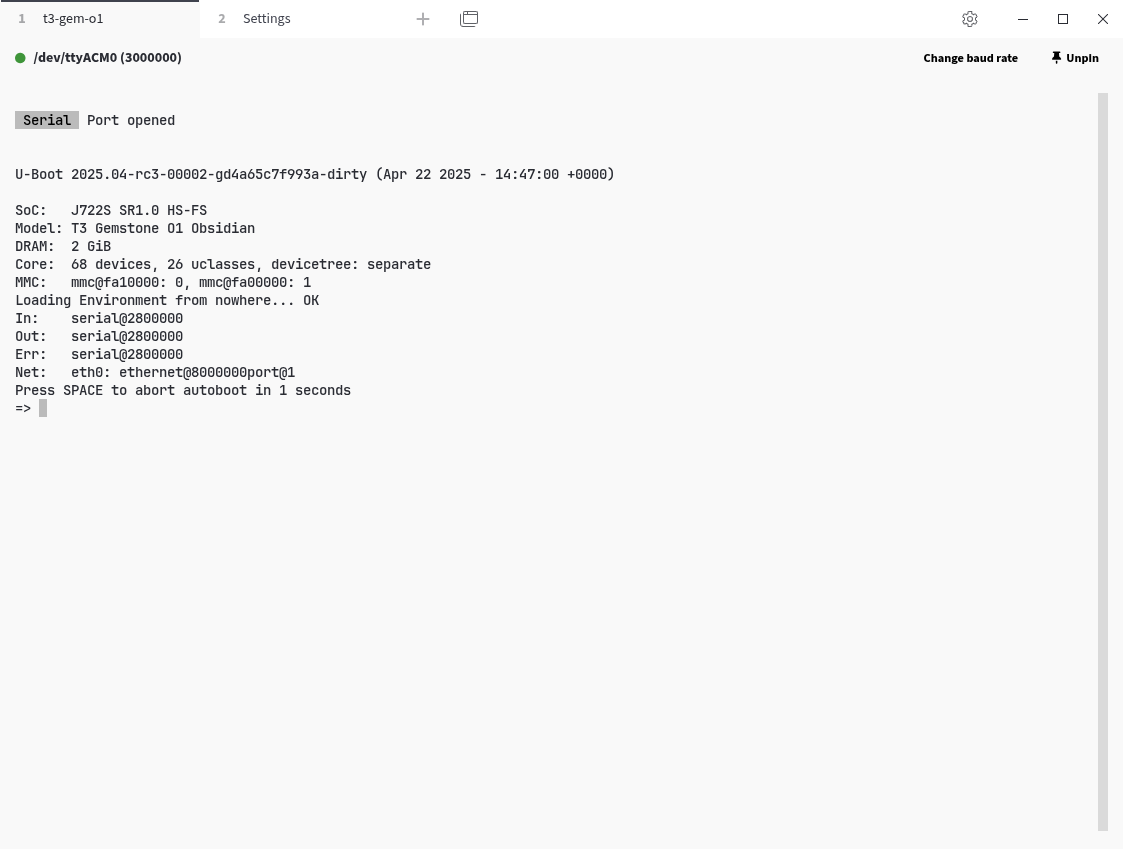
#### 1.3.1. U-Boot Console Exercises

<Tip>
  This section demonstrates the use of the U-Boot console by connecting to the Gemstone development board via TTL.
  You can quickly browse the documents below.

  * [https://cm.e-ale.org/2018/u-boot/u-boot.pdf](https://cm.e-ale.org/2018/u-boot/u-boot.pdf)
  * [https://software-dl.ti.com/jacinto7/esd...](https://software-dl.ti.com/jacinto7/esd/processor-sdk-linux-am67/09_02_00_04/exports/docs/linux/Foundational_Components/U-Boot/UG-General-Info.html)
</Tip>

<Frame caption="U-Boot Console">
  <img className="rounded-lg" noZoom src="https://mintcdn.com/t3gemstone-754bcb96/cGrcVw67zf67WM_B/images/tabby-uboot-console.png?fit=max&auto=format&n=cGrcVw67zf67WM_B&q=85&s=932c736622775523bcc4b63f985f88d7" width="1123" height="849" data-path="images/tabby-uboot-console.png" />
</Frame>

### 1.4. Linux Kernel

It loads the drivers for the hardware defined in the [Device Tree](/en/faq#what-is-a-device-tree). Then, if any,
it starts the initrd/initramfs and runs the `init` program found in the rootfs.

<Tip>
  The [Device Tree](/en/faq#what-is-a-device-tree) files for U-Boot and the Linux kernel are different from each other.
  The devicetree in U-Boot typically only activates enough hardware to load the kernel and initramfs from various
  storage devices (MMC, SSD, SPI flash, ...) into RAM. The main hardware activation is done by the kernel.
</Tip>

### 1.5. Initial RAM Disk (Initrd)

It is a temporary filesystem located in RAM that performs intermediate tasks such as loading various kernel modules,
decrypting the disk, performing software updates, etc., before the rootfs is started.

<Tip>
  If the rootfs is stored encrypted on the disk, the kernel cannot directly start the `init` program.
  First, the disk encryption must be decrypted by the initramfs.
</Tip>

### 1.6. Root Filesystem (Rootfs)

After the initrd finishes its operations, it mounts the filesystem called rootfs, which contains system and user
programs, libraries, and various configuration files, to the `/` directory.
Then the kernel runs the `init` program located in the rootfs at `/init`, `/sbin/init`, or a similar directory.
This program loads drivers for some hardware (kernel modules), system services (services such as network
connection, time synchronization, package update, and bluetooth) and starts the desktop environment (gnome, kde, xfce).

## 2. MCU Software Development

The tools required to compile MCU projects are listed below.

1. Texas Instruments Processor SDK RTOS J722S
2. Texas Instruments Sysconfig
3. Texas Instruments Code Generation Tools C7000
4. Texas Instruments Code Generation Tools ARM LLVM

<Tip>
  Since downloading these tools one by one from the Texas Instruments website and performing their installations
  is cumbersome, an infrastructure has been set up in the [t3gemstone/examples](https://github.com/t3gemstone/examples)
  repo to download all the necessary tools and compile MCU projects. It is installed automatically when you clone the project.
</Tip>

### 2.1. Download the sample projects with Git clone

```bash theme={"system"}
ubuntu@host:~$ git clone https://github.com/t3gemstone/examples.git
ubuntu@host:~$ cd examples
```

### 2.2. Install the necessary tools and libraries for compilation

```bash theme={"system"}
ubuntu@host:examples$ ./setup.sh
ubuntu@host:examples$ devbox shell
ubuntu@host:examples$ task fetch-ti
```

### 2.3. Create a template project

The `mcu` project in the [t3gemstone/examples](https://github.com/t3gemstone/examples) repo contains sample
projects running on two R5F real-time cores and two C7x DSP cores. Similar examples can be found in
the `build/ti/ti-processor-sdk-rtos-j722s-evm-10_01_00_04/mcu_plus_sdk_j722s_10_01_00_22/examples` directory.
It is recommended to find an example project suitable for your purpose, copy it to the `mcu` project directory,
and develop on it.

Under each sample project, there are subdirectories for different cores.
For example, the `hello_world` project has the following directories.

1. `c75ss0-0_freertos`
2. `c75ss1-0_freertos`
3. `main-r5fss0-0_freertos`
4. `mcu-r5fss0-0_freertos`

The code to be written should be developed in the directory of the core on which it is intended to run, and the
compiled outputs from that directory should be used.

The MCU projects to be compiled are defined as the `MCU_TARGETS` variable in the `.env` file. Add the absolute or
relative path of the `makefile` directory of the project you want to compile to the `MCU_TARGETS` variable. Below
is an example for the `mcu-r5fss0-0_freertos` core of the `hello_world` project.

```bash theme={"system"}
MCU_TARGETS="
ipc_rpmsg_echo_linux/j722s-evm/c75ss0-0_freertos/ti-c7000
ipc_rpmsg_echo_linux/j722s-evm/c75ss1-0_freertos/ti-c7000
ipc_rpmsg_echo_linux/j722s-evm/main-r5fss0-0_freertos/ti-arm-clang
ipc_rpmsg_echo_linux/j722s-evm/mcu-r5fss0-0_freertos/ti-arm-clang
hello_world/j722s-evm/mcu-r5fss0-0_freertos/ti-arm-clang
"
```

### 2.4. Configure peripherals with SysConfig

SysConfig is a configuration tool developed by Texas Instruments (TI). It is used in TI's microcontroller (MCU)
and processor-based development environments. Its main purpose is to allow the configuration of hardware and
software settings visually. Instead of writing complex initialization code directly, it allows system
configuration via a GUI by clicking options.

**Main features:**

* Pin Muxing: Determines which pin will serve which function (UART, SPI, GPIO, etc.).
* Peripheral Settings: Configures peripherals like UART, I2C, Timer, ADC.
* Driver and RTOS configuration: Enables TI-Drivers or FreeRTOS components.
* Automatic Code Generation: Automatically generates C source files (.c, .h) based on the settings made.
* Error prevention: Detects inappropriate pin or module combinations and warns.

Which peripherals (GPIO, I2C, UART, etc.) the project uses and their configuration are defined in the `.syscfg` file.
The SysConfig GUI tool is used to add new peripherals or change the Pin Mux settings of existing ones.

<Warning>
  Before using the SysConfig GUI tool, read the
  [Sharing Resources Between Cores](/en/boards/o1/peripherals/mcu#3-sharing-resources-between-cores) section to
  correctly allocate resources and avoid unexpected errors.
</Warning>

To launch SysConfig for an MCU project:

* Change the `SYSCONFIG_TARGET` variable to the desired project.
  * You can edit this variable inside the `.env` file or
  * Pass it as an environment variable to the `task` program.

```bash theme={"system"}
SYSCONFIG_TARGET=hello_world/j722s-evm/mcu-r5fss0-0_freertos/ti-arm-clang task sysconfig
```

After saving your changes with the `Ctrl + S` shortcut key, you can close the SysConfig interface.

<Warning>
  The remoteproc infrastructure is used to allow remote software loading to the R5F and C7x cores from the Linux side.
  For a project's compiled `.out` file to be loadable via remoteproc, certain settings must be made in the
  SysConfig interface. After copying a new project, the following steps should be followed.

  1. Open the `IPC` tab under `TI DRIVERS`.
  2. Click the `ADD` button.
  3. Ensure the `Linux A53 IPC RP Message` setting is active.
  4. Save the `.syscfg` file with the `Ctrl + S` shortcut key and exit.
</Warning>

### 2.5. Build the project

```bash theme={"system"}
ubuntu@host:examples$ PROJECT=mcu task clean build
```

### 2.6. Upload the compiled project to the development board

```bash theme={"system"}
ubuntu@host:examples$ scp mcu/hello_world/j722s-evm/mcu-r5fss0-0_freertos/ti-arm-clang/hello_world.release.out gemstone@10.0.0.1:
```

### 2.7. Run the compiled project

The `.out` files to be loaded to the cores via Remoteproc must be copied under the `/lib/firmware` directory
with predefined names. The firmware name for each core is given in the table below.

| Core          | Firmware              |
| ------------- | --------------------- |
| mcu-r5fss0-0  | j722s-mcu-r5f0\_0-fw  |
| main-r5fss0-0 | j722s-main-r5f0\_0-fw |
| c7xss0-0      | j722s-c71\_0-fw       |
| c7xss1-0      | j722s-c71\_1-fw       |

The firmware names and which core corresponds to which remoteproc device can be accessed with the
`head /sys/class/remoteproc/remoteproc*/firmware` command. This needs to be checked because after each boot,
the cores can correspond to different remoteproc devices.

<SnippetRemoteProc />

<Warning>
  The above procedure ensures a clean shutdown and restart of the remote cores. In some cases, the clean shutdown
  process may fail. In this case, we recommend the following steps:

  1. Place the new firmware files in the `/lib/firmware` directory.
  2. Reboot the board.

  Upon system startup, the remoteproc mechanism will automatically load the firmwares to the relevant cores.

  **Note:** This approach is particularly useful in the following situations:

  * When core crashes occur
  * When IPC communication is interrupted
  * When unexpected behavior is observed during dynamic loading
</Warning>

### 2.8. Running the Compiled Project at the U-Boot Stage

As seen in the diagram in the [Boot Diagram](/en/boards/o1/peripherals/mcu#1-boot-diagram) section, when using the
execution method described in the previous section, for the MCU application to run, Linux must complete its startup process and load and start the core software. This process can cause unwanted delays in some applications. This delay can be prevented by starting the remote cores at the bootloader (U-Boot) stage.

1. First, the compiled application is copied to the `/boot/mcu-fw/` directory.
2. In the `/boot/uEnv.txt` file, the necessary parameter is defined using the table below, depending on which
   core the compiled application belongs to.

| Core          | Variable Name             |
| ------------- | ------------------------- |
| main-r5fss0-0 | main\_r5f\_firmware\_name |
| mcu-r5fss0-0  | mcu\_r5f\_firmware\_name  |
| wkup-r5fss0-0 | wkup\_r5f\_firmware\_name |
| c7xss0-0      | c7x0\_dsp\_firmware\_name |
| c7xss1-0      | c7x1\_dsp\_firmware\_name |

For example, when an application named `blink_main_r5` is desired to run on the main-r5fss0-0 core at the U-Boot
stage, first the application is copied to the `/boot/mcu-fw` directory as shown below.

```sh theme={"system"}
gemstone@t3-gem-o1:~$ ls /boot/mcu-fw/
total 102K
drwxr-xr-x 2 root root  512 Jan  1  2000 ./
drwxr-xr-x 4 root root 1.0K Jan  1  1970 ../
-rwxr-xr-x 1 root root 101K Jan  1  2000 blink_main_r5*
```

Then, the following line is added to the `/boot/uEnv.txt` file.

```txt theme={"system"}
main_r5f_firmware_name=blink_main_r5
```

Now the `blink_main_r5` application will be started directly at the bootloader stage, without waiting for Linux to start.

## 3. Sharing Resources Between Cores

Due to the AM67 being a multi-core processor, the resources it possesses must be shared among these cores. For
example, the `main_uart1` uart peripheral cannot be used simultaneously by both Linux (A53 cores) and the
main-r5fss0-0 core. If this UART peripheral is to be used by the MCU, it must be indicated that it is not used by Linux.

### 3.1. Default Resource Allocation Table

The table below provides information such as which SOC pins the pins on the HAT correspond to, which peripherals
they can be used as (Pinmux), whether they are used by default by Linux, if so for what purpose, and how this
can be disabled.

<Accordion title="Resource Table">
  <table>
    <thead>
      <tr>
        <th>HAT Pin Name</th>
        <th>SoC Pin Name</th>
        <th>Pinmux</th>
        <th>Enabled in Linux by Default?</th>
        <th>Purpose in Linux</th>
        <th>How to Disable</th>
      </tr>
    </thead>

    <tbody>
      <tr>
        <td>GPIO-0</td>
        <td>D11</td>
        <td>0 → WKUP\_I2C0\_SDA<br />7 → MCU\_GPIO0\_20</td>
        <td>Yes</td>
        <td>I2C SDA for communication with EEPROM, RTC, and PMIC</td>
        <td>Must be disabled via Device-tree (wkup\_i2c0).</td>
      </tr>

      <tr>
        <td>GPIO-1</td>
        <td>B9</td>
        <td>0 → WKUP\_I2C0\_SCL<br />7 → MCU\_GPIO0\_19</td>
        <td>Yes</td>
        <td>I2C SCL for communication with EEPROM, RTC, and PMIC</td>
        <td>Must be disabled via Device-tree (wkup\_i2c0).</td>
      </tr>

      <tr>
        <td>GPIO-2</td>
        <td>E11</td>
        <td>0 → MCU\_I2C0\_SDA<br />7 → MCU\_GPIO0\_18</td>
        <td>No</td>
        <td>I2C SDA for Waveshare Touchscreen</td>
        <td>- k3-am67a-t3-gem-o1-dsi-waveshare-7inch-h-panel.dtbo<br />- k3-am67a-t3-gem-o1-dsi-waveshare-7inch-panel.dtbo</td>
      </tr>

      <tr>
        <td>GPIO-3</td>
        <td>B13</td>
        <td>0 → MCU\_I2C0\_SCL<br />7 → MCU\_GPIO0\_17</td>
        <td>No</td>
        <td>I2C SCL for Waveshare Touchscreen</td>
        <td>- k3-am67a-t3-gem-o1-dsi-waveshare-7inch-h-panel.dtbo<br />- k3-am67a-t3-gem-o1-dsi-waveshare-7inch-panel.dtbo</td>
      </tr>

      <tr>
        <td>GPIO-4</td>
        <td>W26</td>
        <td>0 → GPMC0\_WAIT1<br />1 → VOUT0\_EXTPCLKIN<br />2 → GPMC0\_A21<br />3 → UART6\_RXD<br />4 → AUDIO\_EXT\_REFCLK2<br />7 → GPIO0\_38<br />8 → EQEP2\_I</td>
        <td>Yes</td>
        <td>UART RX for Bluetooth</td>
        <td>- k3-am67a-t3-gem-o1-uart-ttys6.dtbo<br /> - Must be disabled via Device-tree (main\_uart6) </td>
      </tr>

      <tr>
        <td>GPIO-5</td>
        <td>B20</td>
        <td>0 → SPI0\_CS0<br />2 → EHRPWM0\_A<br />7 → GPIO1\_15</td>
        <td>No</td>
        <td>General Purpose PWM</td>
        <td>- k3-am67a-t3-gem-o1-pwm-epwm0-gpio5.dtbo<br />- k3-am67a-t3-gem-o1-pwm-epwm0-gpio14.dtbo<br />- k3-am67a-t3-gem-o1-pwm-epwm0-gpio5-gpio14.dtbo</td>
      </tr>

      <tr>
        <td>GPIO-6</td>
        <td>D20</td>
        <td>0 → SPI0\_CLK<br />1 → CP\_GEMAC\_CPTS0\_TS\_SYNC<br />2 → EHRPWM1\_A<br />7 → GPIO1\_17</td>
        <td>Yes</td>
        <td>General Purpose PWM</td>
        <td>- k3-am67a-t3-gem-o1-pwm-epwm1-gpio6.dtbo<br />- k3-am67a-t3-gem-o1-pwm-epwm1-gpio13.dtbo<br />- k3-am67a-t3-gem-o1-pwm-epwm1-gpio6-gpio13.dtbo</td>
      </tr>

      <tr>
        <td>GPIO-7</td>
        <td>B3</td>
        <td>0 → WKUP\_UART0\_RXD<br />2 → MCU\_SPI0\_CS2<br />7 → MCU\_GPIO0\_9</td>
        <td>Yes</td>
        <td>- SPI Chip Select 2 for Linux spidev<br />- Wakeup Domain UART0 Rx</td>
        <td>- k3-am67a-t3-gem-o1-spidev0-1cs.dtbo<br />- k3-am67a-t3-gem-o1-spidev0-2cs.dtbo<br />- k3-am67a-t3-gem-o1-uart-ttys0.dtbo</td>
      </tr>

      <tr>
        <td>GPIO-8</td>
        <td>C12</td>
        <td>0 → MCU\_SPI0\_CS0<br />4 → WKUP\_TIMER\_IO1<br />7 → MCU\_GPIO0\_0</td>
        <td>Yes</td>
        <td>SPI Chip Select 0 for Linux spidev</td>
        <td>- k3-am67a-t3-gem-o1-spidev0-1cs.dtbo<br />- k3-am67a-t3-gem-o1-spidev0-2cs.dtbo</td>
      </tr>

      <tr>
        <td>GPIO-9</td>
        <td>C11</td>
        <td>0 → MCU\_SPI0\_D1<br />7 → MCU\_GPIO0\_4</td>
        <td>Yes</td>
        <td>- SPI DATA1 for BMP390 Pressure Sensor and ICM20948 IMU<br />- SPI DATA1 for Linux spidev (configurable as MOSI or MISO)</td>
        <td>Must be disabled via Device-tree (mcu\_spi0).</td>
      </tr>

      <tr>
        <td>GPIO-10</td>
        <td>B12</td>
        <td>0 → MCU\_SPI0\_D0<br />7 → MCU\_GPIO0\_3</td>
        <td>Yes</td>
        <td>- SPI DATA0 for BMP390 Pressure Sensor and ICM20948 IMU<br />- SPI DATA0 for Linux spidev (configurable as MOSI or MISO)</td>
        <td>Must be disabled via Device-tree (mcu\_spi0).</td>
      </tr>

      <tr>
        <td>GPIO-11</td>
        <td>A9</td>
        <td>0 → MCU\_SPI0\_CLK<br />7 → MCU\_GPIO0\_2</td>
        <td>No</td>
        <td>SPI Clock for Linux spidev</td>
        <td>Must be disabled via Device-tree (mcu\_spi0).</td>
      </tr>

      <tr>
        <td>GPIO-12</td>
        <td>C20</td>
        <td>0 → SPI0\_CS1<br />1 → CP\_GEMAC\_CPTS0\_TS\_COMP<br />2 → EHRPWM0\_B<br />3 → ECAP0\_IN\_APWM\_OUT<br />5 → MAIN\_ERRORn<br />7 → GPIO1\_16<br />9 → EHRPWM\_TZn\_IN5</td>
        <td>Yes</td>
        <td>General Purpose PWM</td>
        <td>- k3-am67a-t3-gem-o1-pwm-ecap0-gpio12.dtbo</td>
      </tr>

      <tr>
        <td>GPIO-13</td>
        <td>E19</td>
        <td>0 → SPI0\_D0<br />1 → CP\_GEMAC\_CPTS0\_HW1TSPUSH<br />2 → EHRPWM1\_B<br />7 → GPIO1\_18</td>
        <td>Yes</td>
        <td>General Purpose PWM</td>
        <td>- k3-am67a-t3-gem-o1-pwm-epwm1-gpio13.dtbo<br />- k3-am67a-t3-gem-o1-pwm-epwm1-gpio6-gpio13.dtbo</td>
      </tr>

      <tr>
        <td>GPIO-14</td>
        <td>F24</td>
        <td>0 → MCASP0\_ACLKR<br />1 → SPI2\_CLK<br />2 → UART1\_TXD<br />6 → EHRPWM0\_B<br />7 → GPIO1\_14<br />8 → EQEP1\_I</td>
        <td>Yes</td>
        <td>- Used as Linux serial device /dev/ttyS3.<br />- Can be configured as General Purpose PWM via overlay.</td>
        <td>- k3-am67a-t3-gem-o1-pwm-epwm0-gpio5.dtbo<br />- k3-am67a-t3-gem-o1-pwm-epwm0-gpio14.dtbo<br />- k3-am67a-t3-gem-o1-pwm-epwm0-gpio5-gpio14.dtbo<br />- Must be disabled via Device-tree (main\_uart1).</td>
      </tr>

      <tr>
        <td>GPIO-15</td>
        <td>C27</td>
        <td>0 → MCASP0\_AFSR<br />1 → SPI2\_CS0<br />2 → UART1\_RXD<br />6 → EHRPWM0\_A<br />7 → GPIO1\_13<br />8 → EQEP1\_S</td>
        <td>Yes</td>
        <td>- Used as Linux serial device /dev/ttyS3.</td>
        <td>Must be disabled via Device-tree (main\_uart1).</td>
      </tr>

      <tr>
        <td>GPIO-16</td>
        <td>A25</td>
        <td>0 → MCASP0\_AXR3<br />1 → SPI2\_D0<br />2 → UART1\_CTSn<br />3 → UART6\_RXD<br />5 → ECAP1\_IN\_APWM\_OUT<br />7 → GPIO1\_7<br />8 → EQEP0\_A</td>
        <td>No</td>
        <td>General Purpose PWM</td>
        <td>- k3-am67a-t3-gem-o1-pwm-ecap1-gpio16.dtbo</td>
      </tr>

      <tr>
        <td>GPIO-17</td>
        <td>A26</td>
        <td>0 → MCASP0\_AXR2<br />1 → SPI2\_D1<br />2 → UART1\_RTSn<br />3 → UART6\_TXD<br />5 → ECAP2\_IN\_APWM\_OUT<br />7 → GPIO1\_8<br />8 → EQEP0\_B</td>
        <td>Yes</td>
        <td>UART TX for Bluetooth</td>
        <td>- k3-am67a-t3-gem-o1-uart-ttys6.dtbo<br />- Must be disabled via Device-tree (main\_uart6).</td>
      </tr>

      <tr>
        <td>GPIO-18</td>
        <td>D25</td>
        <td>0 → MCASP0\_ACLKX<br />1 → SPI2\_CS1<br />2 → ECAP2\_IN\_APWM\_OUT<br />7 → GPIO1\_11<br />8 → EQEP1\_A</td>
        <td>No</td>
        <td>General Purpose PWM</td>
        <td>- k3-am67a-t3-gem-o1-pwm-ecap2-gpio18.dtbo</td>
      </tr>

      <tr>
        <td>GPIO-19</td>
        <td>C26</td>
        <td>0 → MCASP0\_AFSX<br />1 → SPI2\_CS3<br />2 → AUDIO\_EXT\_REFCLK1<br />7 → GPIO1\_12<br />8 → EQEP1\_B</td>
        <td>No</td>
        <td>-</td>
        <td>-</td>
      </tr>

      <tr>
        <td>GPIO-20</td>
        <td>F23</td>
        <td>0 → MCASP0\_AXR0<br />2 → AUDIO\_EXT\_REFCLK0<br />6 → EHRPWM1\_B<br />7 → GPIO1\_10<br />8 → EQEP0\_I</td>
        <td>No</td>
        <td>-</td>
        <td>-</td>
      </tr>

      <tr>
        <td>GPIO-21</td>
        <td>B25</td>
        <td>0 → MCASP0\_AXR1<br />1 → SPI2\_CS2<br />2 → ECAP1\_IN\_APWM\_OUT<br />5 → MAIN\_ERRORn<br />6 → EHRPWM1\_A<br />7 → GPIO1\_9<br />8 → EQEP0\_S</td>
        <td>Yes</td>
        <td>Cooling Fan Control</td>
        <td>- k3-am67a-t3-gem-o1-gpio-fan.dtbo</td>
      </tr>

      <tr>
        <td>GPIO-22</td>
        <td>R27</td>
        <td>0 → GPMC0\_CSn0<br />1 → I2C4\_SCL<br />3 → MCASP2\_AXR14<br />6 → TRC\_DATA15<br />7 → GPIO0\_41</td>
        <td>No</td>
        <td>-</td>
        <td>-</td>
      </tr>

      <tr>
        <td>GPIO-23</td>
        <td>B5</td>
        <td>0 → MCU\_UART0\_CTSn<br />1 → MCU\_TIMER\_IO0<br />3 → MCU\_SPI1\_D0<br />7 → MCU\_GPIO0\_7</td>
        <td>No</td>
        <td>-</td>
        <td>-</td>
      </tr>

      <tr>
        <td>GPIO-24</td>
        <td>C8</td>
        <td>0 → WKUP\_UART0\_TXD<br />2 → MCU\_SPI1\_CS2<br />8 → MCU\_GPIO0\_10</td>
        <td>No</td>
        <td>Wake Up Domain UART0 Tx</td>
        <td>- k3-am67a-t3-gem-o1-uart-ttys0.dtbo</td>
      </tr>

      <tr>
        <td>GPIO-25</td>
        <td>P21</td>
        <td>0 → GPMC0\_CSn1<br />1 → I2C4\_SDA<br />3 → MCASP2\_AXR15<br />6 → TRC\_DATA16<br />7 → GPIO0\_42</td>
        <td>No</td>
        <td>-</td>
        <td>-</td>
      </tr>

      <tr>
        <td>GPIO-26</td>
        <td>P26</td>
        <td>0 → GPMC0\_BE1n<br />3 → MCASP2\_AXR12<br />6 → TRC\_DATA11<br />7 → GPIO0\_36</td>
        <td>No</td>
        <td>-</td>
        <td>-</td>
      </tr>

      <tr>
        <td>GPIO-27</td>
        <td>N22</td>
        <td>0 → GPMC0\_OEn\_REn<br />2 → MCASP1\_AXR1<br />6 → TRC\_DATA8<br />7 → GPIO0\_33</td>
        <td>No</td>
        <td>-</td>
        <td>-</td>
      </tr>
    </tbody>
  </table>
</Accordion>

Look at the column named `To Disable` for the pin to be disabled. The files listed in this column
as `k3-am67a-t3-gem-o1-xxxxxx.dtbo` are called device-tree overlay files, which inform Linux how to use the specified
peripheral.

To disable the relevant settings, open the `/boot/uEnv.txt` file and remove this file from the variable
named `overlays`. For some pins, the `To Disable` column contains instructions other than overlays,
such as `Must be disabled via Device-tree. (mcu_spi0)`. To disable these;

* Clone the [https://github.com/t3gemstone/devicetrees](https://github.com/t3gemstone/devicetrees) repo.
* Open the `src/arm64/ti/k3-am67a-t3-gem-o1.dts` file and add the following code snippet with the necessary modifications.
  ```c theme={"system"}
  &mcu_spi0 {
    status = "disabled";
  };
  ```
* Run the `make` command in the repo directory to compile the device-tree.
* Back up the old device-tree with the command `$ sudo mv /boot/k3-am67a-t3-gem-o1.dtb /boot/k3-am67a-t3-gem-o1.dtb.bak`.
* Copy the resulting `src/arm64/ti/k3-am67a-t3-gem-o1.dtb` file from the compilation to `/boot/`.
* Reboot the board and test if it works.

<Note>
  If an undesirable situation occurs as a result of the above operations, the backed-up device-tree can be restored
  with the command `$ sudo cp /boot/k3-am67a-t3-gem-o1.dtb.bak /boot/k3-am67a-t3-gem-o1.dtb`.
</Note>

As a result of the above operations, `mcu_spi0` will now be available for use by the mcu cores. However,
the `Usage Purpose in Linux` section in the table indicates that it is
`- Used for BMP390 pressure and ICM20948 imu spi`. Therefore, access to these peripherals from Linux will be
closed and they will need to be driven by the MCU.

### 3.2. Example Scenario: Driving a Servo Motor from the MCU with PWM

In a scenario where we need to drive an SG90 model servo motor from an MCU core, we must first select a PWM pin
on the HAT pins. For example, let's select the `GPIO-12` pin. Looking at the table, we can see that this pin is
in use by Linux. To disable this pin in Linux, when we look at the `To Disable` column, we see that there is only
one overlay file. To disable it, we open the `/boot/uEnv.txt` file and check the `overlays` variable.

```txt theme={"system"}
overlays=k3-am67a-t3-gem-o1-i2c1-400000.dtbo k3-am67a-t3-gem-o1-pwm-ecap0-gpio12.dtbo k3-am67a-t3-gem-o1-pwm-epwm1-gpio13.dtbo k3-am67a-t3-gem-o1-spidev0-2cs.dtbo
```

Here we can see the name of the `k3-am67a-t3-gem-o1-pwm-ecap0-gpio12.dtbo` file specified in the table. We delete it,
and the overlays variable becomes as follows.

```txt theme={"system"}
overlays=k3-am67a-t3-gem-o1-i2c1-400000.dtbo k3-am67a-t3-gem-o1-pwm-epwm1-gpio13.dtbo k3-am67a-t3-gem-o1-spidev0-2cs.dtbo
```

When the board is rebooted, this pin can be controlled by the MCU.

## 4. Conclusion

<Tip>
  A few example articles about the boot process are given below.

  * [BeagleBone Black Linux Boot Process](https://serbayozkan.medium.com/embedded-linux-boot-s%C3%BCreci-beagle-bone-black-ba9d378bd3bd)
  * [Booting Embedded Linux On BeagleBone](https://medium.com/@kshitijvaze/booting-embedded-linux-on-beaglebone-black-a-look-beyond-the-code-20854568fb66)
</Tip>
