> ## Documentation Index
> Fetch the complete documentation index at: https://docs.t3gemstone.org/llms.txt
> Use this file to discover all available pages before exploring further.
# Desktop
> Desktop image
Desktop image is a lightweight yet feature-rich desktop environment designed for
stability and efficiency. We carefully selected components to ensure a seamless user experience while maintaining low
resource usage—ideal for single-board computers (SBCs).
## 1. Features
We evaluated several desktop environments and made the following decisions:
* **Xfce over LXDE**: While LXDE is lightweight, it lacks system-wide settings panels and other features that Xfce
provides out of the box.
* **X11 over Wayland**: Wayland offers modern features but is not yet mature enough for T3 Gemstone boards. Many
applications still rely on X11, and we prioritized stability for our users.
([Adaptation work continues.](/en/roadmap#wayland-transition))
Our Xfce4-based distro includes the following core components:
### 1.1. Core System
* **Configuration Management**: `xfconf`
* **Desktop Manager**: `xfdesktop4`
* **Display (Login) Manager**: `lightdm` with `lightdm-gtk-greeter`
* **Panel**: `xfce4-panel` with plugins:
* `xfce4-indicator-plugin` (system indicators)
* `xfce4-pulseaudio-plugin` (audio control)
* `xfce4-xkb-plugin` (keyboard layout management)
* **Session Manager**: `xfce4-session`
* **Settings Manager**: `xfce4-settings`
* **Window Manager**: `xfwm4`
### 1.2. Utilities
* **Application Launcher**: `xfce4-appfinder`
* **Disk Usage Analyzer**: `baobab`
* **Network Management**: `network-manager` + `network-manager-gnome`
* **Task Manager**: `xfce4-taskmanager`
### 1.3. Applications
* **Archive Manager**: `engrampa`
* **Calculator**: `mate-calc`
* **File Management**: `thunar` with plugins:
* `thunar-archive-plugin` (archive support)
* `catfish` (file search support)
* **Image Viewer**: `ristretto`
* **Media Player**: `parole`
* **PDF Viewer**: `atril`
* **Terminal**: `xfce4-terminal`
* **Text Editor**: `mousepad`
* **Web Browser**: `firefox`
## 2. Installation
As described in the [Quick Start](../quickstart#1-installation) section, connect Gemstone to your computer, launch the
Gemstone Imager application, and click on the **Operating System** section.
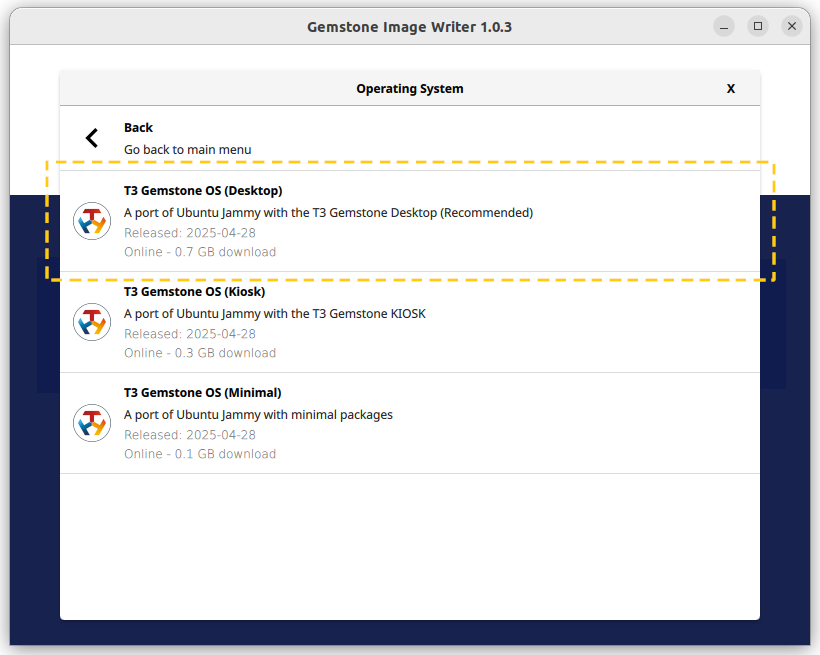
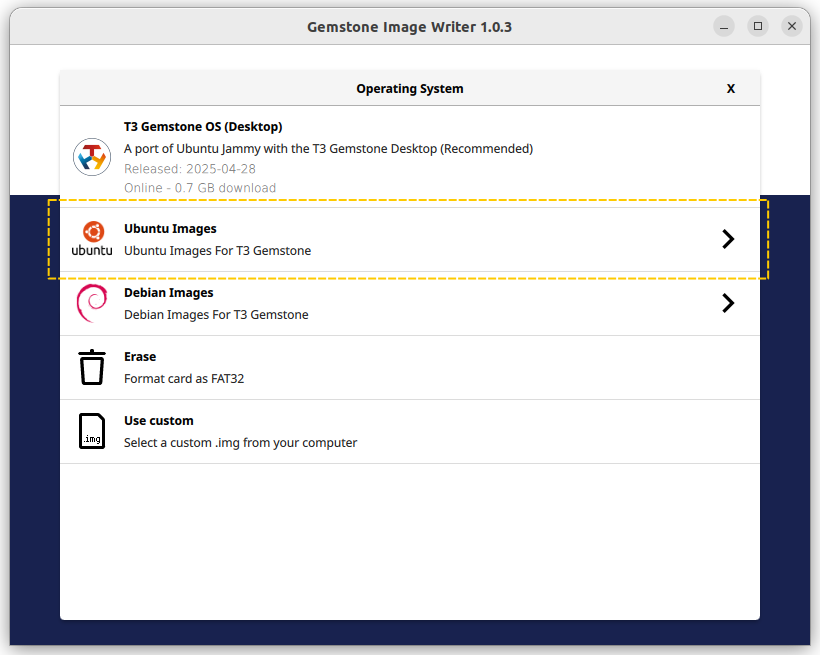 In the Operating System selection screen, clicking on Ubuntu or Debian images will display options like Desktop, Kiosk,
and Minimal. Select the Desktop image to complete the writing process.
In the Operating System selection screen, clicking on Ubuntu or Debian images will display options like Desktop, Kiosk,
and Minimal. Select the Desktop image to complete the writing process.
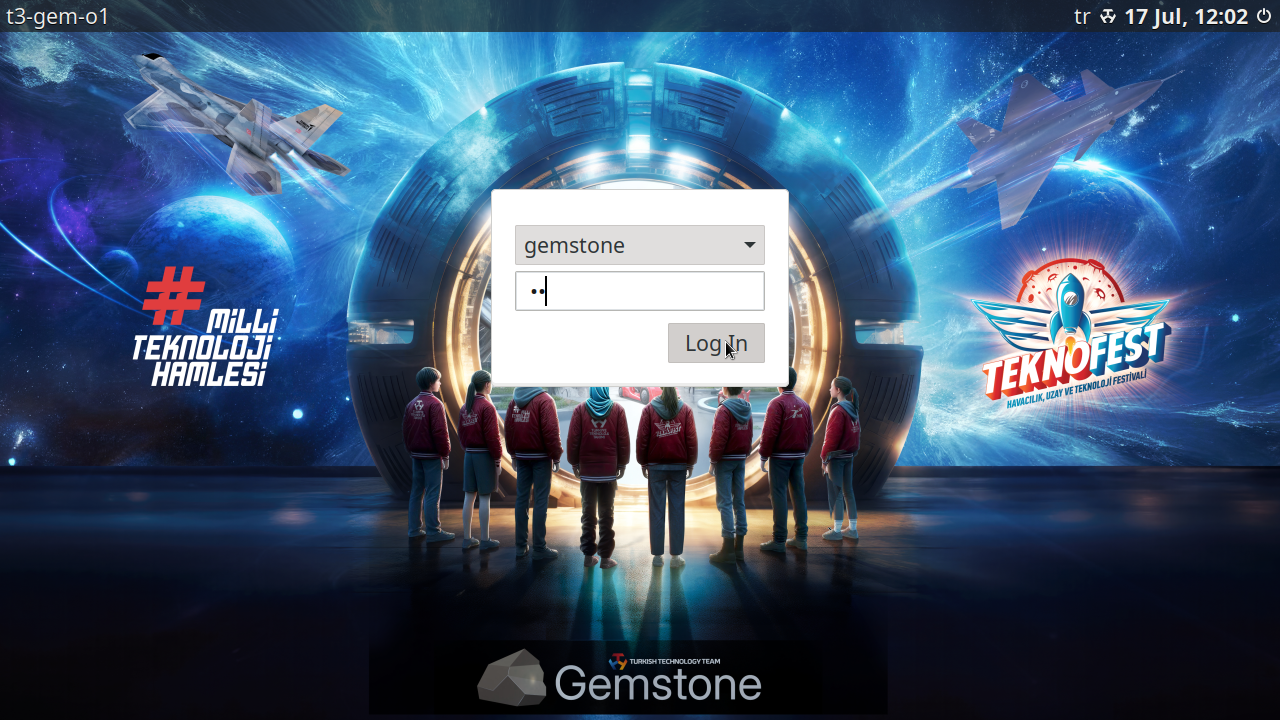
 Connect Gemstone to a monitor via HDMI cable. Connect USB Type-C cable to power-on the board. After the boot operation
is successful you will be greeted with the login screen.
Connect Gemstone to a monitor via HDMI cable. Connect USB Type-C cable to power-on the board. After the boot operation
is successful you will be greeted with the login screen.
 ## 3. Configuration
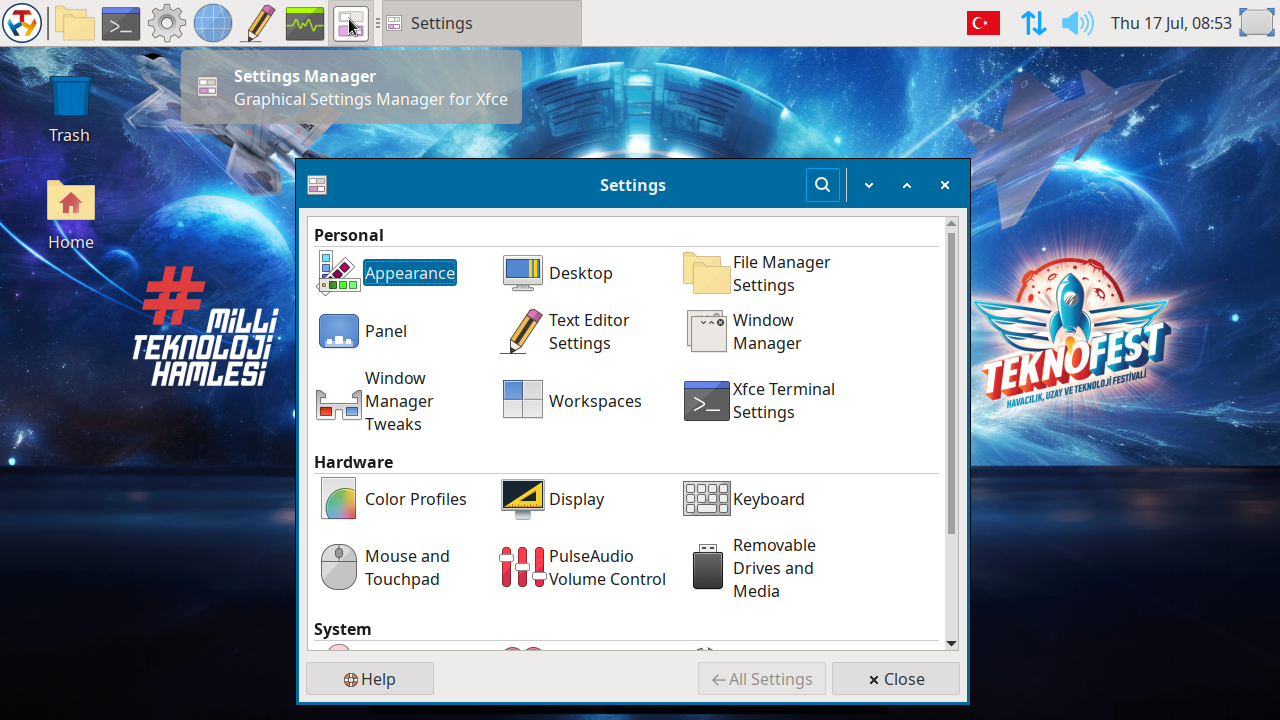
The `xfce4-settings` program provides a centralized way to customize your desktop environment. You can access these
settings via the **Setting Manager** icon in the panel, by clicking `Settings > Settings Manager` from the applications menu
or by running `xfce4-settings-manager` in the terminal.
## 3. Configuration
The `xfce4-settings` program provides a centralized way to customize your desktop environment. You can access these
settings via the **Setting Manager** icon in the panel, by clicking `Settings > Settings Manager` from the applications menu
or by running `xfce4-settings-manager` in the terminal.
 ### 3.1. Appearance
* **Styles**: Change the global theme (e.g. T3-Gemstone, Greybird), icons, and fonts.
* **Settings**: Adjust font DPI, enable/disable anti-aliasing.
### 3.2. Desktop
* **Styles**: Change the desktop background.
* **Settings**: Adjust desktop icons.
### 3.3. Panel
* **Styles**: Adjust autohide, panel size, panel location and transparency.
* **Settings**: Customize panel plugins (e.g. applications menu, launchers, clock).
### 3.4. Window Manager
* **Styles**: Switch between window themes (e.g., T3-Gemstone, Greybird).
* **Keyboard Shortcuts**: Define shortcuts for window operations.
### 3.5. Display
* **Settings**: Set screen resolution and refresh rate. Arrange displays and configure primary screen.
### 3.6. Keyboard
* **Settings**: Add/remove keyboard layouts (e.g., Turkish, English).
* **Keyboard Shortcuts**: Define shortcuts for launching applications.
### 3.7. Mouse and Touchpad
* **Styles**: Change cursor theme, adjust cursor size.
* **Settings**: Adjust cursor speed, double click and drag & drop time.
* **Keyboard Shortcuts**: Define shortcuts for launching applications.
### 3.7. Session and Startup
* **Settings**: Manage applications launched at login. Choose actions for logout (save/restore sessions).
### 3.8. Settings Editor
* **Settings**: Graphical tool for directly modifying low-level Xfce configuration properties. Unlike
`xfce4-settings-manager`, this editor exposes raw configuration channels
and properties used by Xfce components. Used for fine-tuning settings not available in standard UI.
## 4. Conclusion
By leveraging Xfce4’s modularity and mature ecosystem, we aim to deliver a **fast, customizable, and stable** desktop
experience. The selected applications ensure compatibility while minimizing resource usage.
### 3.1. Appearance
* **Styles**: Change the global theme (e.g. T3-Gemstone, Greybird), icons, and fonts.
* **Settings**: Adjust font DPI, enable/disable anti-aliasing.
### 3.2. Desktop
* **Styles**: Change the desktop background.
* **Settings**: Adjust desktop icons.
### 3.3. Panel
* **Styles**: Adjust autohide, panel size, panel location and transparency.
* **Settings**: Customize panel plugins (e.g. applications menu, launchers, clock).
### 3.4. Window Manager
* **Styles**: Switch between window themes (e.g., T3-Gemstone, Greybird).
* **Keyboard Shortcuts**: Define shortcuts for window operations.
### 3.5. Display
* **Settings**: Set screen resolution and refresh rate. Arrange displays and configure primary screen.
### 3.6. Keyboard
* **Settings**: Add/remove keyboard layouts (e.g., Turkish, English).
* **Keyboard Shortcuts**: Define shortcuts for launching applications.
### 3.7. Mouse and Touchpad
* **Styles**: Change cursor theme, adjust cursor size.
* **Settings**: Adjust cursor speed, double click and drag & drop time.
* **Keyboard Shortcuts**: Define shortcuts for launching applications.
### 3.7. Session and Startup
* **Settings**: Manage applications launched at login. Choose actions for logout (save/restore sessions).
### 3.8. Settings Editor
* **Settings**: Graphical tool for directly modifying low-level Xfce configuration properties. Unlike
`xfce4-settings-manager`, this editor exposes raw configuration channels
and properties used by Xfce components. Used for fine-tuning settings not available in standard UI.
## 4. Conclusion
By leveraging Xfce4’s modularity and mature ecosystem, we aim to deliver a **fast, customizable, and stable** desktop
experience. The selected applications ensure compatibility while minimizing resource usage.