> ## Documentation Index
> Fetch the complete documentation index at: https://docs.t3gemstone.org/llms.txt
> Use this file to discover all available pages before exploring further.
# Customization
> System customization
By the end of this section, you will understand the purpose of the fields in the customization menus of the
Gemstone Imager application.
After selecting the board, operating system, and storage options in the Gemstone Imager application and clicking
the `Next` button, the `OS Customisation` menu appears. This menu contains three tabs: `General`, `Services`,
and `Options`.
## General Tab
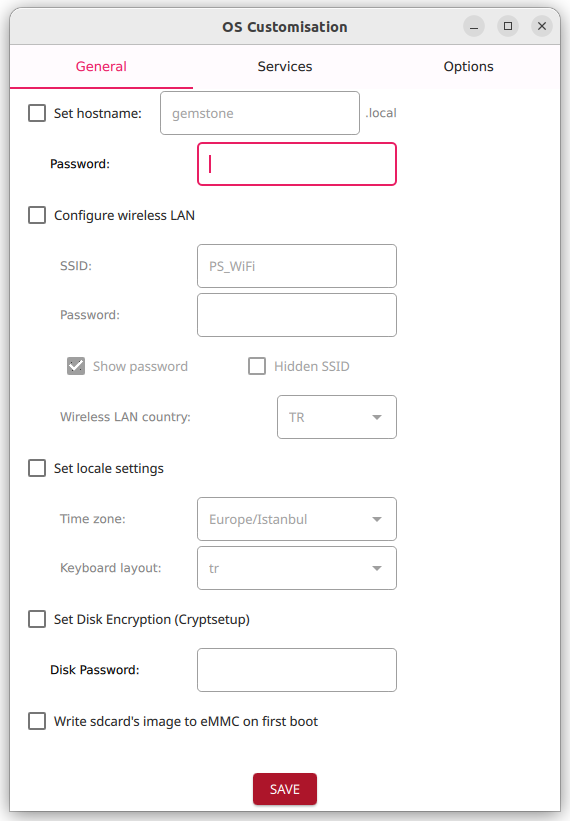 ### Hostname and Password Field
* The setting is activated by checking the box.
* The `Set Hostname` field is used to set the board's name. The default name is `gemstone`.
* The `Password` field sets the password for the default user (`gemstone`). There is no default value; entering a
password is mandatory.
### Configure Wireless LAN Field
* The setting is activated by checking the box.
* Enter the network name (SSID) in the `SSID` field.
* Enter the network password in the `Password` field.
* If the network is hidden, check the `Hidden SSID` box.
* Select the country code for your location in the `Wireless LAN country` field.
### Set Locale Settings Field
* The setting is activated by checking the box.
* Click the `Time Zone` box and select your time zone from the dropdown menu.
* Click the `Keyboard layout` box and select your preferred keyboard layout from the dropdown menu.
### Set Disk Encryption (Cryptsetup)
* The setting is activated by checking the box. Encrypts the disk to prevent the system from booting without
entering the password.
* Enter the password in the `Disk Password` field.
### Write SD Card's Image to eMMC on First Boot
* The setting is activated by checking the box. Writes the image from the SD card to the onboard storage (eMMC) during
the first boot, allowing the board to boot from the onboard storage.
## Services Tab
### Hostname and Password Field
* The setting is activated by checking the box.
* The `Set Hostname` field is used to set the board's name. The default name is `gemstone`.
* The `Password` field sets the password for the default user (`gemstone`). There is no default value; entering a
password is mandatory.
### Configure Wireless LAN Field
* The setting is activated by checking the box.
* Enter the network name (SSID) in the `SSID` field.
* Enter the network password in the `Password` field.
* If the network is hidden, check the `Hidden SSID` box.
* Select the country code for your location in the `Wireless LAN country` field.
### Set Locale Settings Field
* The setting is activated by checking the box.
* Click the `Time Zone` box and select your time zone from the dropdown menu.
* Click the `Keyboard layout` box and select your preferred keyboard layout from the dropdown menu.
### Set Disk Encryption (Cryptsetup)
* The setting is activated by checking the box. Encrypts the disk to prevent the system from booting without
entering the password.
* Enter the password in the `Disk Password` field.
### Write SD Card's Image to eMMC on First Boot
* The setting is activated by checking the box. Writes the image from the SD card to the onboard storage (eMMC) during
the first boot, allowing the board to boot from the onboard storage.
## Services Tab
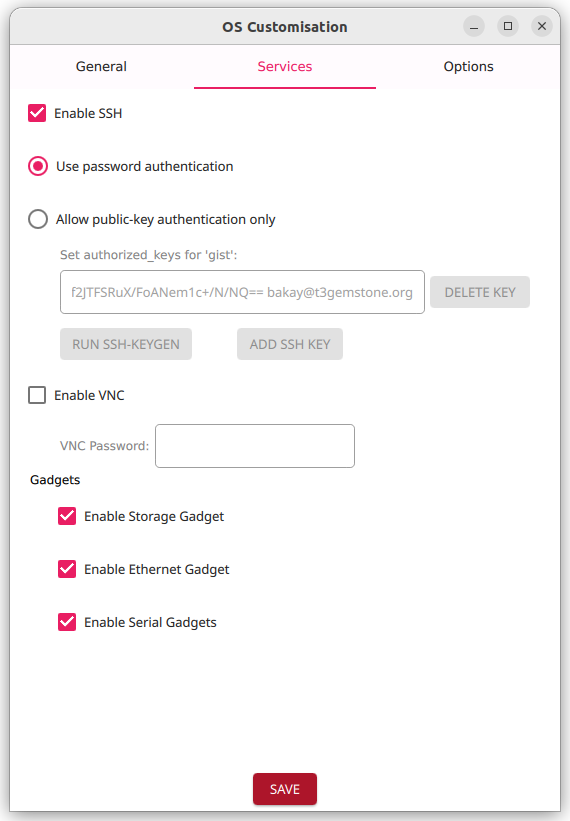 ### Enable SSH Field
* The setting is activated by checking the box. Allows terminal connections to the board over the network.
* When enabled, the default option `Use password authentication` is selected, allowing anyone with the password
to connect. If `Allow public-key authentication only` is selected, only devices with the provided key can connect.
### Enable VNC Field
* The setting is activated by checking the box. Allows connecting to the board's desktop GUI using only a browser.
### Enable SSH Field
* The setting is activated by checking the box. Allows terminal connections to the board over the network.
* When enabled, the default option `Use password authentication` is selected, allowing anyone with the password
to connect. If `Allow public-key authentication only` is selected, only devices with the provided key can connect.
### Enable VNC Field
* The setting is activated by checking the box. Allows connecting to the board's desktop GUI using only a browser.
 * When enabled, a password must be entered in the `Password` field. No default password is assigned.
The password must be a maximum of 8 characters. Longer passwords will be truncated after the 8th character.
### Gadgets Field
* The T3-GEM-O1 board can provide virtual Ethernet, serial port, and storage device connections via its Type-C port.
Check the box to enable these features:
* `Enable Storage Gadget`: Activates the virtual storage device.
* `Enable Ethernet Gadget`: Activates the virtual Ethernet device.
* `Enable Serial Gadget`: Activates the virtual serial port device.
When connecting to a Windows host computer, certain drivers must be installed to use the gadget features. For
instructions, [click here](https://www.diodes-delight.com/docs/piunora/usb-gadget/).
## Options Tab
* When enabled, a password must be entered in the `Password` field. No default password is assigned.
The password must be a maximum of 8 characters. Longer passwords will be truncated after the 8th character.
### Gadgets Field
* The T3-GEM-O1 board can provide virtual Ethernet, serial port, and storage device connections via its Type-C port.
Check the box to enable these features:
* `Enable Storage Gadget`: Activates the virtual storage device.
* `Enable Ethernet Gadget`: Activates the virtual Ethernet device.
* `Enable Serial Gadget`: Activates the virtual serial port device.
When connecting to a Windows host computer, certain drivers must be installed to use the gadget features. For
instructions, [click here](https://www.diodes-delight.com/docs/piunora/usb-gadget/).
## Options Tab
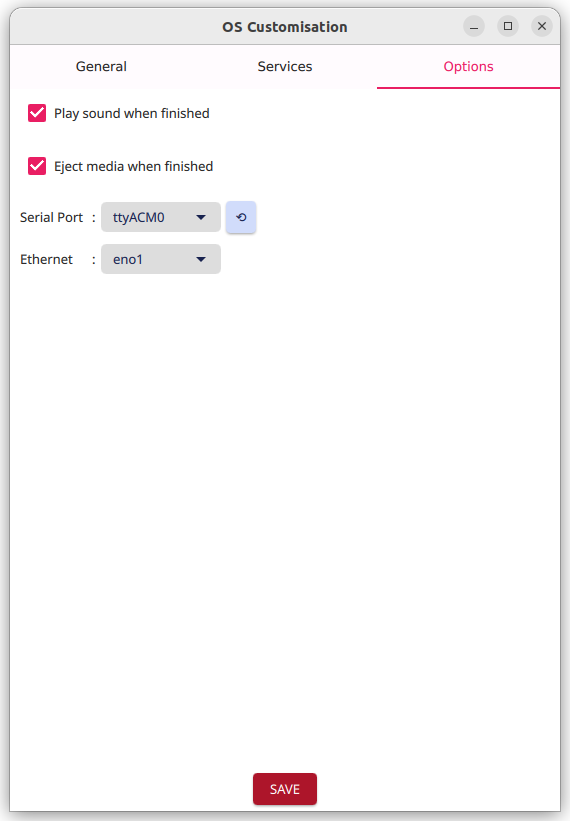 * `Play Sound when finished`: When checked, a notification sound plays upon completion of the writing process.
* `Eject media when finished`: When checked and writing to an SD card, the SD card is safely ejected automatically
upon completion. This has no effect when writing to onboard storage (eMMC).
* `Serial Port`: If writing to the board's eMMC, select the serial port connected to the board. This has no effect
when writing to an SD card.
* `Ethernet`: If writing to the board's eMMC, select the Ethernet port connected to the board. This has no effect when
writing to an SD card.
## Using the Host Computer's Internet via the Board
If the `Enable Ethernet Gadget` option is checked in the Gadgets section, this allows you to make an Ethernet
connection to your board via USB. After flashing the image, you can access the board from the host computer's
terminal using the command `ssh gemstone@192.168.7.2`. However, if you haven't configured the Wi-Fi settings on
your board, your board will not have internet access. To use your host computer's internet through the board,
you can follow the steps below:
1. Make sure your board is powered on and has been flashed with the image using the gadget settings.
2. Ensure that your host computer is connected to the internet.
3. Open the terminal and run the following command: use `ip a` to find out the names of your network interface
and the Ethernet interface created by your Gemstone board. Typically, the host computer's interface name
is `wlp2s0`, and the gadget interface name created by your Gemstone board is something like `enx02123456789a`.
Run the following command in the terminal on your own computer:
```bash theme={"system"}
INTERNET_IFACE="${1:-wlp2s0}"
OTHER_IFACE="${2:-enx02123456789a}"
echo 1 | sudo tee /proc/sys/net/ipv4/ip_forward
sudo iptables -A FORWARD -i $OTHER_IFACE -o $INTERNET_IFACE -j ACCEPT
sudo iptables -A FORWARD -i $INTERNET_IFACE -o $OTHER_IFACE -m state --state ESTABLISHED,RELATED -j ACCEPT
sudo iptables -t nat -A POSTROUTING -o $INTERNET_IFACE -j MASQUERADE
```
Finally, run the following command on the board's terminal after connecting to the board with `ssh gemstone@192.168.7.2`:
```bash theme={"system"}
sudo ip route add default via 192.168.7.59 dev usb0
```
* `Play Sound when finished`: When checked, a notification sound plays upon completion of the writing process.
* `Eject media when finished`: When checked and writing to an SD card, the SD card is safely ejected automatically
upon completion. This has no effect when writing to onboard storage (eMMC).
* `Serial Port`: If writing to the board's eMMC, select the serial port connected to the board. This has no effect
when writing to an SD card.
* `Ethernet`: If writing to the board's eMMC, select the Ethernet port connected to the board. This has no effect when
writing to an SD card.
## Using the Host Computer's Internet via the Board
If the `Enable Ethernet Gadget` option is checked in the Gadgets section, this allows you to make an Ethernet
connection to your board via USB. After flashing the image, you can access the board from the host computer's
terminal using the command `ssh gemstone@192.168.7.2`. However, if you haven't configured the Wi-Fi settings on
your board, your board will not have internet access. To use your host computer's internet through the board,
you can follow the steps below:
1. Make sure your board is powered on and has been flashed with the image using the gadget settings.
2. Ensure that your host computer is connected to the internet.
3. Open the terminal and run the following command: use `ip a` to find out the names of your network interface
and the Ethernet interface created by your Gemstone board. Typically, the host computer's interface name
is `wlp2s0`, and the gadget interface name created by your Gemstone board is something like `enx02123456789a`.
Run the following command in the terminal on your own computer:
```bash theme={"system"}
INTERNET_IFACE="${1:-wlp2s0}"
OTHER_IFACE="${2:-enx02123456789a}"
echo 1 | sudo tee /proc/sys/net/ipv4/ip_forward
sudo iptables -A FORWARD -i $OTHER_IFACE -o $INTERNET_IFACE -j ACCEPT
sudo iptables -A FORWARD -i $INTERNET_IFACE -o $OTHER_IFACE -m state --state ESTABLISHED,RELATED -j ACCEPT
sudo iptables -t nat -A POSTROUTING -o $INTERNET_IFACE -j MASQUERADE
```
Finally, run the following command on the board's terminal after connecting to the board with `ssh gemstone@192.168.7.2`:
```bash theme={"system"}
sudo ip route add default via 192.168.7.59 dev usb0
```