> ## Documentation Index
> Fetch the complete documentation index at: https://docs.t3gemstone.org/llms.txt
> Use this file to discover all available pages before exploring further.
# Cloud
> Gemstone Personal Cloud System
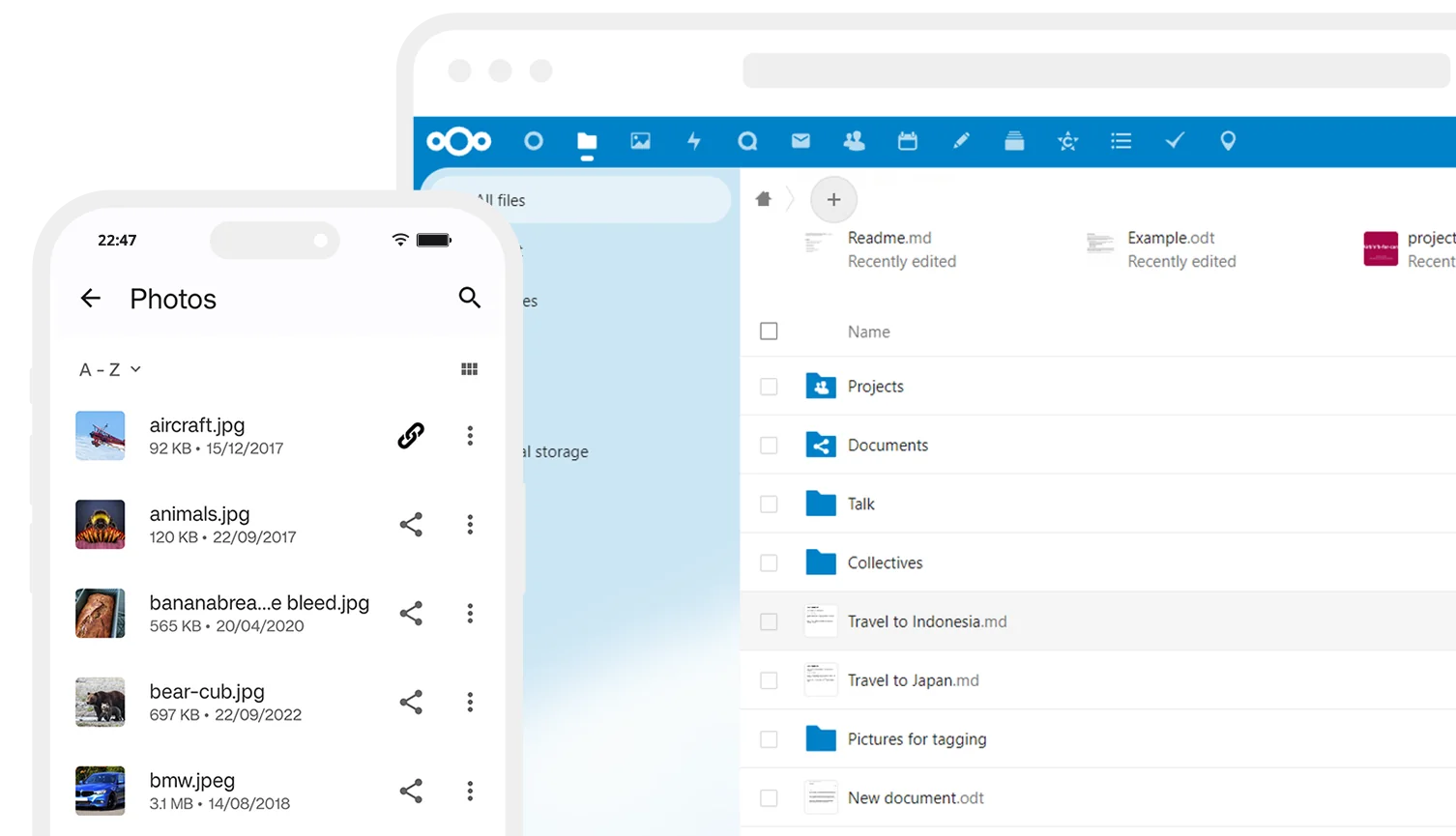 By the end of this section, you will have knowledge about the following topics.
* Installing the [Nextcloud](https://github.com/t3gemstone/t3-gem-nextcloud) cloud system on the Gemstone development board
* Methods used to access your Gemstone from your mobile phone or from anywhere in the world
## 1. Introduction
Today, control and security of personal data are more important than ever. You might want to manage your files, photos, calendars, notes, and even passwords in a centralized system without depending on major cloud providers like Amazon, Google, or Microsoft. To do this, you need to use a method called self-hosting, which means hosting your own server on your own devices. However, running a server at home brings technical problems such as the inability to access the server from anywhere with an internet connection and difficulties in ensuring data security. These problems are often solved with complex and costly methods. The `GemCloud` project enables these problems to be solved in an easy, cost-effective, and secure manner.
## 2. Nextcloud Installation
Nextcloud is an open-source cloud solution. It offers applications such as photo and file storage, chat, calendar, password manager, and Kanban task planning in one place.
After connecting to the Gemstone development board via [terminal connection](/en/quickstart/#2-explore-gemstone), start the Nextcloud installation with the following command.
```bash theme={"system"}
sudo apt install t3-gem-nextcloud
```
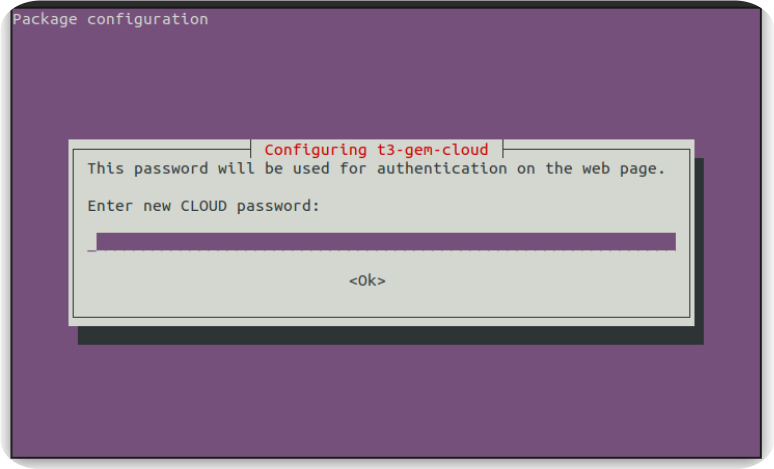
During the installation, you will encounter the following password entry screen. This password will be used in the database used by Nextcloud and as the Nextcloud `admin` user password. Choose a strong and memorable password and keep it safe.
By the end of this section, you will have knowledge about the following topics.
* Installing the [Nextcloud](https://github.com/t3gemstone/t3-gem-nextcloud) cloud system on the Gemstone development board
* Methods used to access your Gemstone from your mobile phone or from anywhere in the world
## 1. Introduction
Today, control and security of personal data are more important than ever. You might want to manage your files, photos, calendars, notes, and even passwords in a centralized system without depending on major cloud providers like Amazon, Google, or Microsoft. To do this, you need to use a method called self-hosting, which means hosting your own server on your own devices. However, running a server at home brings technical problems such as the inability to access the server from anywhere with an internet connection and difficulties in ensuring data security. These problems are often solved with complex and costly methods. The `GemCloud` project enables these problems to be solved in an easy, cost-effective, and secure manner.
## 2. Nextcloud Installation
Nextcloud is an open-source cloud solution. It offers applications such as photo and file storage, chat, calendar, password manager, and Kanban task planning in one place.
After connecting to the Gemstone development board via [terminal connection](/en/quickstart/#2-explore-gemstone), start the Nextcloud installation with the following command.
```bash theme={"system"}
sudo apt install t3-gem-nextcloud
```
During the installation, you will encounter the following password entry screen. This password will be used in the database used by Nextcloud and as the Nextcloud `admin` user password. Choose a strong and memorable password and keep it safe.
 Once the installation is complete, the Nextcloud server will start running on Gemstone. The next step explains how to connect to this cloud system from the outside world.
## 3. Access from the Public Internet
Accessing your home computers by IP address is only possible within your home network. The ability to access recently popular devices like robot vacuums, smart lighting systems, air conditioners controlled from mobile phones, and various household appliances from the outside world is made possible by these devices transferring data to servers set up by their manufacturers.
The easiest solution to access the Gemstone Cloud project from the outside world is to call your internet service provider to request a Static IP and set up port forwarding in your modem settings. For users who do not wish to do this, there are various solutions such as [Tailscale](https://tailscale.com/) and [Localtunnel](https://theboroer.github.io/localtunnel-www/).
```mermaid theme={"system"}
flowchart
n1@{ label: "Rectangle" }
n1["Robot Vacuum"]
n3["Air Conditioner"]
n1 --- n6
n2["Lighting"] --- n6
n3 --- n6
n6@{ shape: "diam", label: "WIFI Modem" }
n6@{ shape: "hex", label: "Wireless" }
n6
n5@{ shape: "stadium", label: "Server" }
n6@{ shape: "hex", label: "WIFI" } --- n5
n6@{ shape: "dbl-circ", label: "WIFI" }
n7@{ shape: "doc", label: "Mobile Phone" }
style n6 fill:#C1FF72
n7@{ shape: "diam", label: "Mobile Phone" }
n5@{ shape: "stadium", label: "Manufacturer Server" } --- n7@{ shape: "hex", label: "Mobile Phone" }
n8
n8["Smart Home Systems"] --- n6
style n7 fill:#00BF63
n5@{ shape: "lin-cyl", label: "Server" }
```
Once the installation is complete, the Nextcloud server will start running on Gemstone. The next step explains how to connect to this cloud system from the outside world.
## 3. Access from the Public Internet
Accessing your home computers by IP address is only possible within your home network. The ability to access recently popular devices like robot vacuums, smart lighting systems, air conditioners controlled from mobile phones, and various household appliances from the outside world is made possible by these devices transferring data to servers set up by their manufacturers.
The easiest solution to access the Gemstone Cloud project from the outside world is to call your internet service provider to request a Static IP and set up port forwarding in your modem settings. For users who do not wish to do this, there are various solutions such as [Tailscale](https://tailscale.com/) and [Localtunnel](https://theboroer.github.io/localtunnel-www/).
```mermaid theme={"system"}
flowchart
n1@{ label: "Rectangle" }
n1["Robot Vacuum"]
n3["Air Conditioner"]
n1 --- n6
n2["Lighting"] --- n6
n3 --- n6
n6@{ shape: "diam", label: "WIFI Modem" }
n6@{ shape: "hex", label: "Wireless" }
n6
n5@{ shape: "stadium", label: "Server" }
n6@{ shape: "hex", label: "WIFI" } --- n5
n6@{ shape: "dbl-circ", label: "WIFI" }
n7@{ shape: "doc", label: "Mobile Phone" }
style n6 fill:#C1FF72
n7@{ shape: "diam", label: "Mobile Phone" }
n5@{ shape: "stadium", label: "Manufacturer Server" } --- n7@{ shape: "hex", label: "Mobile Phone" }
n8
n8["Smart Home Systems"] --- n6
style n7 fill:#00BF63
n5@{ shape: "lin-cyl", label: "Server" }
```
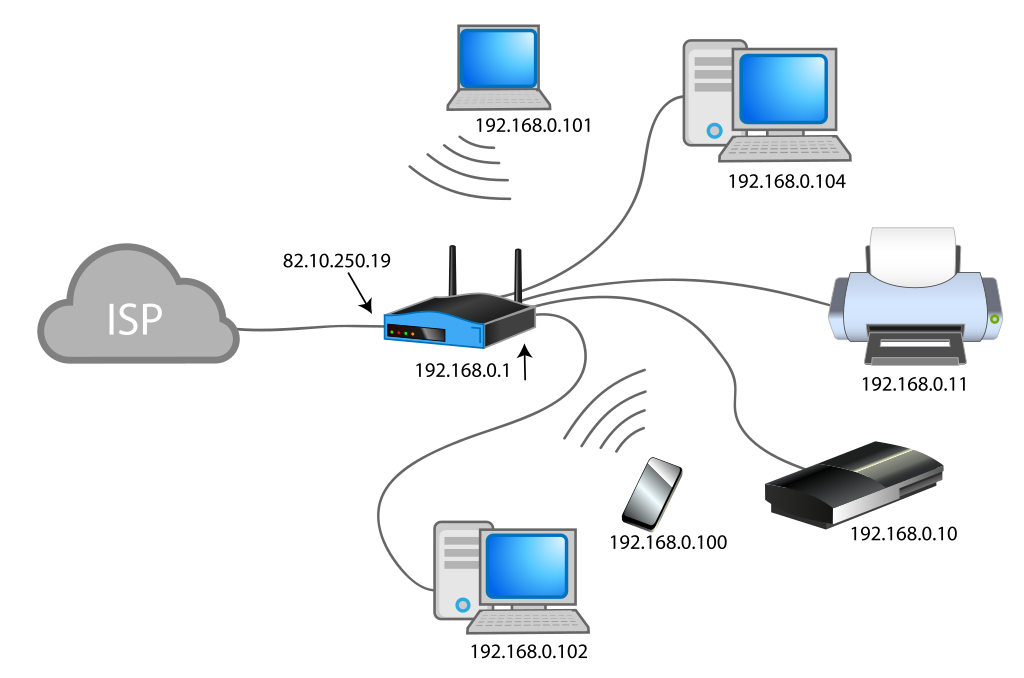 The basic principle is that a service installed on your computer communicates with Tailscale, allowing you to access your computer from the outside world via Tailscale.
### 3.1. Tailscale Installation
The basic principle is that a service installed on your computer communicates with Tailscale, allowing you to access your computer from the outside world via Tailscale.
### 3.1. Tailscale Installation
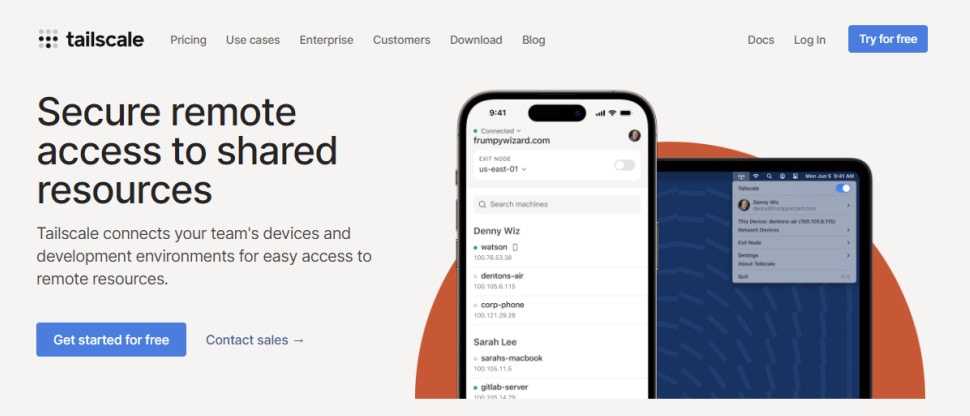 Click on this [link](https://login.tailscale.com/start) to sign up for Tailscale using your Github, Google, or Microsoft account.
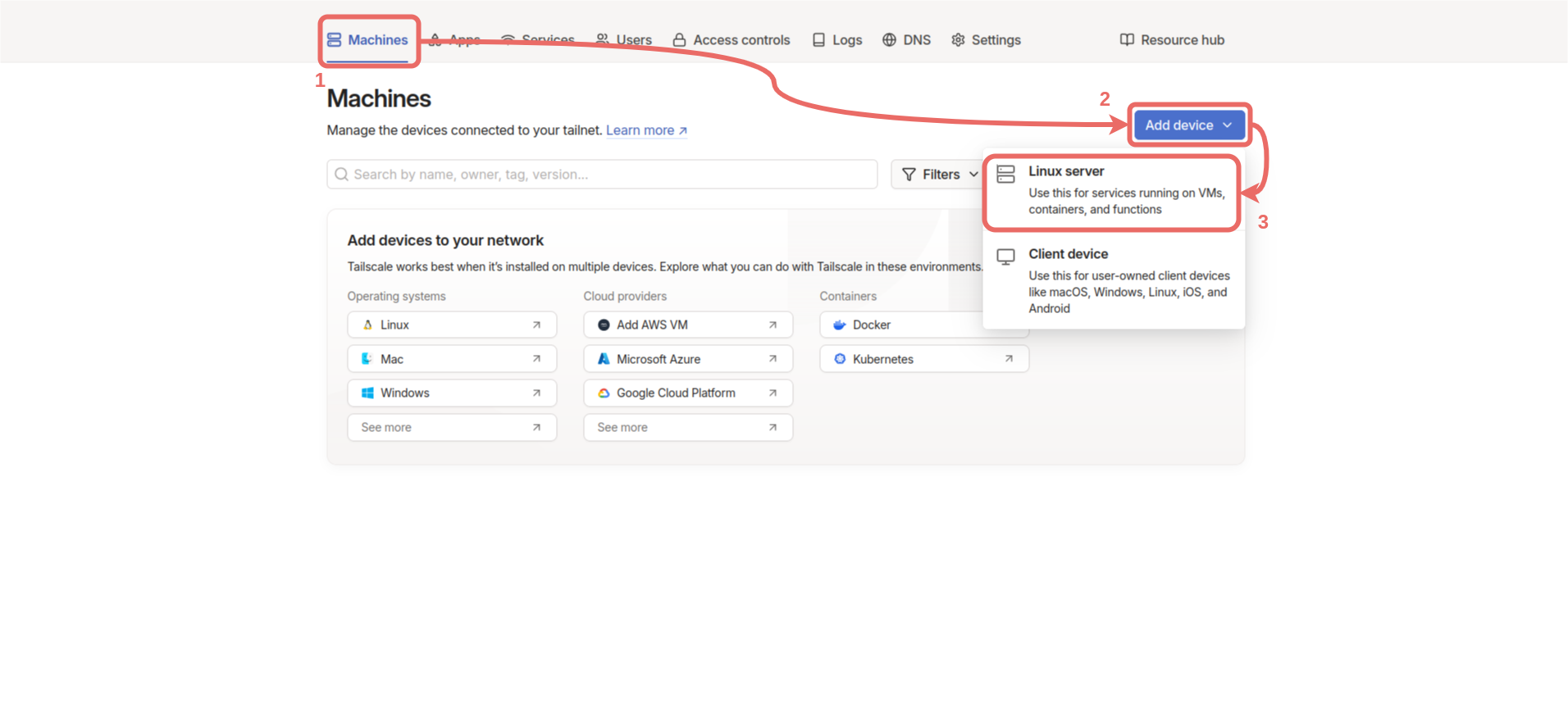
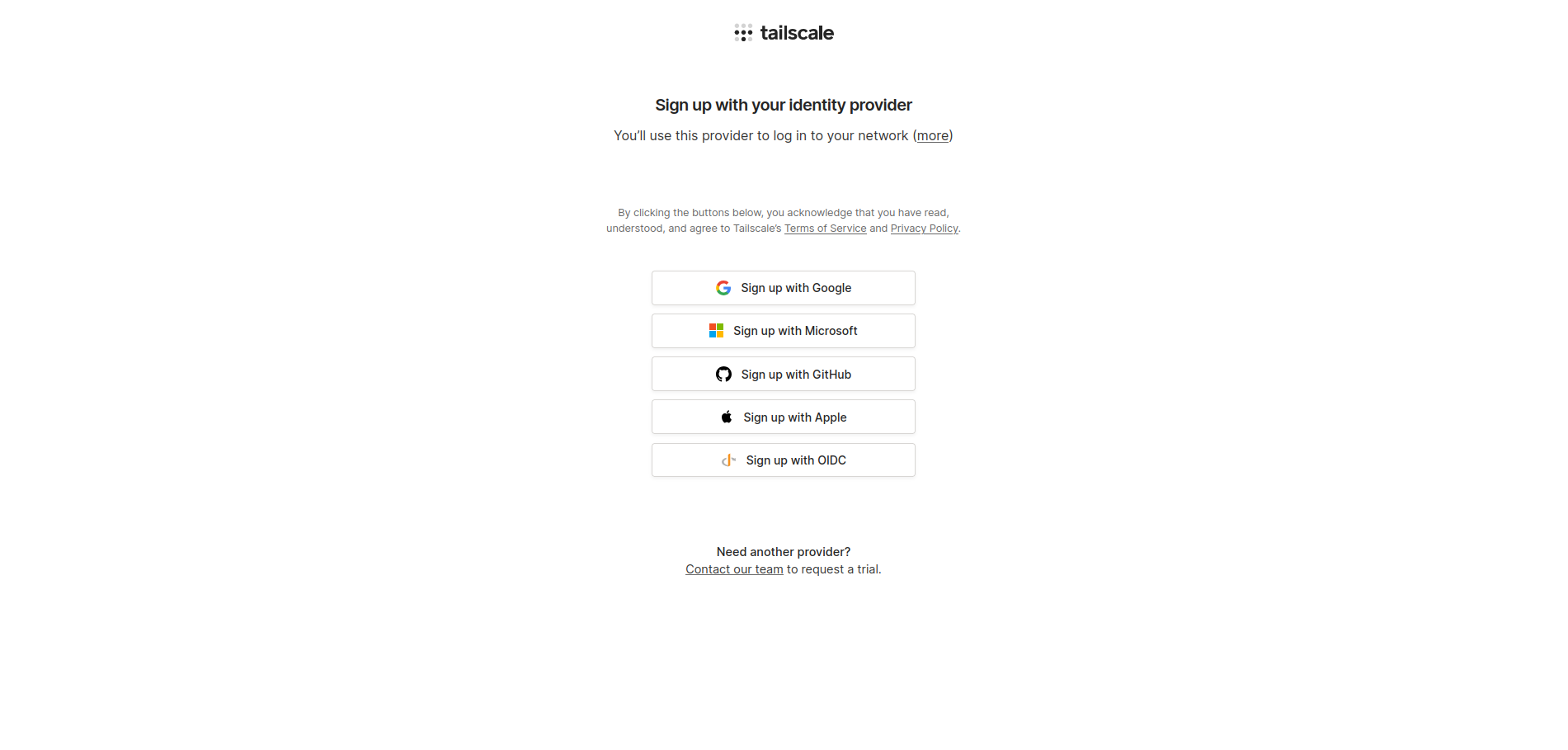 Once you log into your account, you will see the Tailscale control panel. To add the Gemstone board, select `Machines -> Add device -> Linux server`.
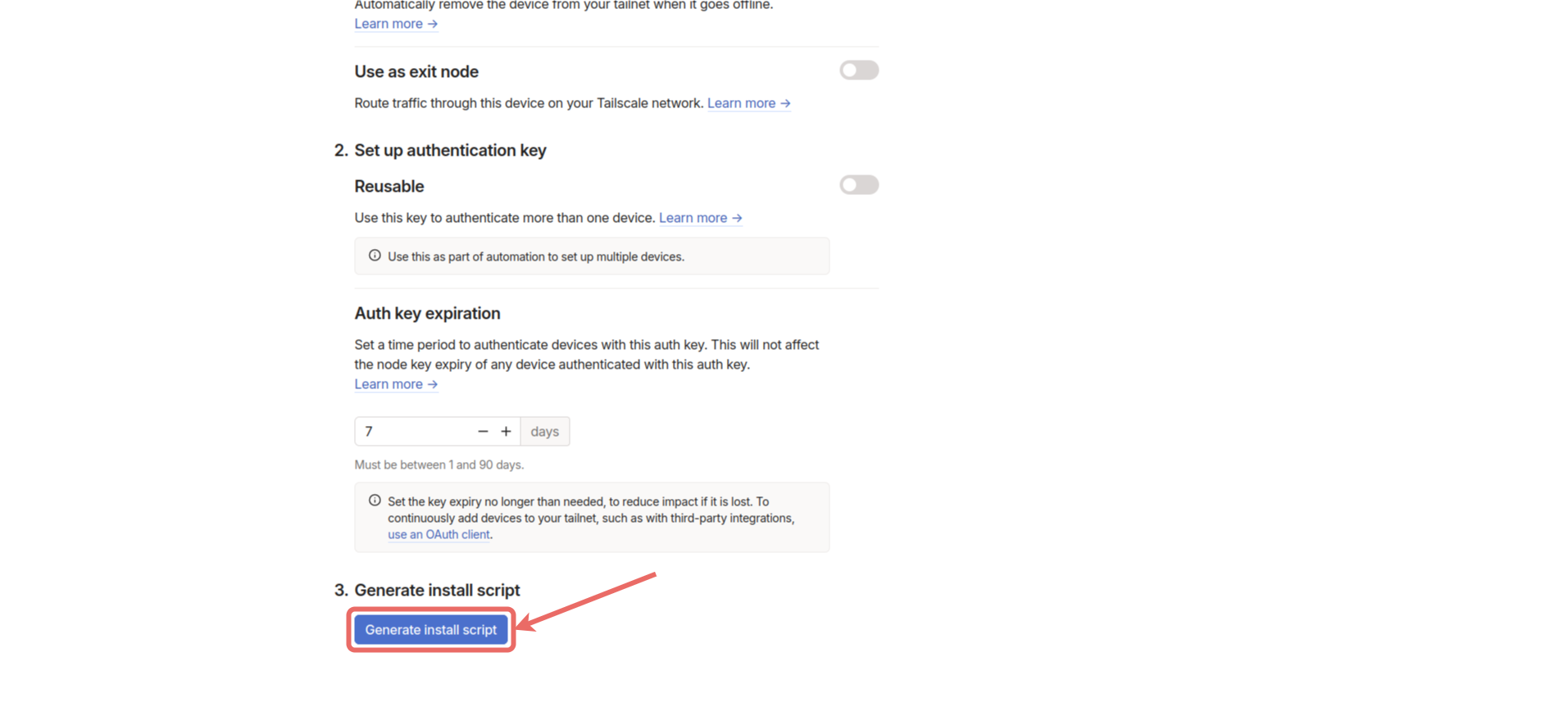
 Scroll to the bottom of the page and click the `Generate install script` button to copy the Tailscale installation command. Then, [connect to the Gemstone board via terminal](/en/quickstart/#2-explore-gemstone) and run the copied command in the terminal.
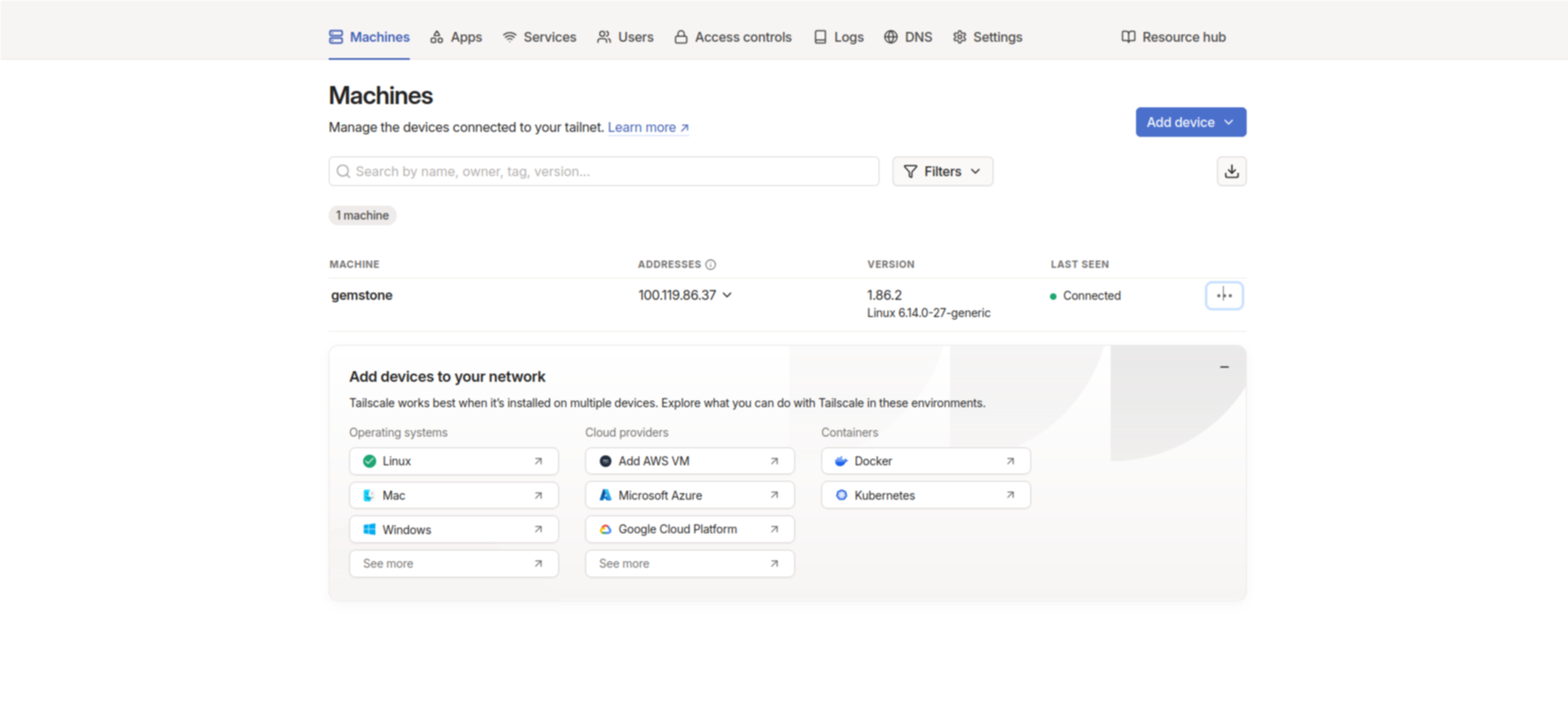
 After the Tailscale installation is complete, start the Tailscale services with the following command.
```bash theme={"system"}
sudo tailscale up
```
Verify that the connection is healthy by checking the `Machines` section in the Tailscale Control Panel to see if it says `Connected`.
After the Tailscale installation is complete, start the Tailscale services with the following command.
```bash theme={"system"}
sudo tailscale up
```
Verify that the connection is healthy by checking the `Machines` section in the Tailscale Control Panel to see if it says `Connected`.
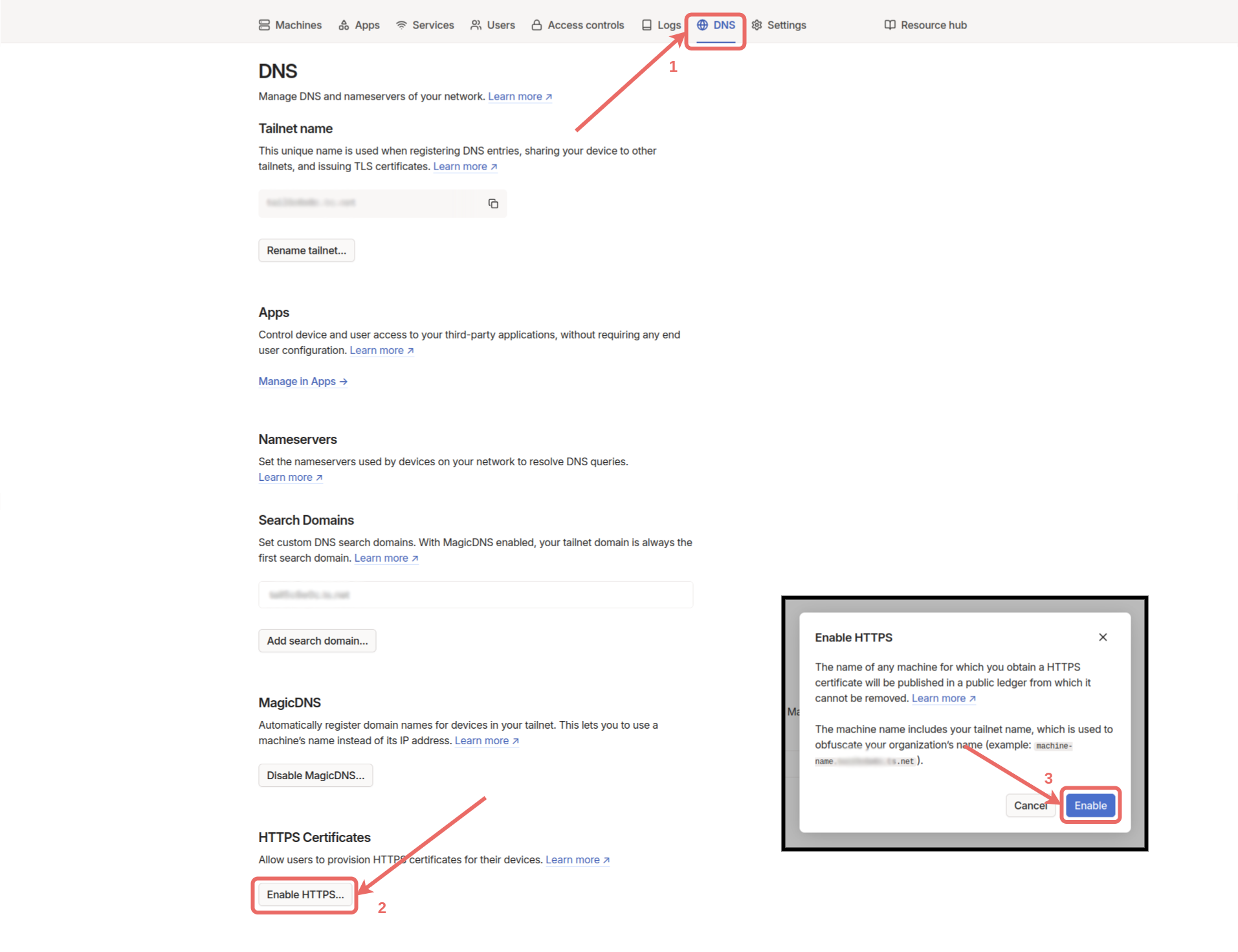
 The next step is to make the Nextcloud server accessible from the tailnet. Go to the `DNS` menu in the control panel and click the `Enable HTTPS` button at the bottom of the page, then click the `Enable` button.
 Connect to the development board via terminal and use the following command to make Nextcloud accessible to other devices on the network.
```bash theme={"system"}
sudo tailscale serve --bg --http=80 1453
```
After this step, other devices added to this network can access Nextcloud at [http://gemstone](http://gemstone). To add a client device (e.g., mobile phone, personal computer, or tablet) to the network, select the other option in the device addition section: `Machines -> Add device -> Client device`.
Connect to the development board via terminal and use the following command to make Nextcloud accessible to other devices on the network.
```bash theme={"system"}
sudo tailscale serve --bg --http=80 1453
```
After this step, other devices added to this network can access Nextcloud at [http://gemstone](http://gemstone). To add a client device (e.g., mobile phone, personal computer, or tablet) to the network, select the other option in the device addition section: `Machines -> Add device -> Client device`.
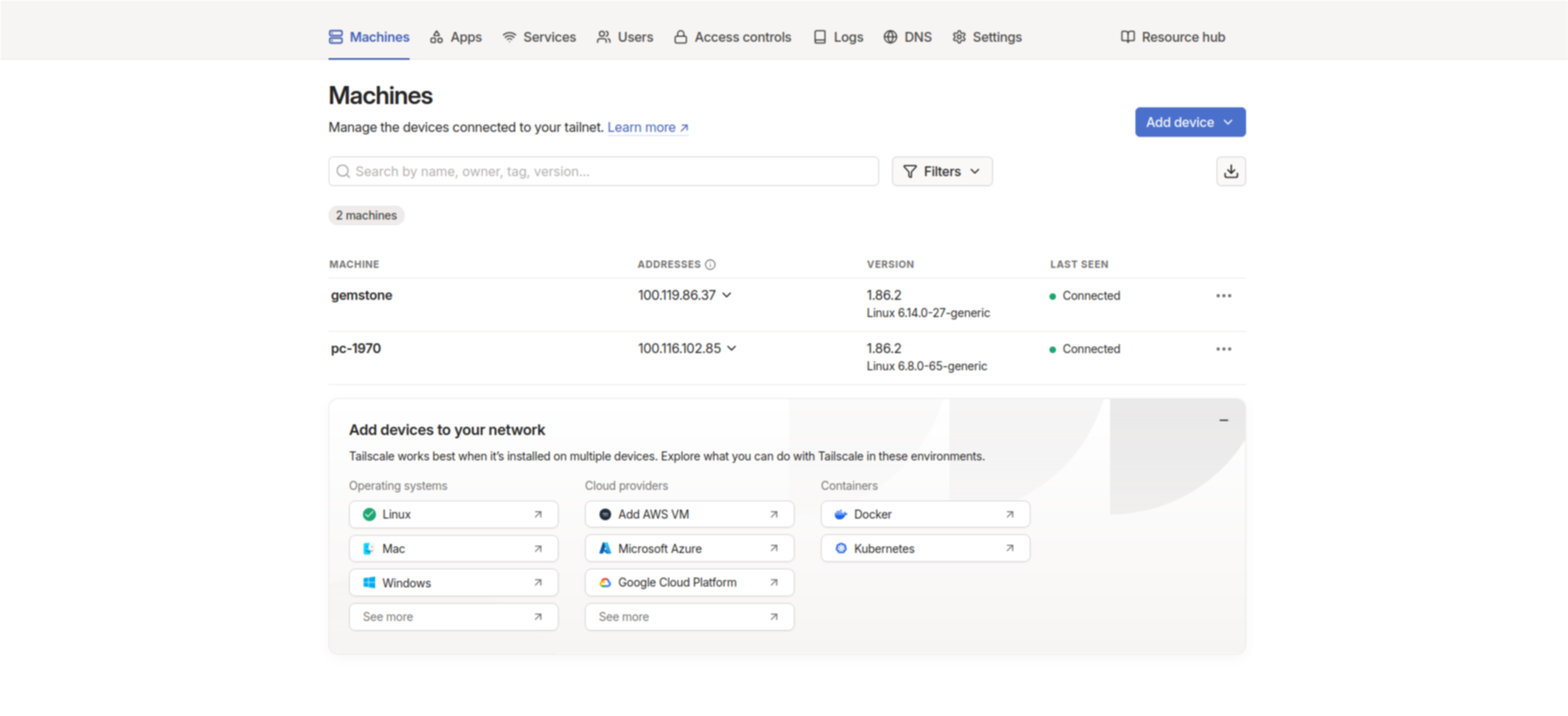
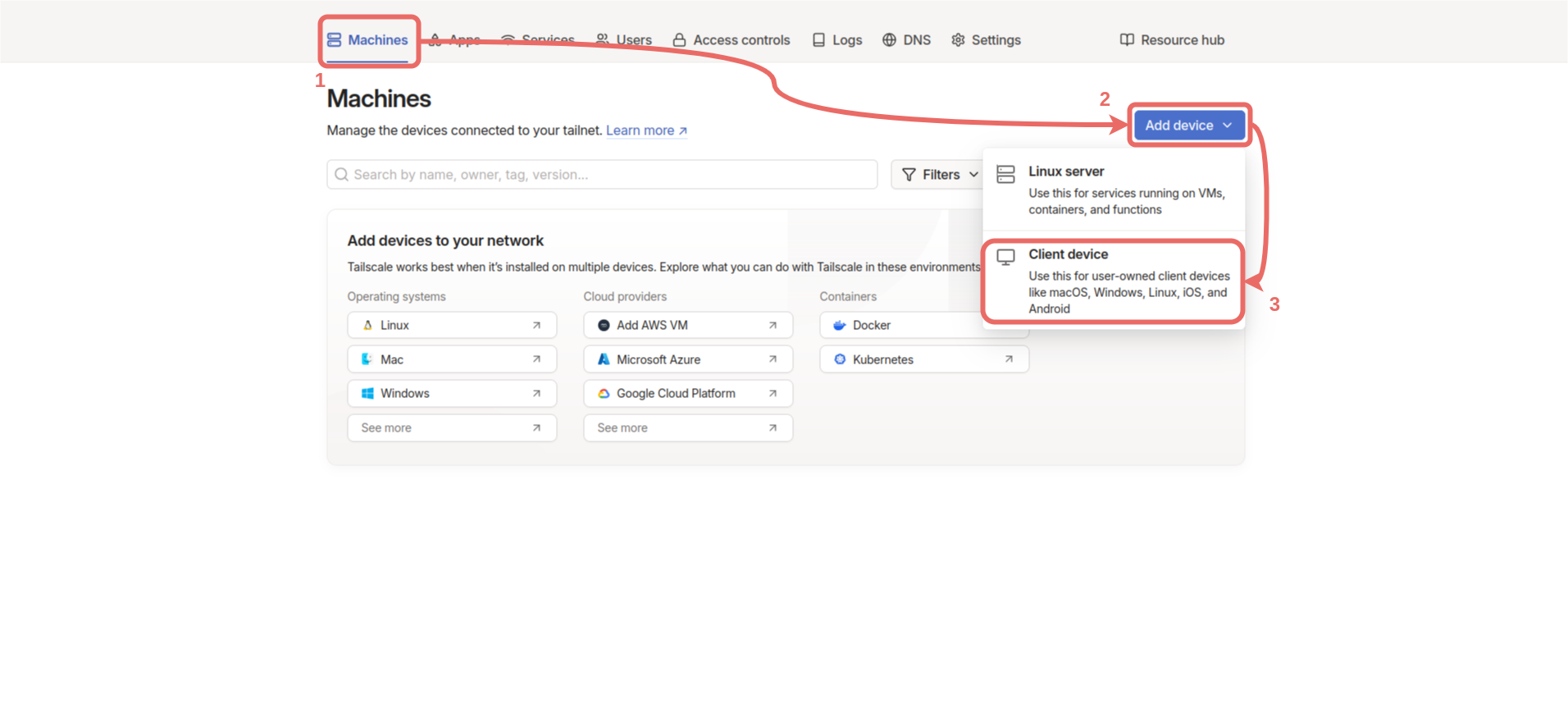 On the screen that opens, follow the installation instructions for your device to complete the Tailscale installation on the device you want to add. Start the Tailscale application and log in using the method appropriate for your operating system. Once you complete the steps, you should see the machine labeled `Connected` in the control panel.
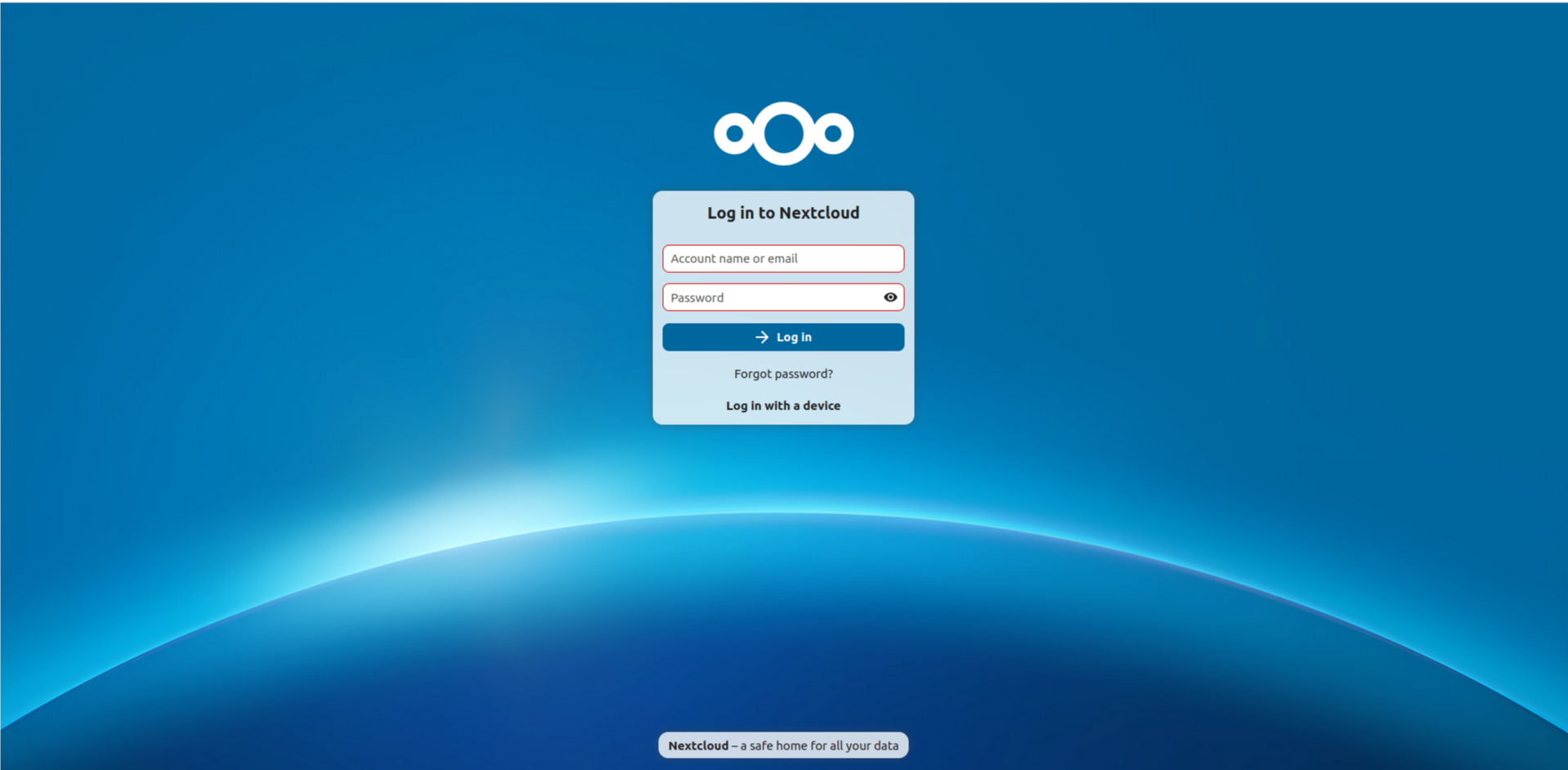
 When you go to [http://gemstone](http://gemstone) in the browser on the device you added, you will see the Nextcloud login page. The administrator account username is `admin`, and the password is the `CLOUD` password you entered during installation.
 ### 3.4. Why is Tailscale Used?
Due to the limited number of IPv4 addresses, internet service providers use CGNAT (Carrier-Grade NAT) to route multiple users through a single IPv4 address to the internet. This situation prevents direct access to servers running at home (in our case, Nextcloud). Tailscale solves this problem by establishing a WireGuard-based VPN network, overcoming CGNAT and traditional NAT barriers. Users can securely connect to the Nextcloud server from anywhere with internet access, using only authorized devices. Thus, a closed and controlled network environment is provided without the need for public IP sharing.
### 3.5. Usage with Static IP
Under construction...
## 4. Advanced Security
### 4.1. Nextcloud Two-Factor Authentication
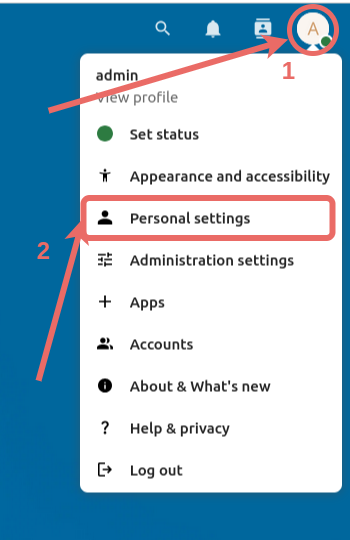
After logging into the admin account, click the profile picture at the top and select `Personal Settings` from the menu that opens.
### 3.4. Why is Tailscale Used?
Due to the limited number of IPv4 addresses, internet service providers use CGNAT (Carrier-Grade NAT) to route multiple users through a single IPv4 address to the internet. This situation prevents direct access to servers running at home (in our case, Nextcloud). Tailscale solves this problem by establishing a WireGuard-based VPN network, overcoming CGNAT and traditional NAT barriers. Users can securely connect to the Nextcloud server from anywhere with internet access, using only authorized devices. Thus, a closed and controlled network environment is provided without the need for public IP sharing.
### 3.5. Usage with Static IP
Under construction...
## 4. Advanced Security
### 4.1. Nextcloud Two-Factor Authentication
After logging into the admin account, click the profile picture at the top and select `Personal Settings` from the menu that opens.
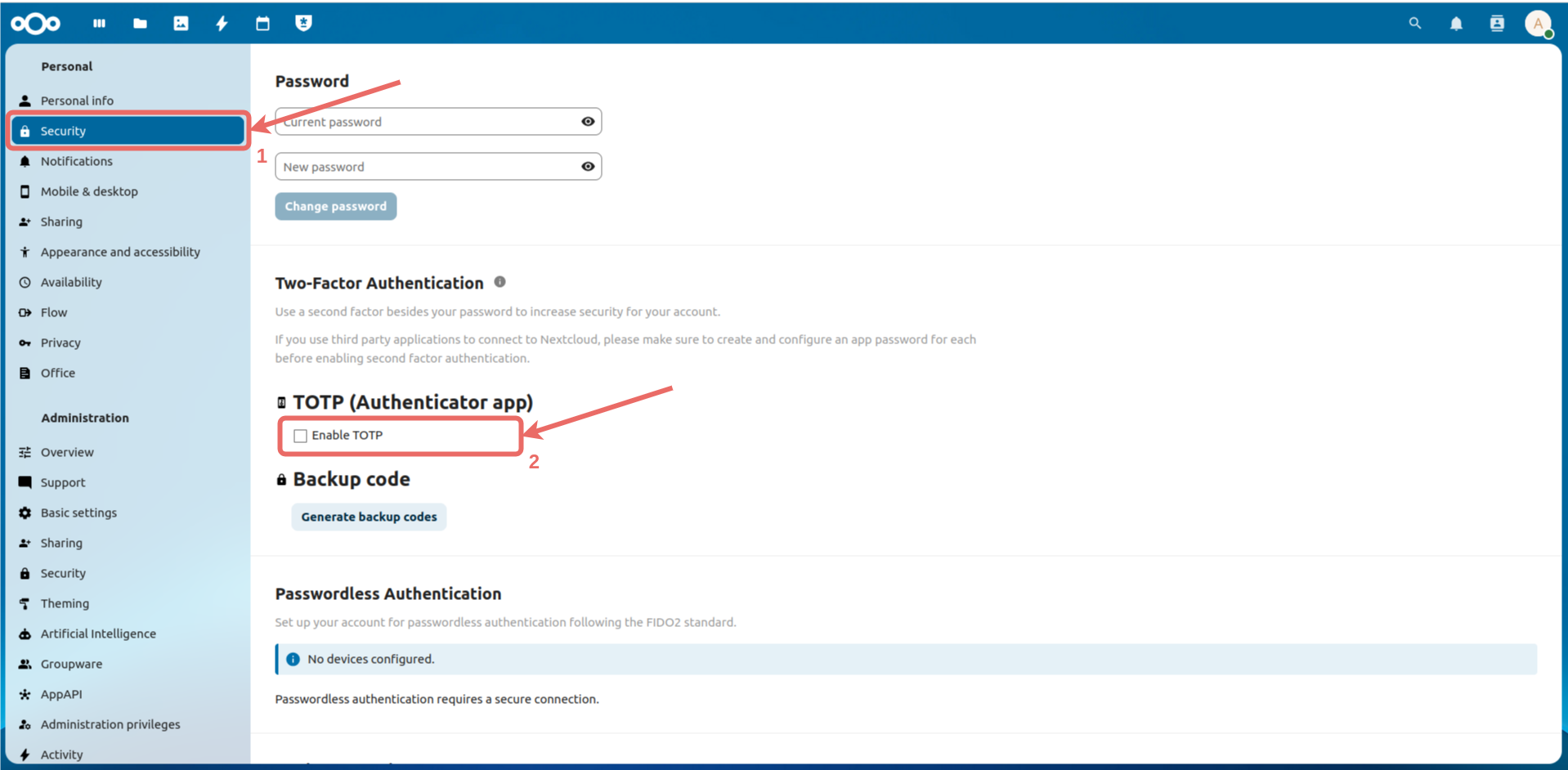
 Then, select `Security` from the left menu and check the `Enable TOTP` box.
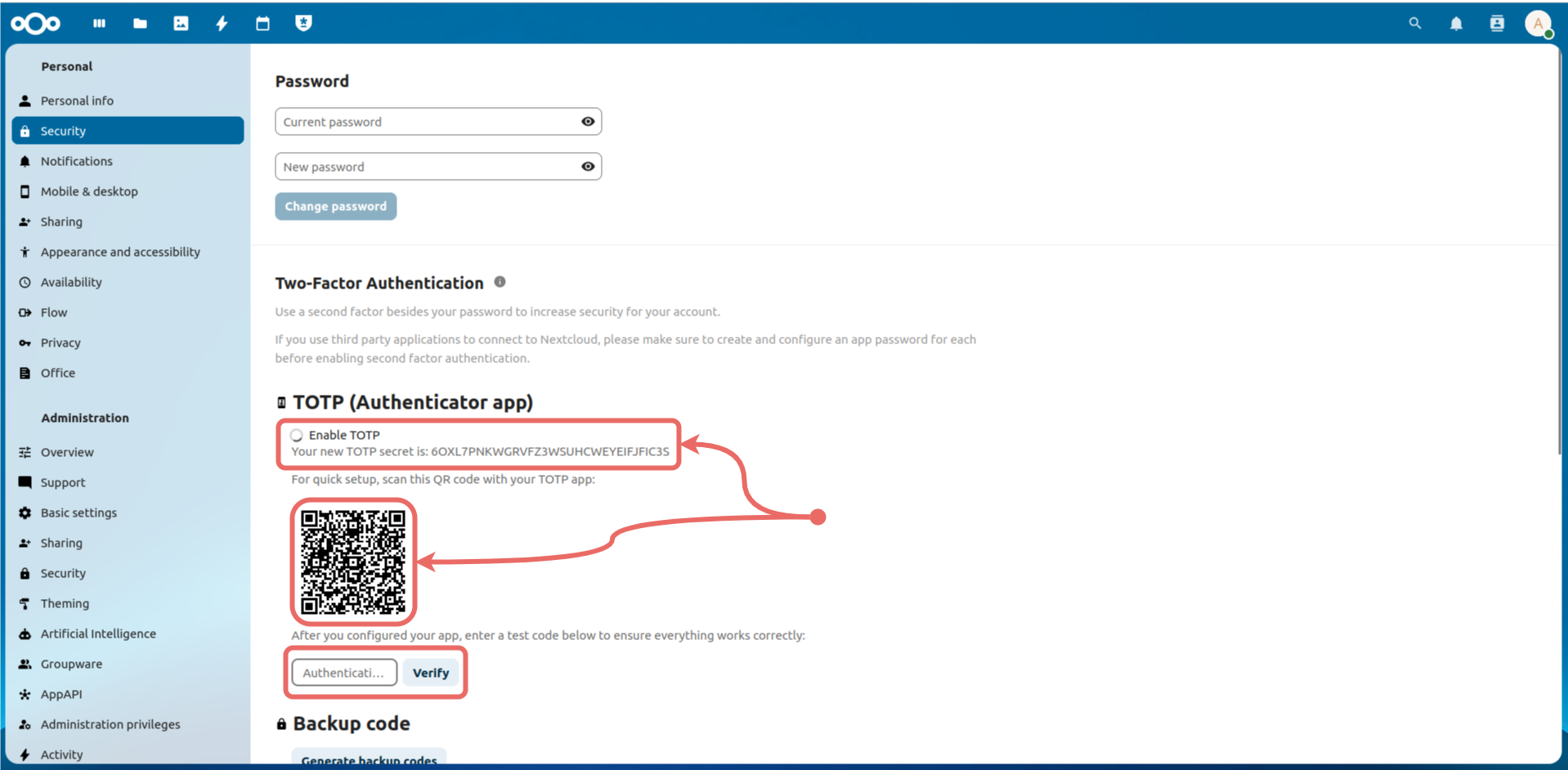
 When you check this option, enter the generated password or QR code into your verification application to generate a code. Finally, enter the generated code in the `Authentication` field and click the `Verify` button to complete the process.
 From now on, in addition to your password, you will need to use a verification code to log into your account as an additional security measure.
### 4.2. Enabling Tailscale Tailnet Lock
In this system, access to Nextcloud is only possible from devices added to the tailnet, making the system secure. However, there is a closed-source server called the `Coordination Server` by Tailscale that controls which devices can be added to the network. The decision of whether a device can join the tailnet is made by this server.
In the worst-case scenario, if Tailscale targets you, the `Coordination Server` could add devices to your tailnet without your permission. Tailscale solves this problem with a method called `Tailnet Lock`. Tailnet Lock stores the keys that allow joining the network on two devices you specify within your network, instead of on Tailscale's own `Coordination Server`. Thus, only these two devices can manage entries into your tailnet.
From the control panel, click `Settings -> Device management -> Enable tailnet lock`.
From now on, in addition to your password, you will need to use a verification code to log into your account as an additional security measure.
### 4.2. Enabling Tailscale Tailnet Lock
In this system, access to Nextcloud is only possible from devices added to the tailnet, making the system secure. However, there is a closed-source server called the `Coordination Server` by Tailscale that controls which devices can be added to the network. The decision of whether a device can join the tailnet is made by this server.
In the worst-case scenario, if Tailscale targets you, the `Coordination Server` could add devices to your tailnet without your permission. Tailscale solves this problem with a method called `Tailnet Lock`. Tailnet Lock stores the keys that allow joining the network on two devices you specify within your network, instead of on Tailscale's own `Coordination Server`. Thus, only these two devices can manage entries into your tailnet.
From the control panel, click `Settings -> Device management -> Enable tailnet lock`.
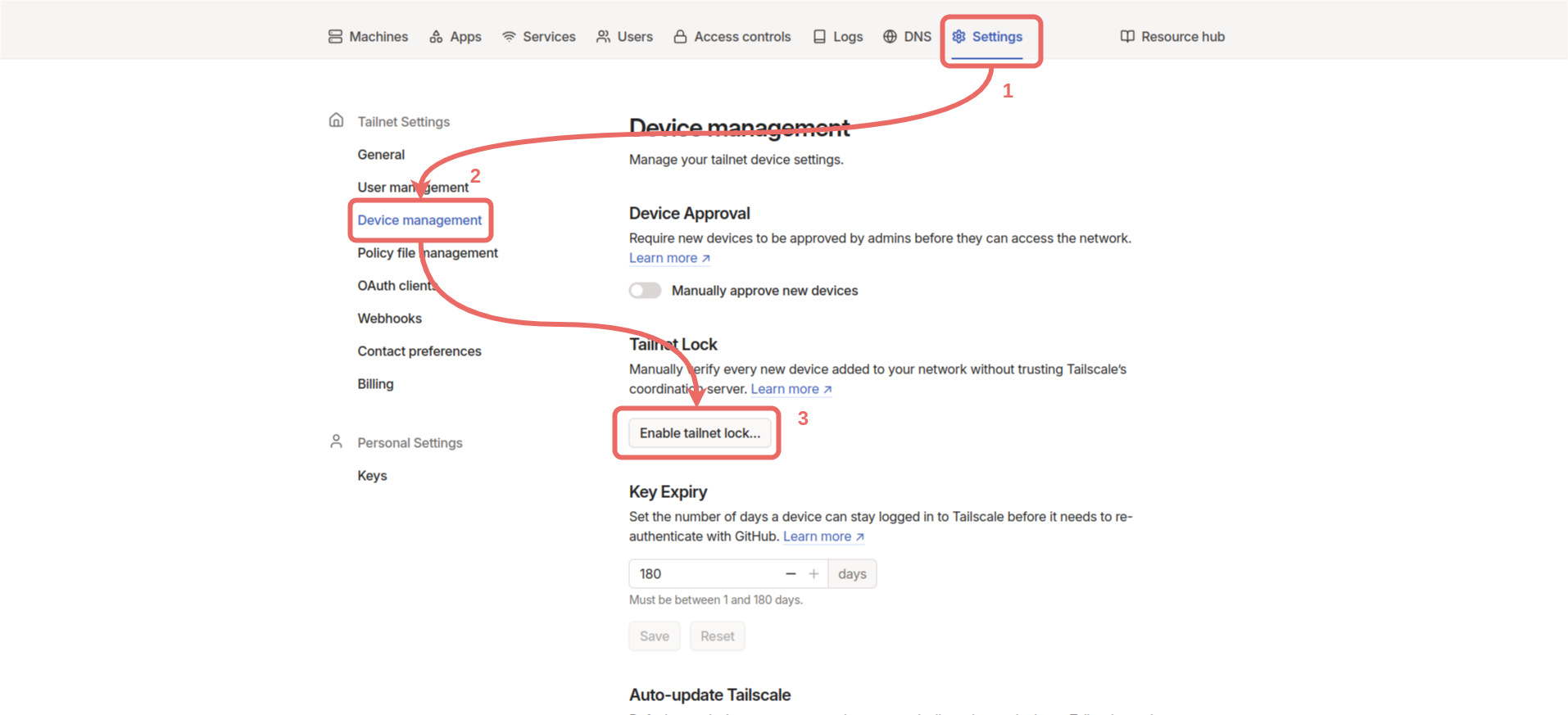 On the Enable tailnet lock screen, click `Add new signing node` and select two devices already in the tailnet. If there are other devices in your tailnet, the devices selected here should be ones you trust.
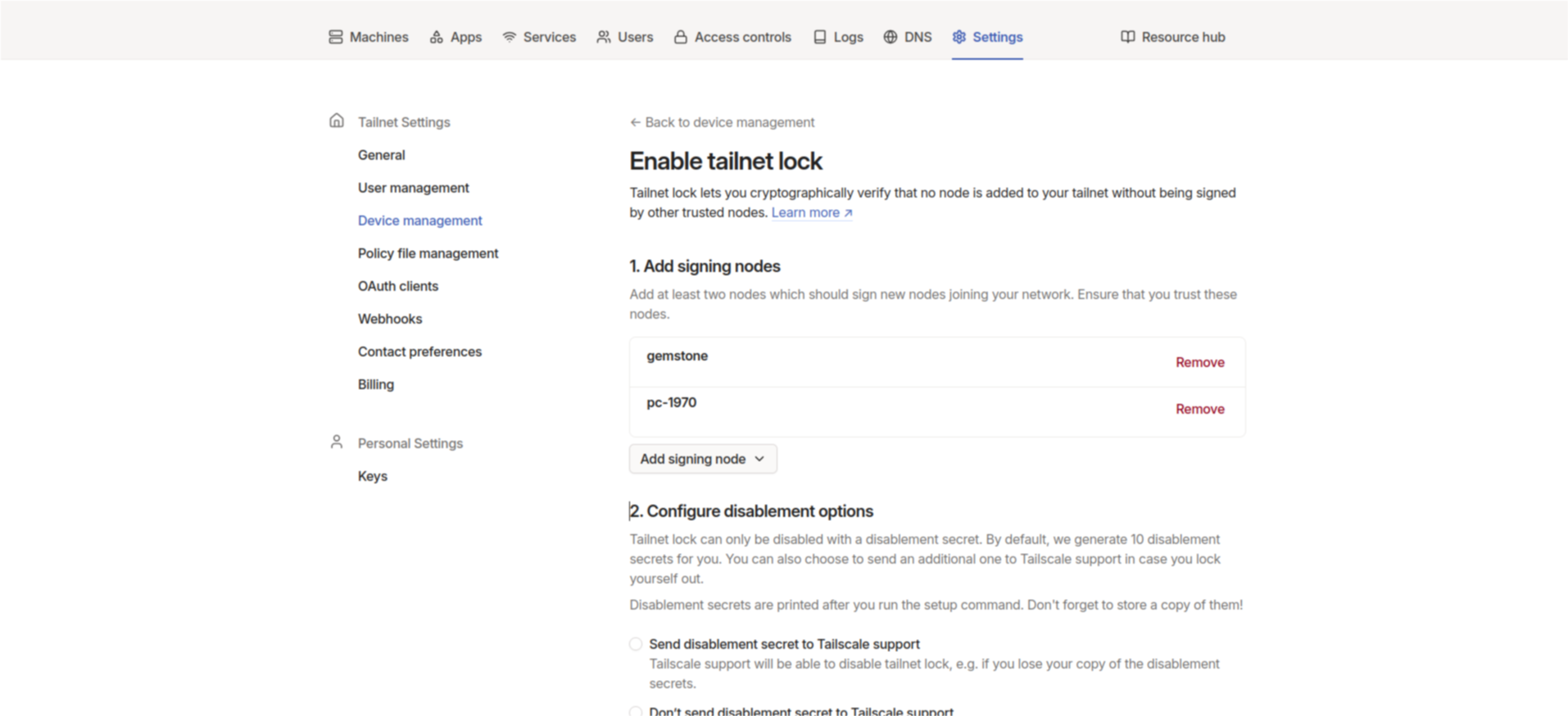 Once Tailnet Lock is activated, the only way to revert is by using the Tailnet lock disablement secrets. If you lose access to your network for any reason, recovering the network is impossible without these codes. Tailscale recommends sending one of these codes to their support system, but you can instead store the passwords in a location you trust.
Go to the `Configure disablement options` section and click `Don’t send disablement secret to Tailscale support`. Copy the command from the `Run command from signing node` section and run it on one of the devices we added (For example, you can run it on the Gemstone board).
Once Tailnet Lock is activated, the only way to revert is by using the Tailnet lock disablement secrets. If you lose access to your network for any reason, recovering the network is impossible without these codes. Tailscale recommends sending one of these codes to their support system, but you can instead store the passwords in a location you trust.
Go to the `Configure disablement options` section and click `Don’t send disablement secret to Tailscale support`. Copy the command from the `Run command from signing node` section and run it on one of the devices we added (For example, you can run it on the Gemstone board).
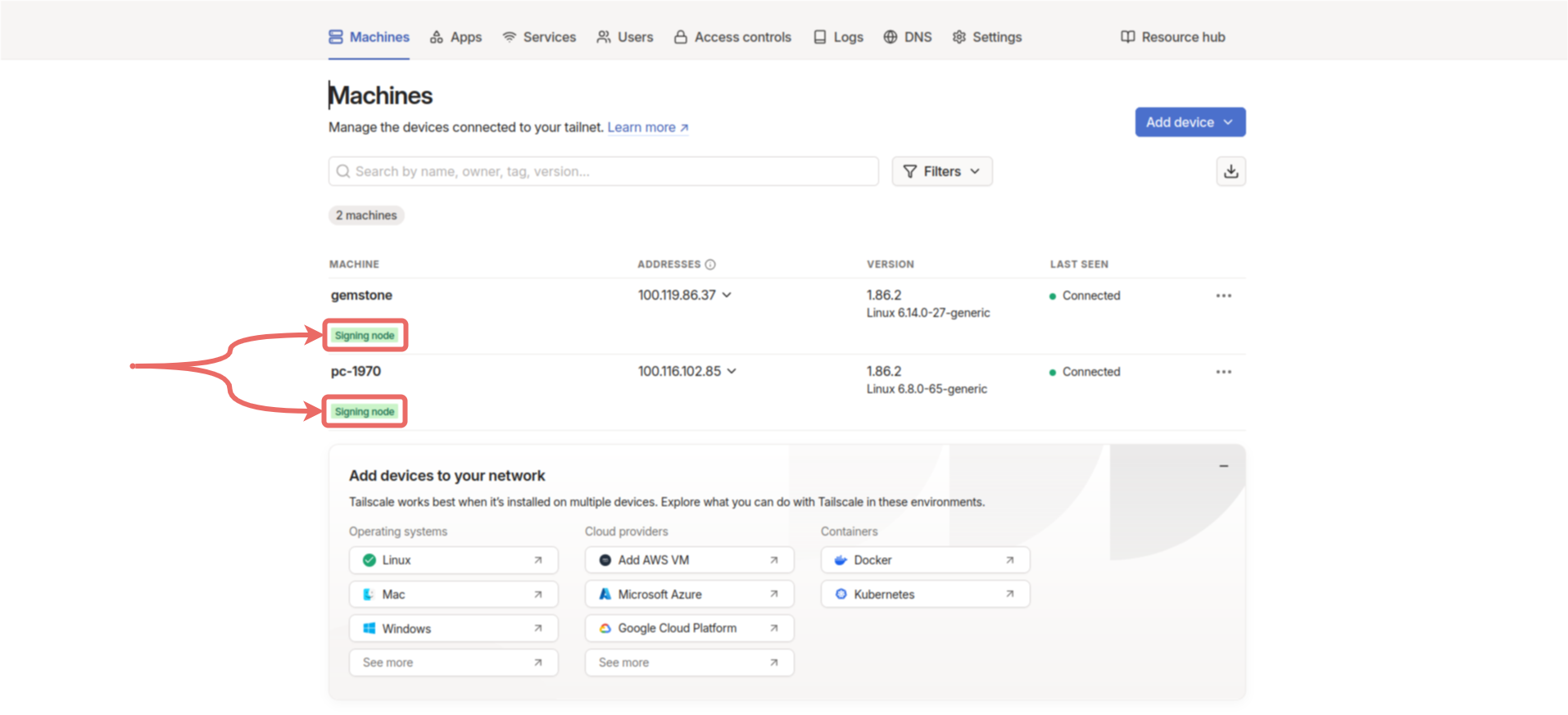
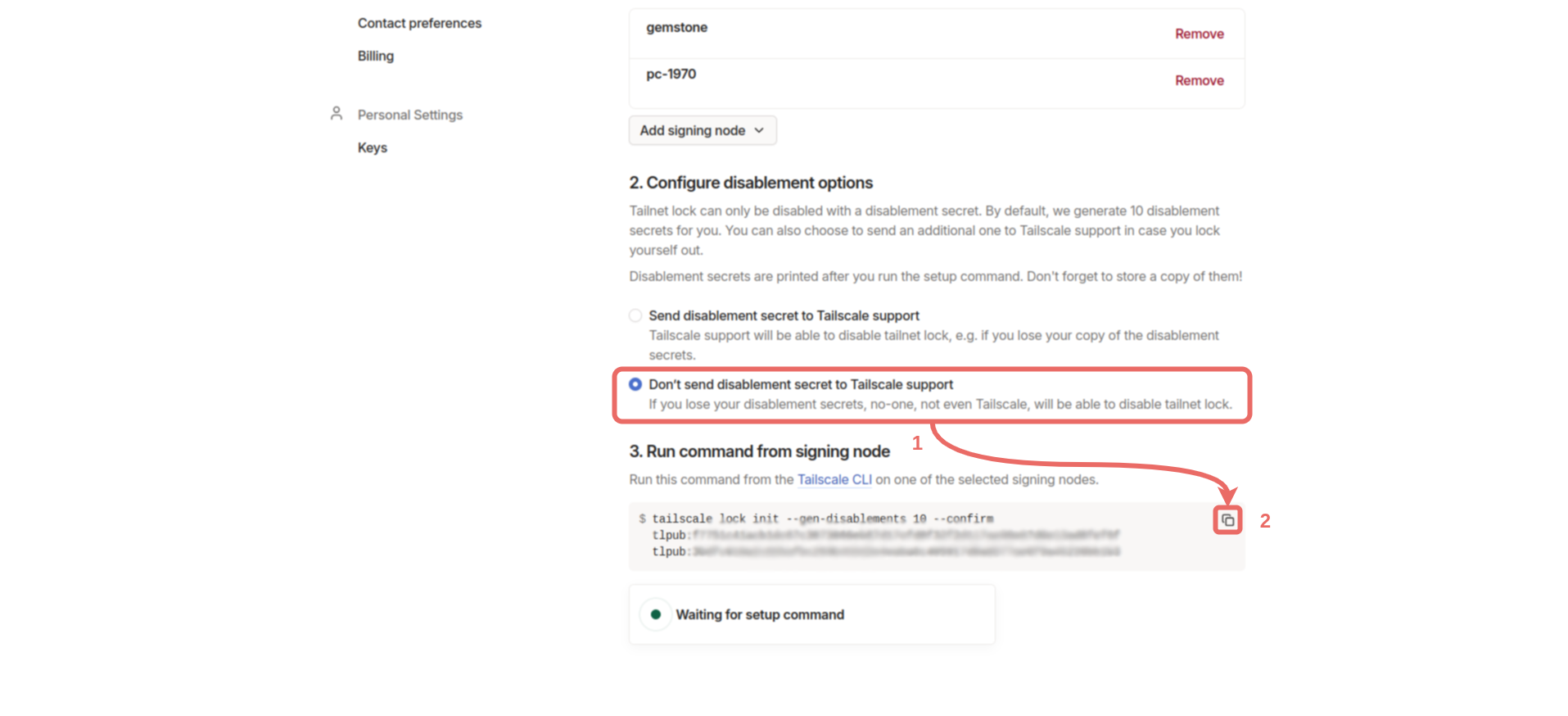 When you run it, note the disablement secrets that appear in the format `disablement-secret:XXXXXXXX` in a secure location. In the control panel, under `Machines`, you should see the `Signing node` label under the two devices we selected.
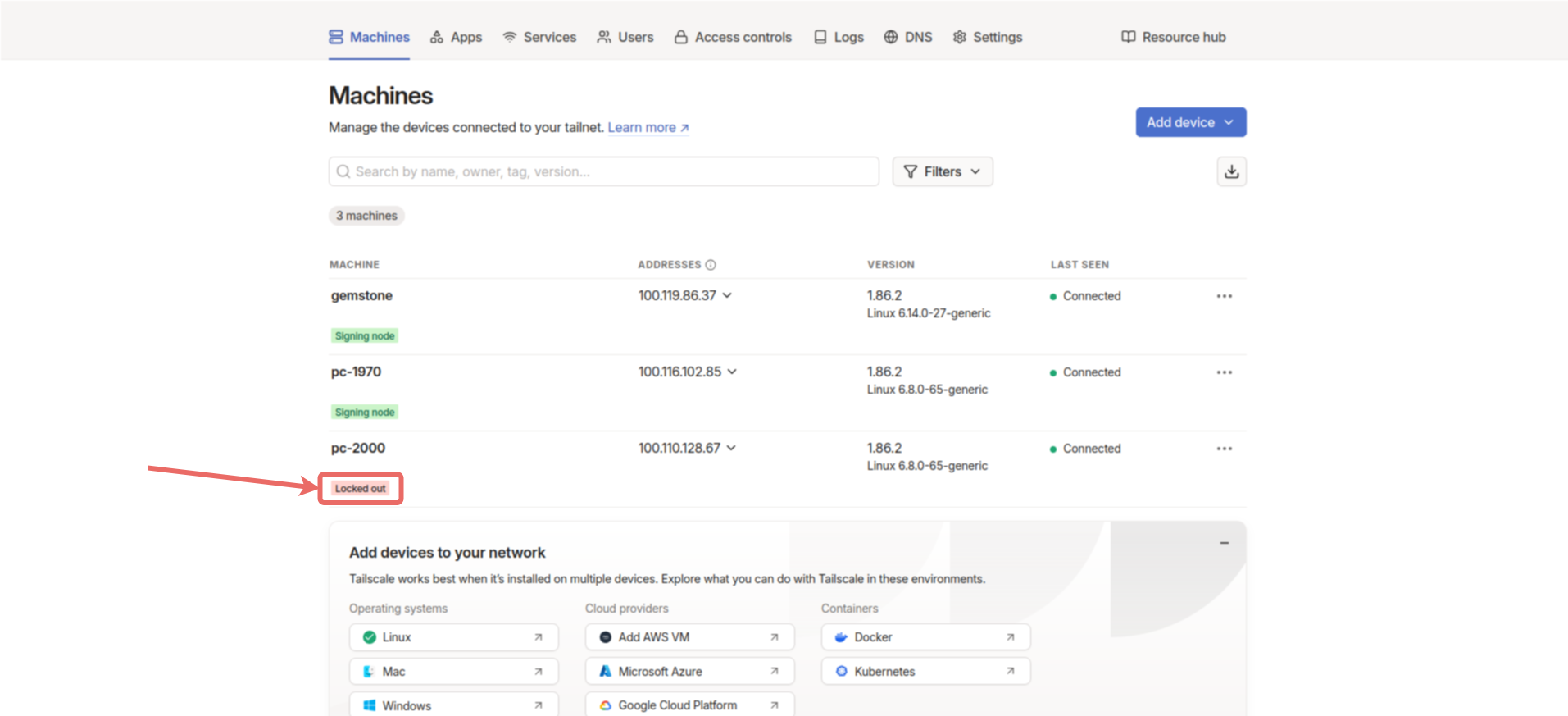
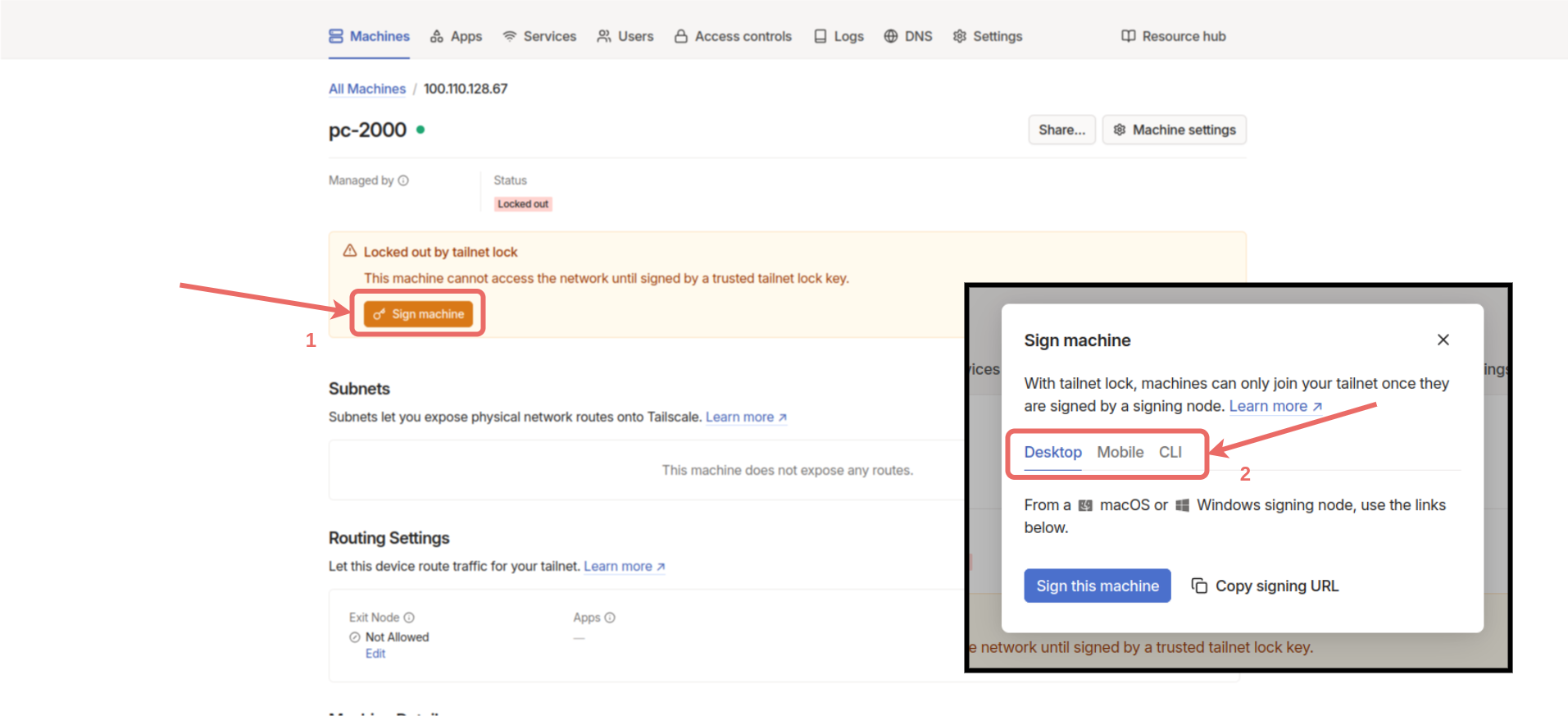
 Now, when you create new devices, they will not be able to connect directly to your network; instead, they will appear as `Locked out`, as shown below.
 These devices must be activated from one of the Signing node devices. To do this, click on the device to be added on the Signing node device and click the `Sign machine` button. Then, select one of the options appropriate for the device's operating system and complete the sign process. After the process, the device will be connected to the network. To perform the sign process on the Gemstone board, select the `CLI` option, copy the generated command, connect to the board via terminal, and run the command in the terminal.
 ```
```
```
```