> ## Documentation Index
> Fetch the complete documentation index at: https://docs.t3gemstone.org/llms.txt
> Use this file to discover all available pages before exploring further.
# Quick Start
> Board Setup and Exploration
export const desc_0 = "Image"
This section explains the **initial setup** of the Gemstone development board and the necessary steps to get it
ready for use. It will also show how to connect the Gemstone to your computer. In later sections of the
documentation, software/hardware development processes and various project examples will be discussed.
By the end of this section, you will gain experience in the following topics:
* Downloading and using the Gemstone Imager software installation application.
* Preparing a new Gemstone development board by installing the necessary software.
* Connecting to the Gemstone and exploring the system.
### Package Contents
 The hardware required for setup is listed below.
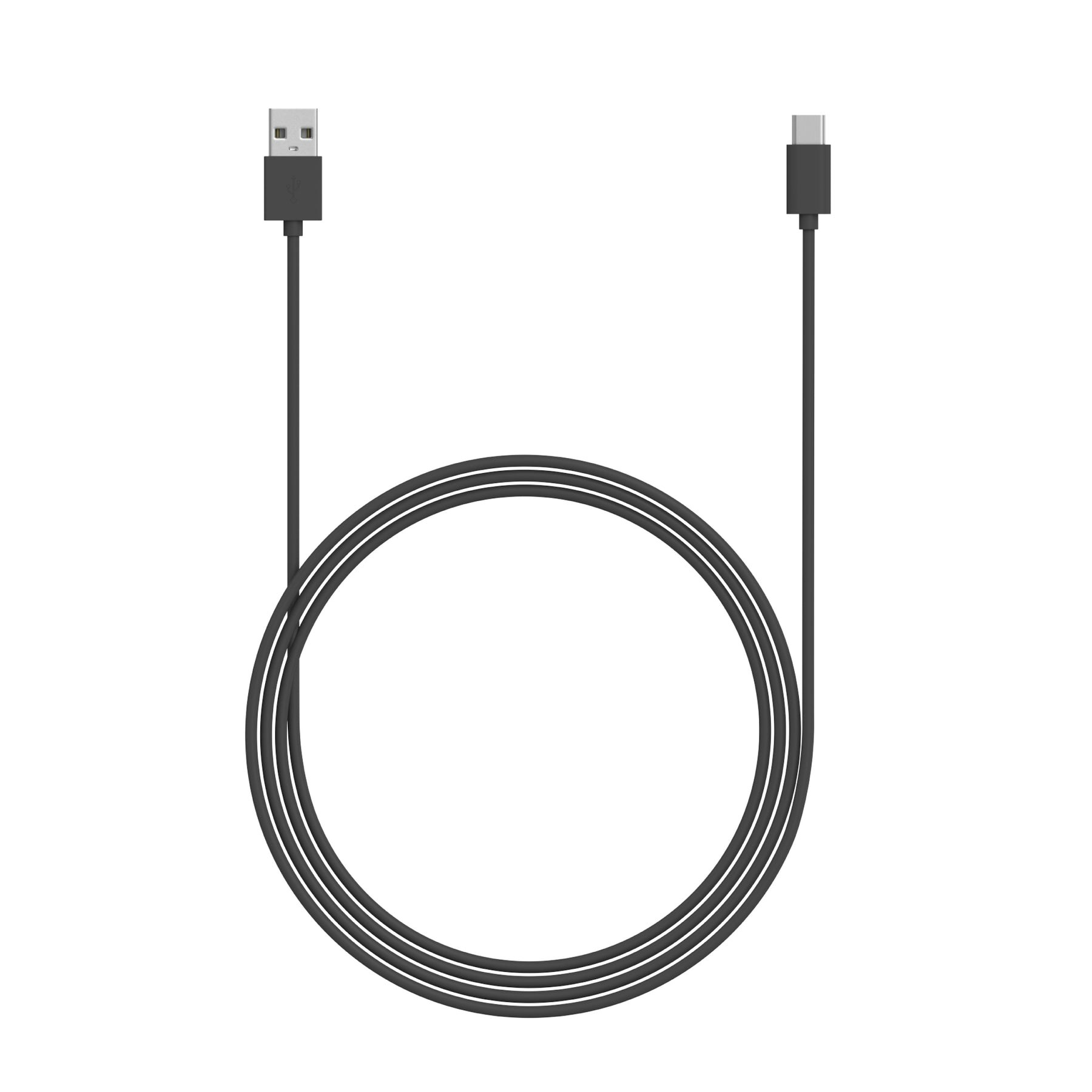
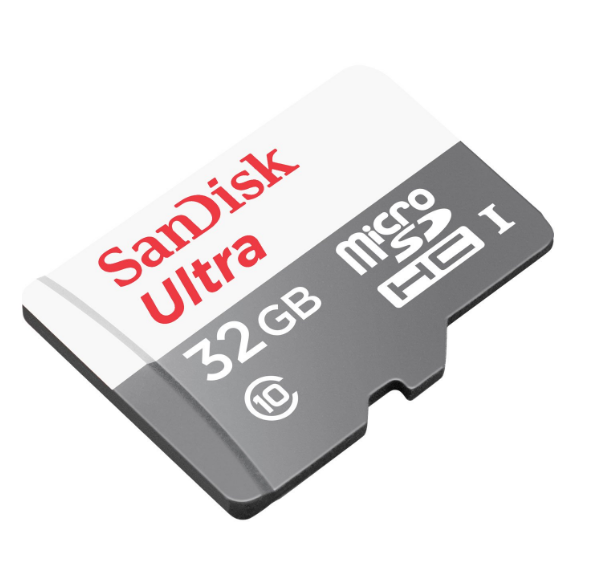
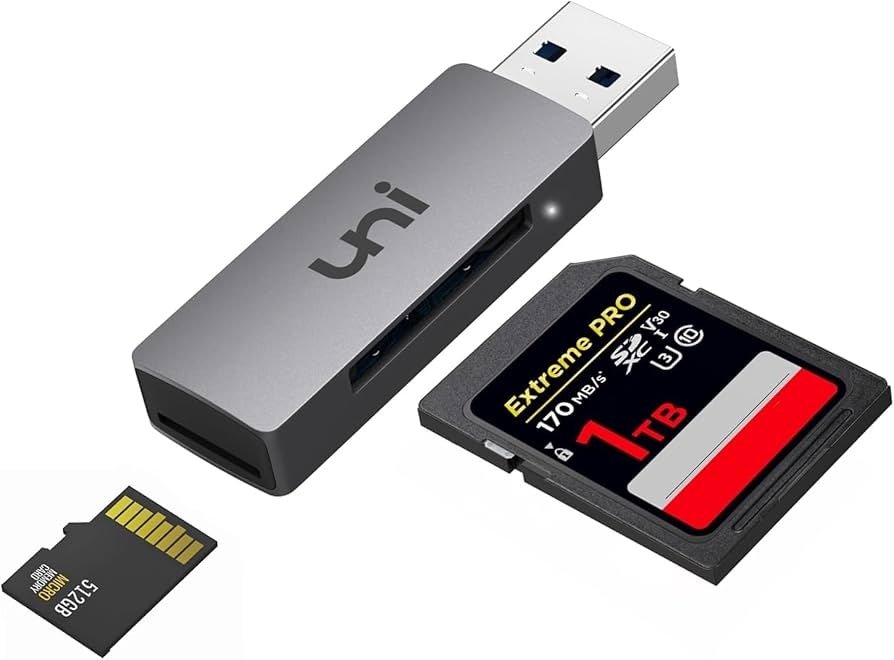
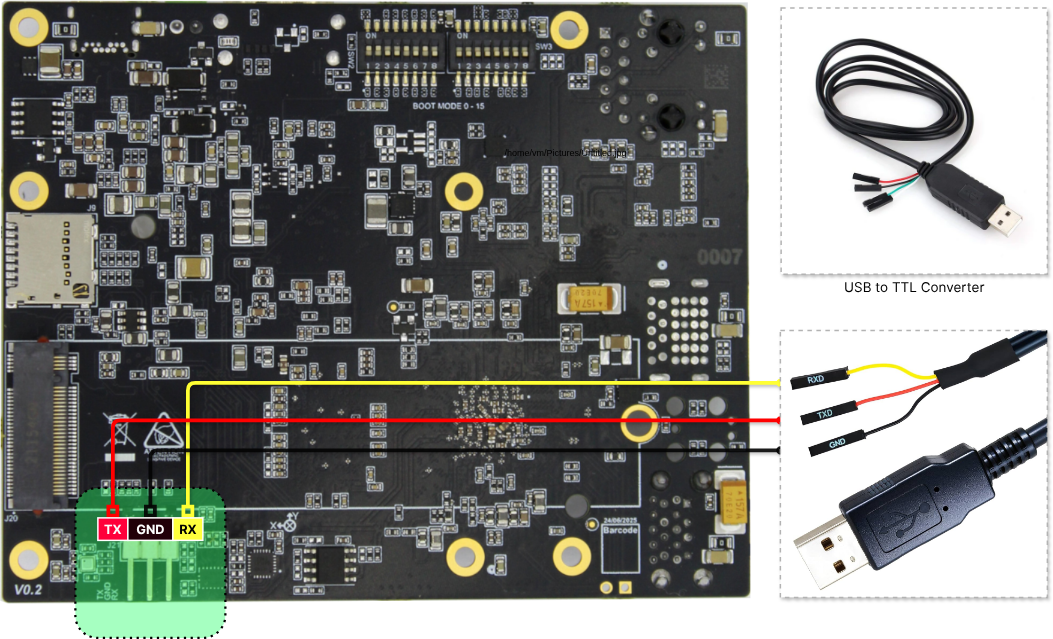
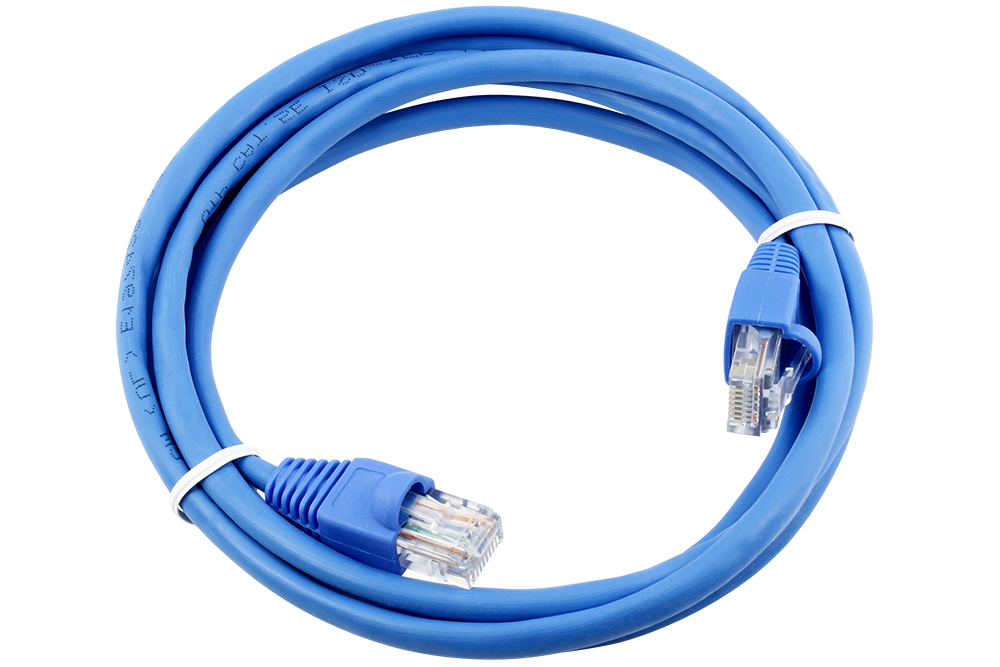 Not required initially. Used for board connection via serial port when an Ethernet cable is not available.
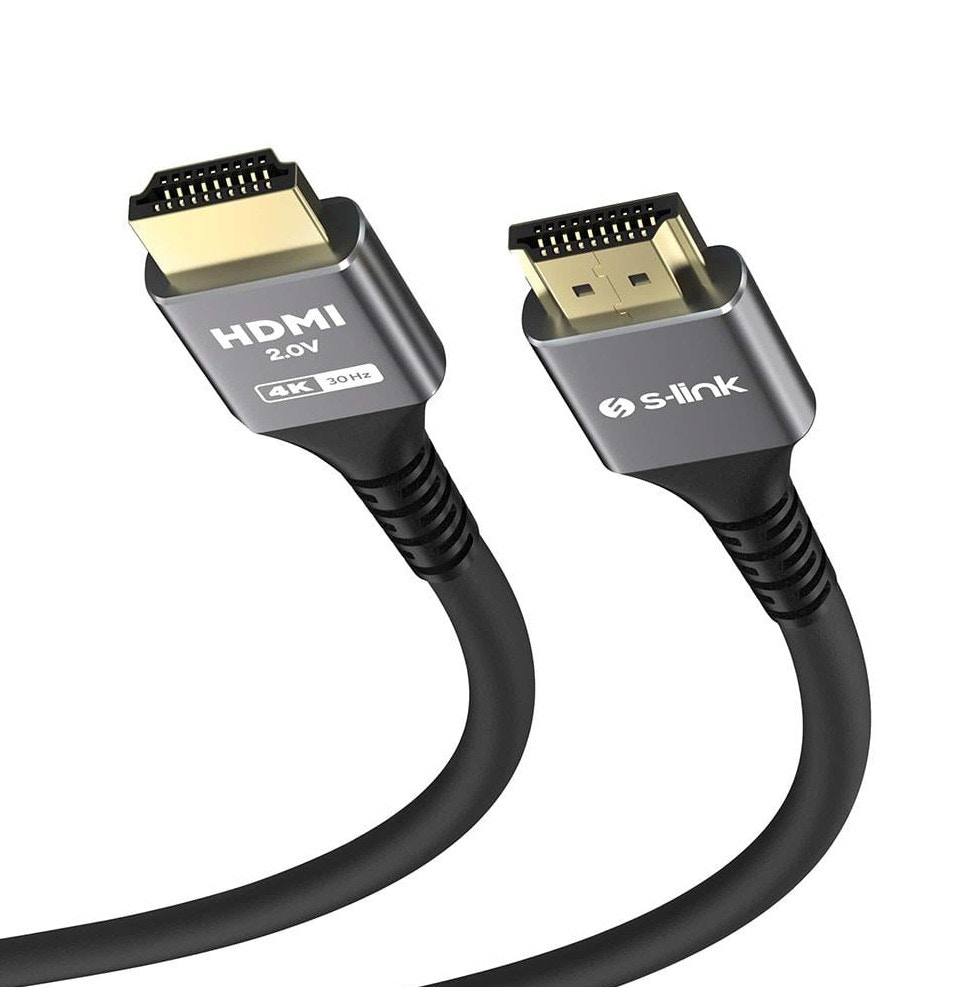
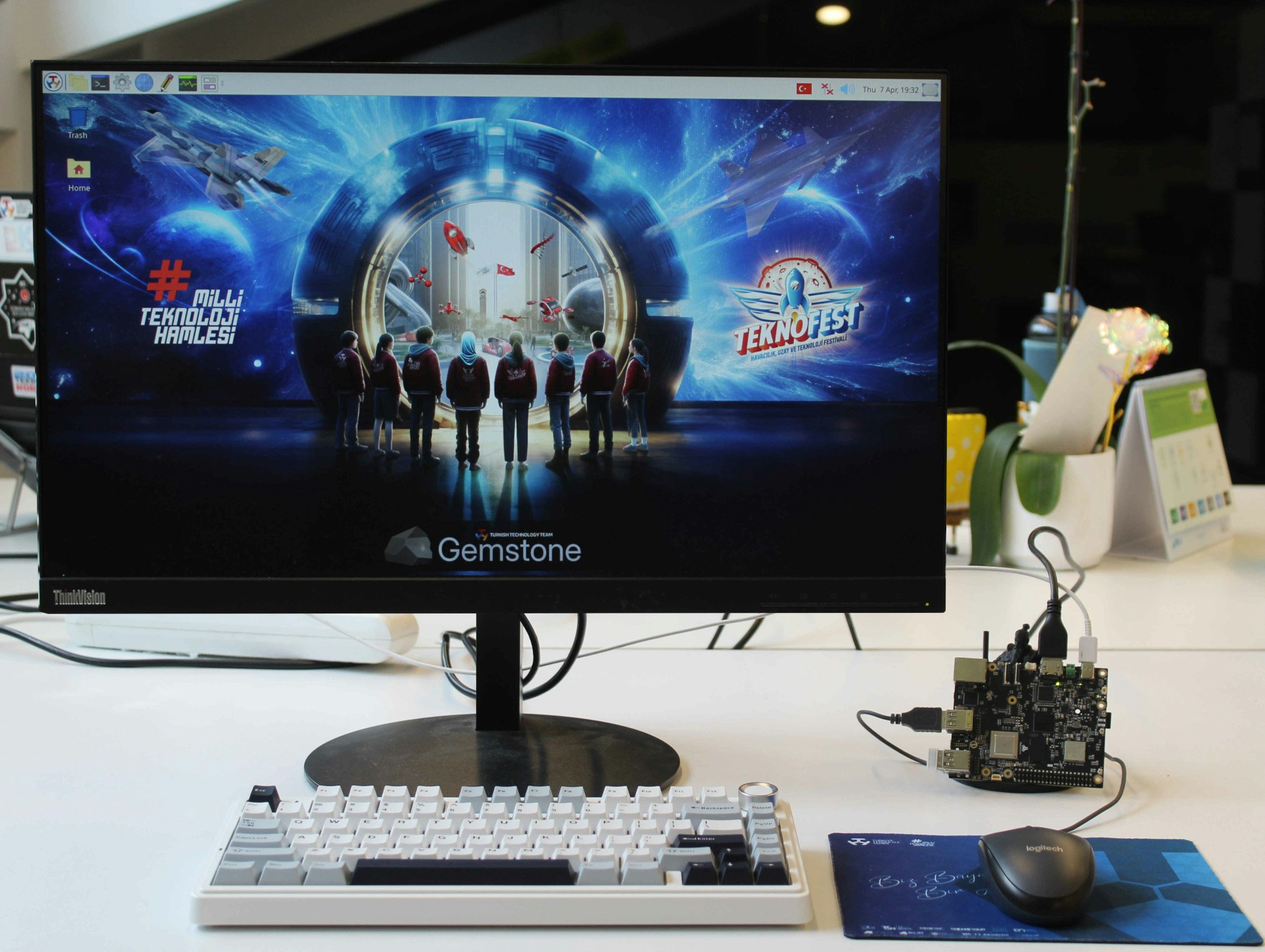
 After the initial setup, you can connect to your Gemstone board using an Ethernet cable or use the board directly
as a computer with the following hardware.
After the initial setup, you can connect to your Gemstone board using an Ethernet cable or use the board directly
as a computer with the following hardware.
 # 1. Setup
Your board will be prepared by performing the following four main steps.
The term "image" generally refers to a file with the .img extension, which contains the files and drivers
of the Linux operating system—essentially everything needed for the board to function. You can download and examine
the file named "minimal" from [https://packages.t3gemstone.org/images/ubuntu/jammy/t3-gem-o1](https://packages.t3gemstone.org/images/ubuntu/jammy/t3-gem-o1).
This is the process of downloading the desktop application used to install and customize the operating system on the board.
This is the process of installing software on the board and preparing it using the Gemstone Imager application.
The development board can optionally be used with an `SD card` or `eMMC`. This section shows how to make this selection.
These are the steps to connect to the development board and access the system inside it.
### 1.1. Image writing application
All core software on Gemstone, such as the
Operating System, [Bootloader](https://kureansiklopedi.com/tr/detay/bootloader-388bd), and
[Firmware](https://kureansiklopedi.com/tr/detay/firmware-7fdcf), is installed using the Gemstone
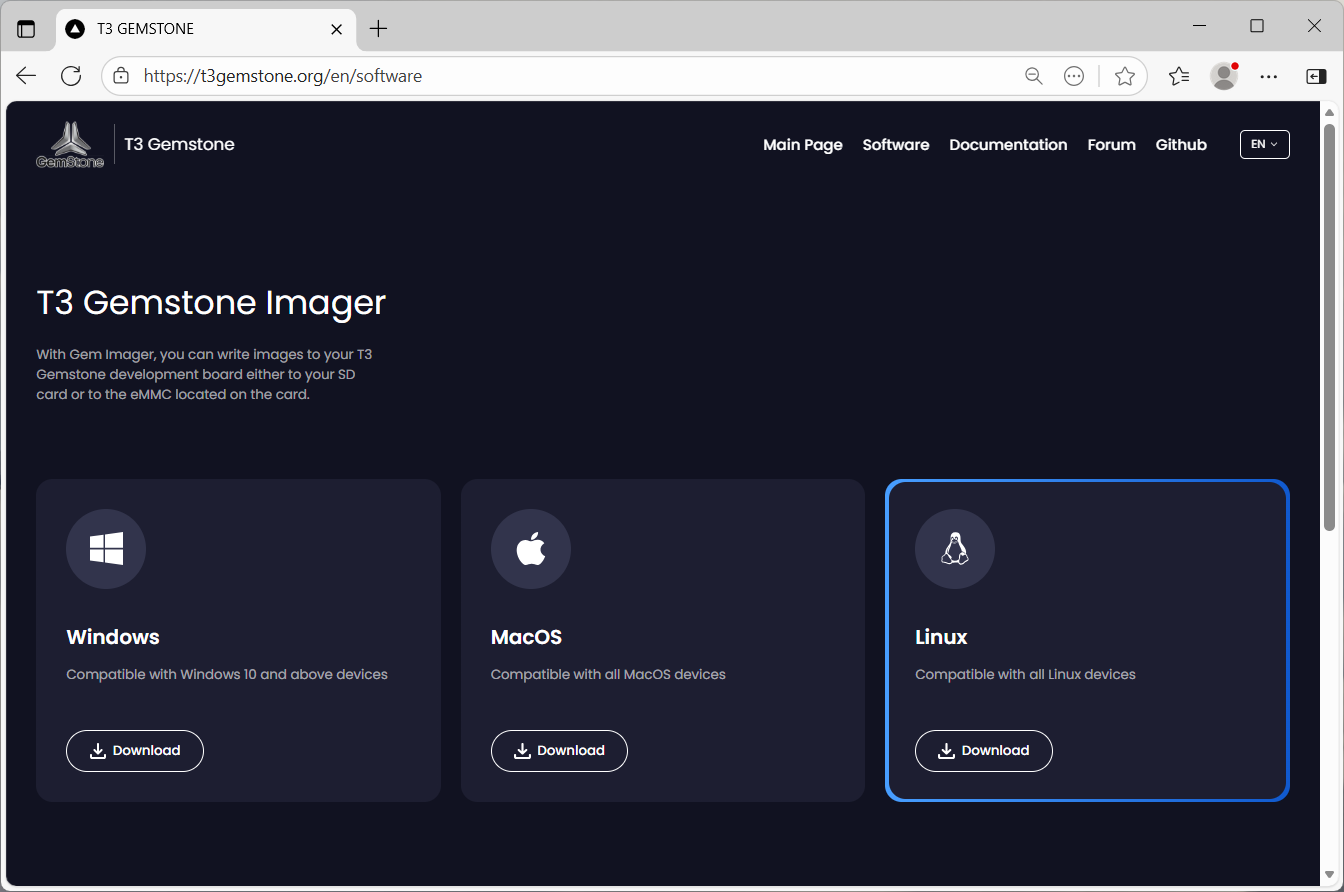
Image Writer (GemImager or Gemstone Imager) application. Download the appropriate application
(Linux, Windows, or macOS) for your computer from [https://www.t3gemstone.org/software](https://www.t3gemstone.org/software).
# 1. Setup
Your board will be prepared by performing the following four main steps.
The term "image" generally refers to a file with the .img extension, which contains the files and drivers
of the Linux operating system—essentially everything needed for the board to function. You can download and examine
the file named "minimal" from [https://packages.t3gemstone.org/images/ubuntu/jammy/t3-gem-o1](https://packages.t3gemstone.org/images/ubuntu/jammy/t3-gem-o1).
This is the process of downloading the desktop application used to install and customize the operating system on the board.
This is the process of installing software on the board and preparing it using the Gemstone Imager application.
The development board can optionally be used with an `SD card` or `eMMC`. This section shows how to make this selection.
These are the steps to connect to the development board and access the system inside it.
### 1.1. Image writing application
All core software on Gemstone, such as the
Operating System, [Bootloader](https://kureansiklopedi.com/tr/detay/bootloader-388bd), and
[Firmware](https://kureansiklopedi.com/tr/detay/firmware-7fdcf), is installed using the Gemstone
Image Writer (GemImager or Gemstone Imager) application. Download the appropriate application
(Linux, Windows, or macOS) for your computer from [https://www.t3gemstone.org/software](https://www.t3gemstone.org/software).
 Throughout the documentation, the terms Gemstone Imager and Gemstone Image Writer will be used for the
image/operating system writing application.
If the above website is inaccessible, you can use the following address to download the Gemstone
Imager application: [https://packages.t3gemstone.org/imager/](https://packages.t3gemstone.org/imager/)
### 1.2. Image writing process
If you do not want to use an SD card and prefer to write the image to the eMMC on the board via USB,
you can read this section to gain basic knowledge and then proceed to the [eMMC writing section](/en/imager/emmc).
#### 1.2.1. Connect the SD card and reader to the computer
The package does not include an SD card. Connect any brand and model of SD card with at least 32 GB capacity
to your computer using a suitable card reader, then launch the Gemstone Imager application.
Throughout the documentation, the terms Gemstone Imager and Gemstone Image Writer will be used for the
image/operating system writing application.
If the above website is inaccessible, you can use the following address to download the Gemstone
Imager application: [https://packages.t3gemstone.org/imager/](https://packages.t3gemstone.org/imager/)
### 1.2. Image writing process
If you do not want to use an SD card and prefer to write the image to the eMMC on the board via USB,
you can read this section to gain basic knowledge and then proceed to the [eMMC writing section](/en/imager/emmc).
#### 1.2.1. Connect the SD card and reader to the computer
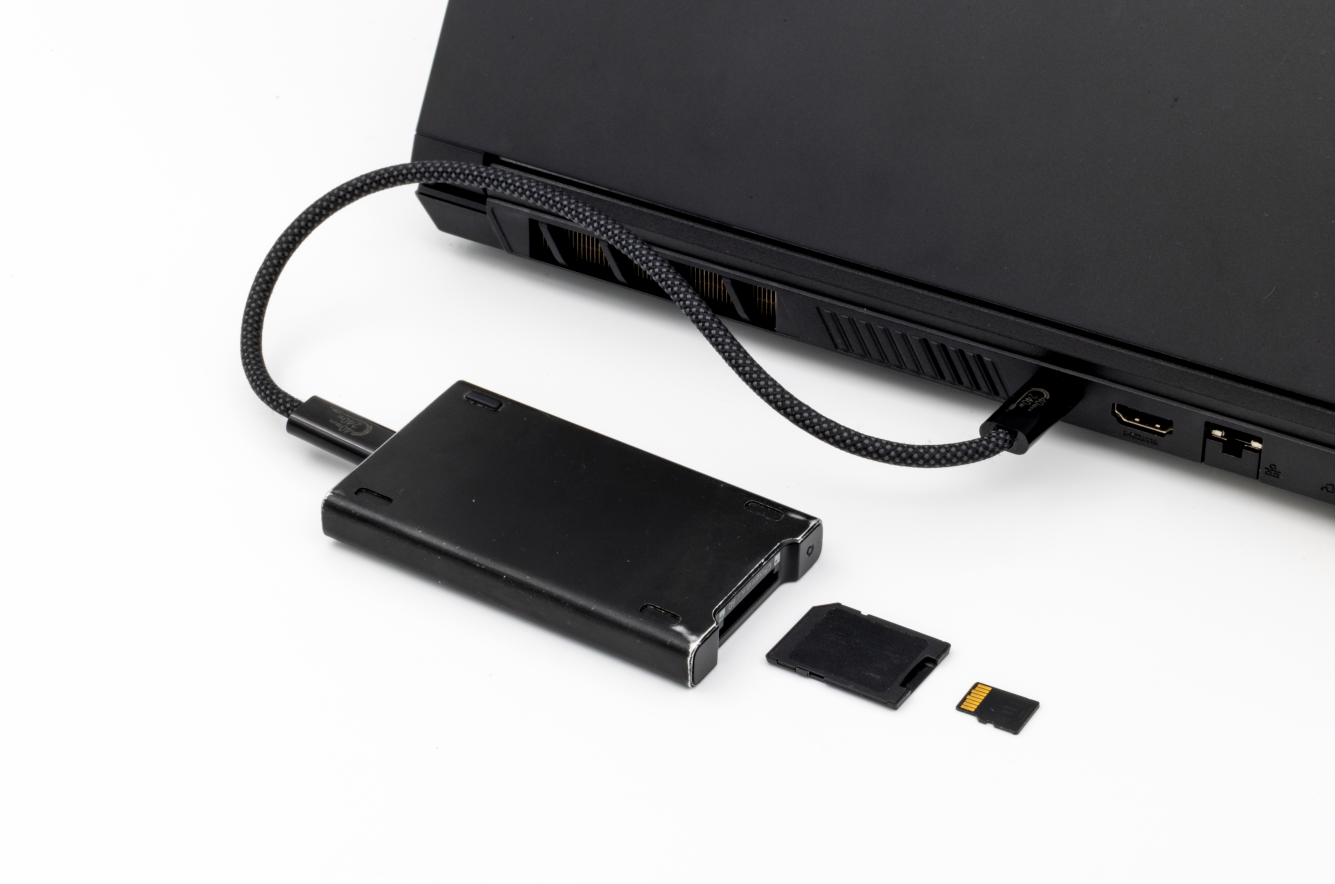
The package does not include an SD card. Connect any brand and model of SD card with at least 32 GB capacity
to your computer using a suitable card reader, then launch the Gemstone Imager application.
 #### 1.2.2. Launch the Gemstone Imager application
After downloading the **.AppImage** file for the Linux operating system, right-click to open the Properties
screen and check the "Allow executing file as program" option under the Permissions section to make
the application executable.
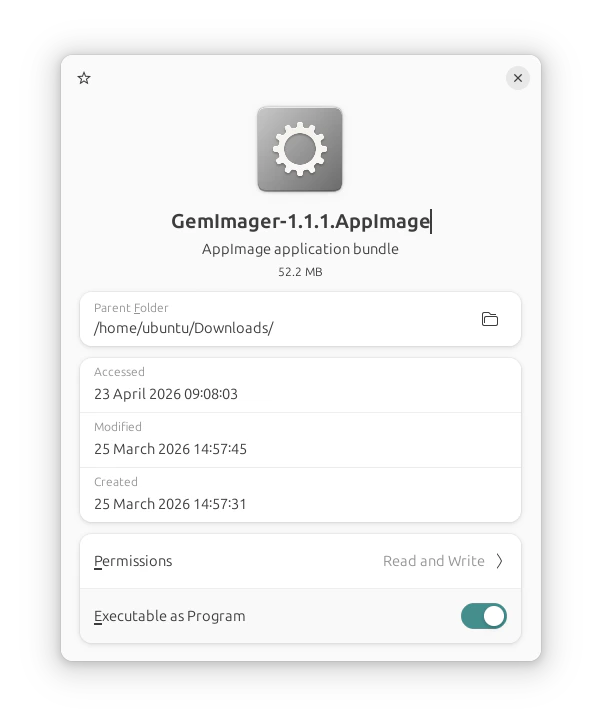
#### 1.2.2. Launch the Gemstone Imager application
After downloading the **.AppImage** file for the Linux operating system, right-click to open the Properties
screen and check the "Allow executing file as program" option under the Permissions section to make
the application executable.
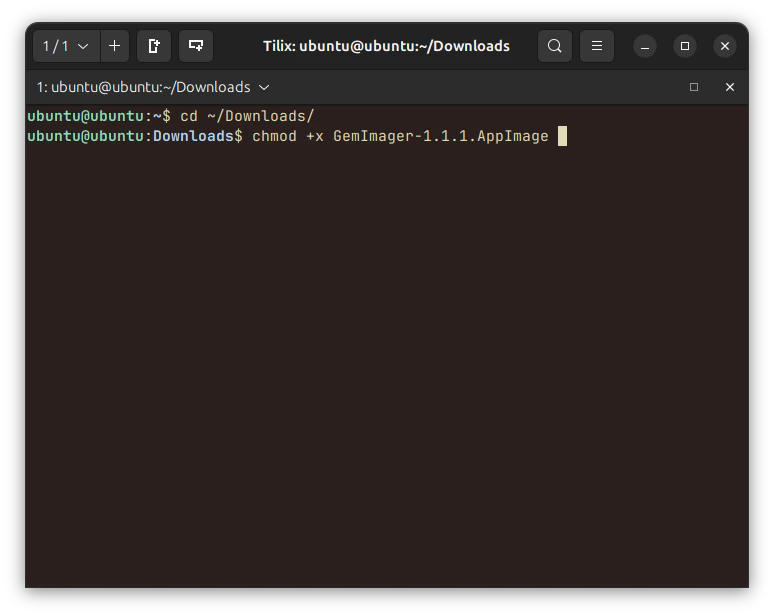
 Alternatively, you can open a terminal in the directory where you downloaded the file and use
the command `chmod +x GemImager-1.1.1.AppImage` to make it executable.
Alternatively, you can open a terminal in the directory where you downloaded the file and use
the command `chmod +x GemImager-1.1.1.AppImage` to make it executable.
 If you are using Windows, double-click the downloaded **.exe** file to install and launch the
application from the Desktop.
For macOS, download the **.dmg** file and double-click it to install.
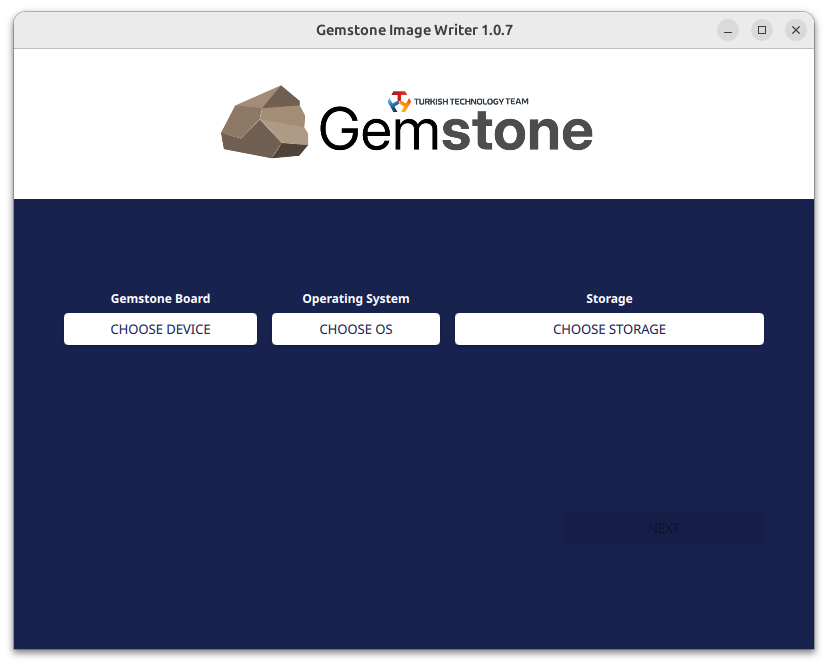
When you launch the application from the downloaded file path, you will see the following screen.
If you are using Windows, double-click the downloaded **.exe** file to install and launch the
application from the Desktop.
For macOS, download the **.dmg** file and double-click it to install.
When you launch the application from the downloaded file path, you will see the following screen.
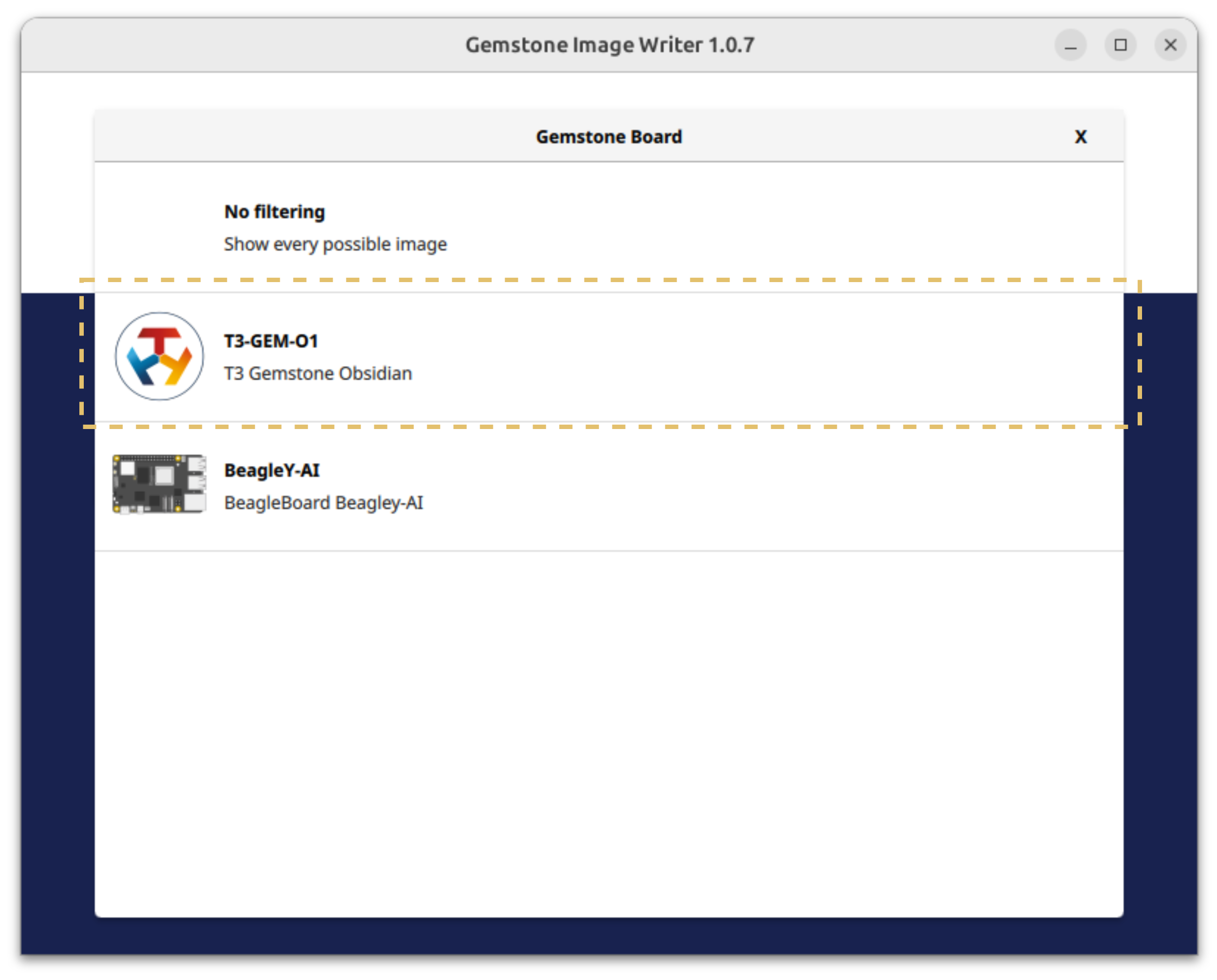
 #### 1.2.3. Select the development board
Click the "Gemstone board / Choose Device" button to select the development board you own.
#### 1.2.3. Select the development board
Click the "Gemstone board / Choose Device" button to select the development board you own.
 #### 1.2.4. Select the operating system to install on the board
After selecting the development board (Gemstone board / Choose Device), click the
**Operating System / Choose OS** button for the next step.
#### 1.2.4. Select the operating system to install on the board
After selecting the development board (Gemstone board / Choose Device), click the
**Operating System / Choose OS** button for the next step.
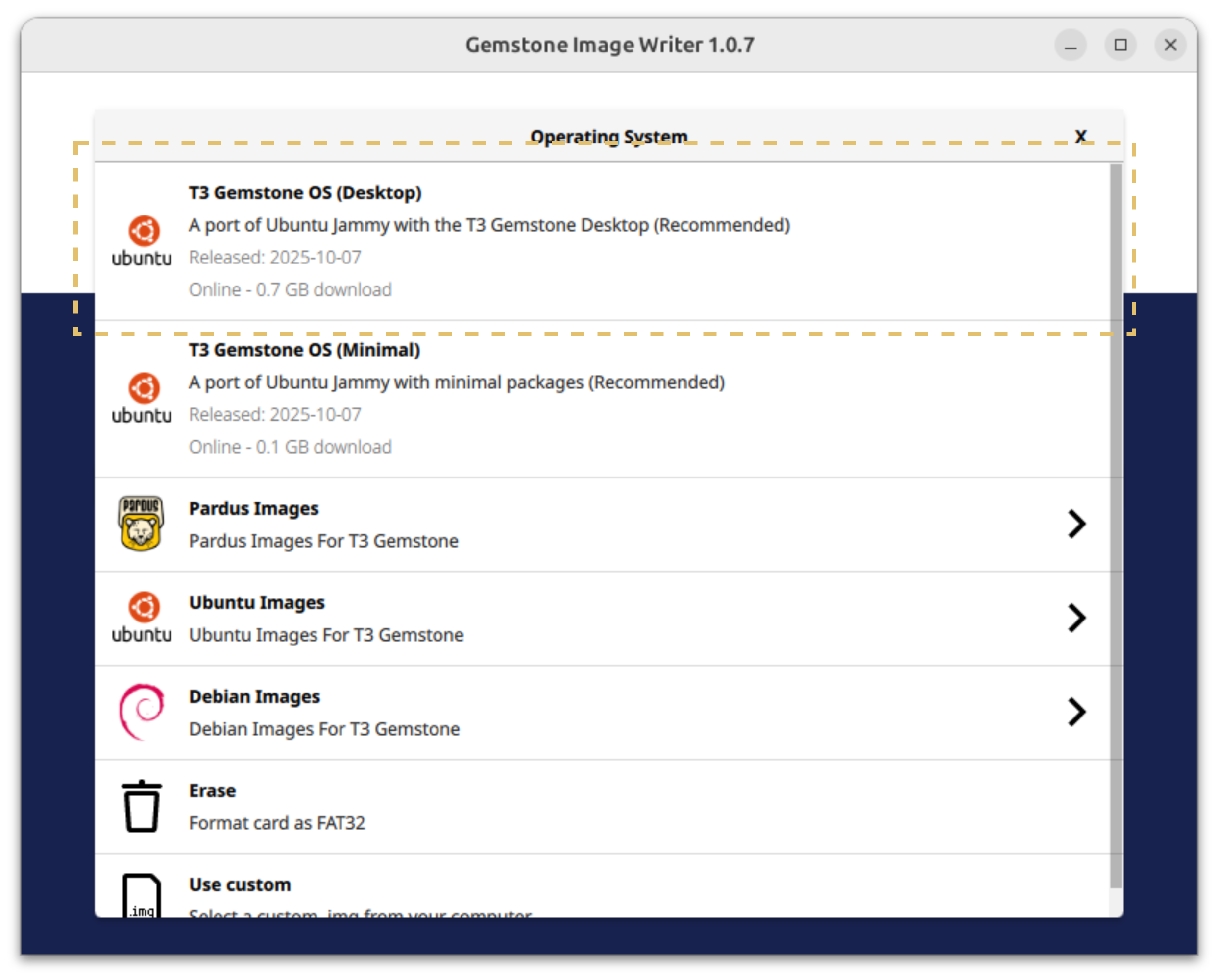
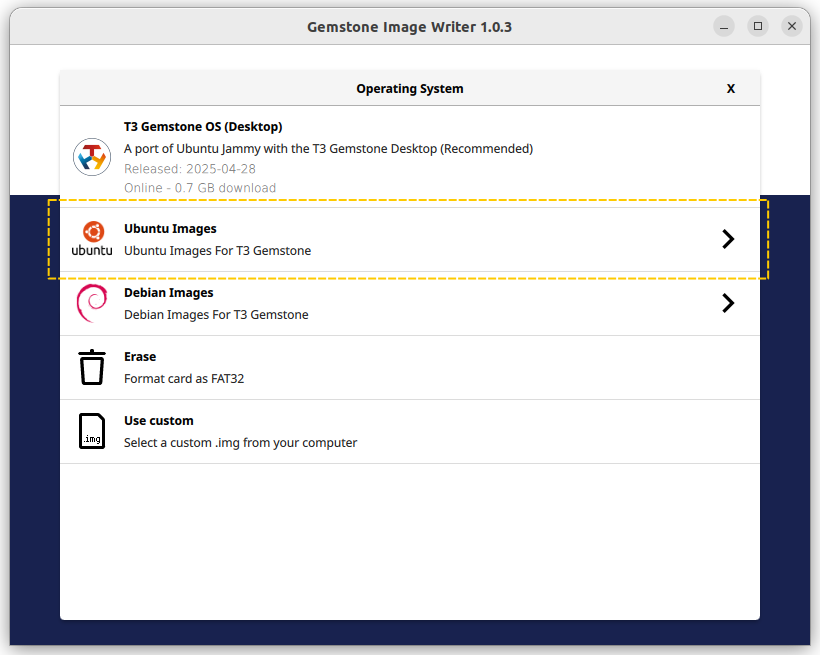
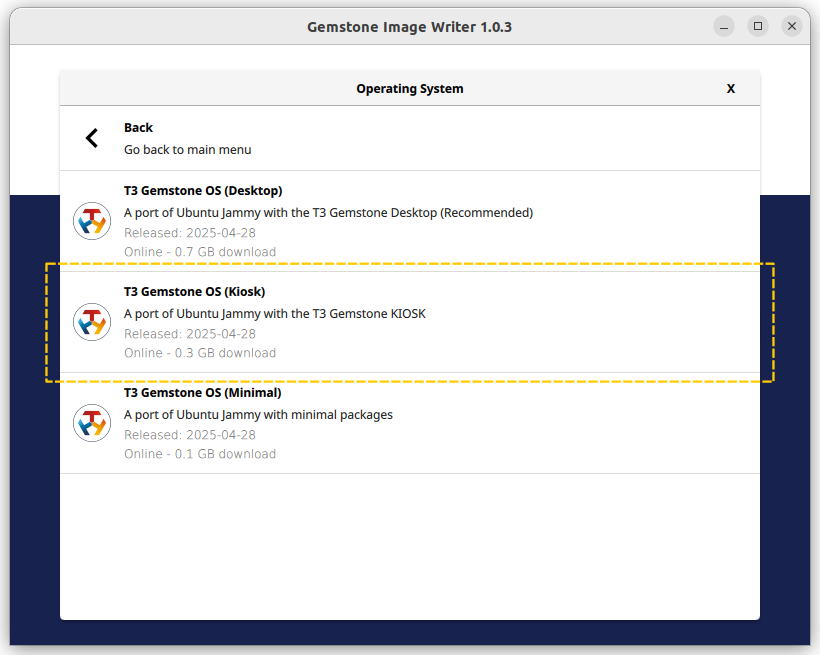 Gemstone uses a Ubuntu/Debian-based operating system, with different variations available depending on project
needs. The documentation [later sections](./distros/introduction) explain which version to use for which tasks,
but a summary is provided below:
* **Desktop:** An image that includes software such as a browser (Firefox), text editor, code development
environment (VSCode), and video player (VLC), allowing the board to be used as a computer. This image is
larger than the other two types and is mostly used for prototyping, testing, and development activities.
(For robotics work, the Minimal image is more suitable.)
* **Kiosk:** An image that supports a graphical interface, often used for touch panels, **without**
applications (Example: The Text Editor or File Manager) found in the Desktop image. (For example,
the touch panel used for media control in Tesla vehicles or the control screen inside passenger
vehicles in Teknofest competitions.)
* **Minimal:** This image contains a real-time Linux kernel and is optimized for IoT, robotics, and autopilot
applications. It is a powerful and deterministic structure suitable for embedded software system development projects.
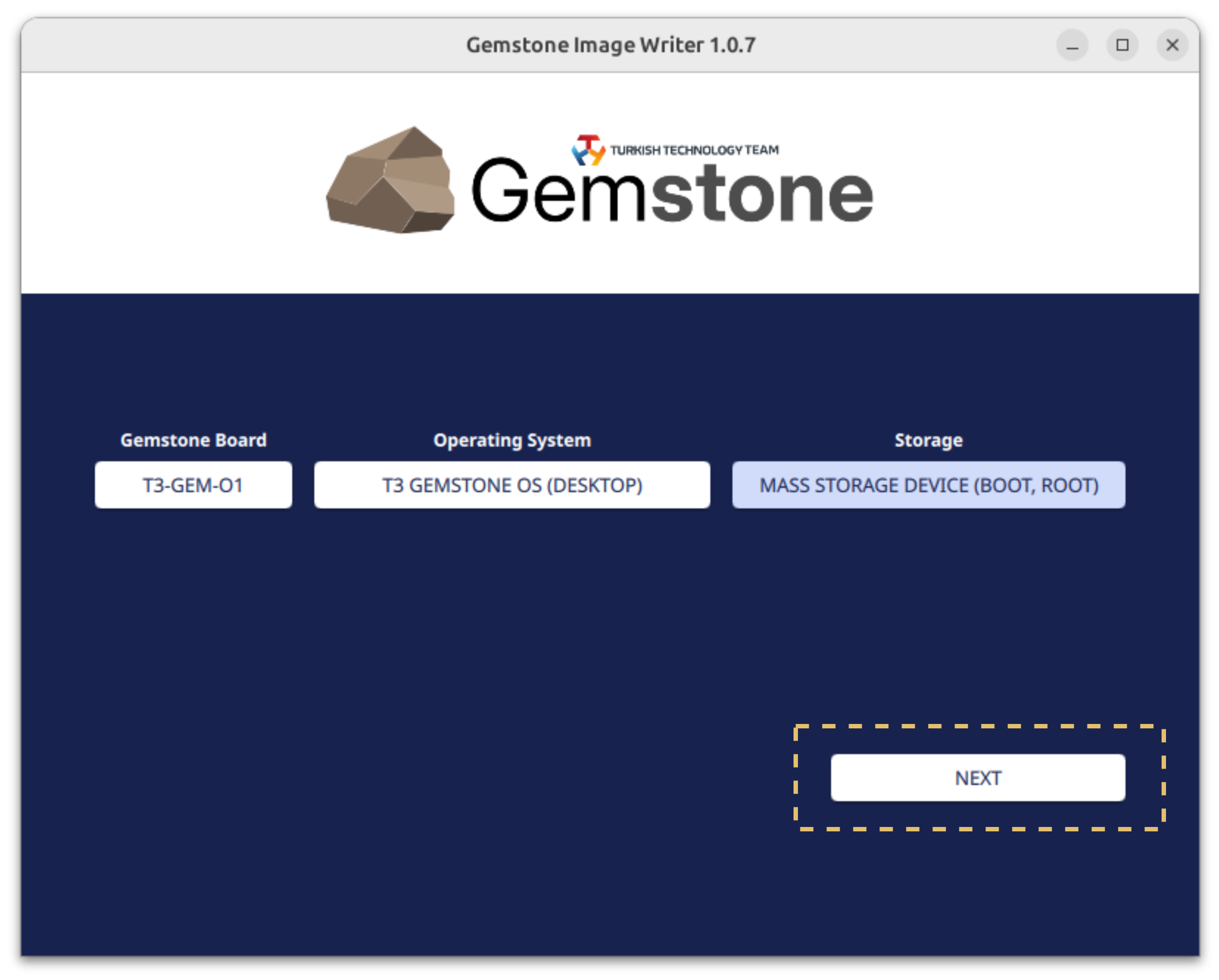
#### 1.2.5. Select the storage device (SD card/eMMC)
After connecting your SD card and reader to your computer, the Gemstone Imager application will list the relevant
device as shown in the screenshot below.
Gemstone uses a Ubuntu/Debian-based operating system, with different variations available depending on project
needs. The documentation [later sections](./distros/introduction) explain which version to use for which tasks,
but a summary is provided below:
* **Desktop:** An image that includes software such as a browser (Firefox), text editor, code development
environment (VSCode), and video player (VLC), allowing the board to be used as a computer. This image is
larger than the other two types and is mostly used for prototyping, testing, and development activities.
(For robotics work, the Minimal image is more suitable.)
* **Kiosk:** An image that supports a graphical interface, often used for touch panels, **without**
applications (Example: The Text Editor or File Manager) found in the Desktop image. (For example,
the touch panel used for media control in Tesla vehicles or the control screen inside passenger
vehicles in Teknofest competitions.)
* **Minimal:** This image contains a real-time Linux kernel and is optimized for IoT, robotics, and autopilot
applications. It is a powerful and deterministic structure suitable for embedded software system development projects.
#### 1.2.5. Select the storage device (SD card/eMMC)
After connecting your SD card and reader to your computer, the Gemstone Imager application will list the relevant
device as shown in the screenshot below.
 After completing all three selections, click the **Next button** as shown below.
 #### 1.2.6. Customize the system
After completing the above selections, the **System Customization** screen will automatically open. This screen
is used to set the board's login password and enable certain services to start automatically.
#### 1.2.6. Customize the system
After completing the above selections, the **System Customization** screen will automatically open. This screen
is used to set the board's login password and enable certain services to start automatically.
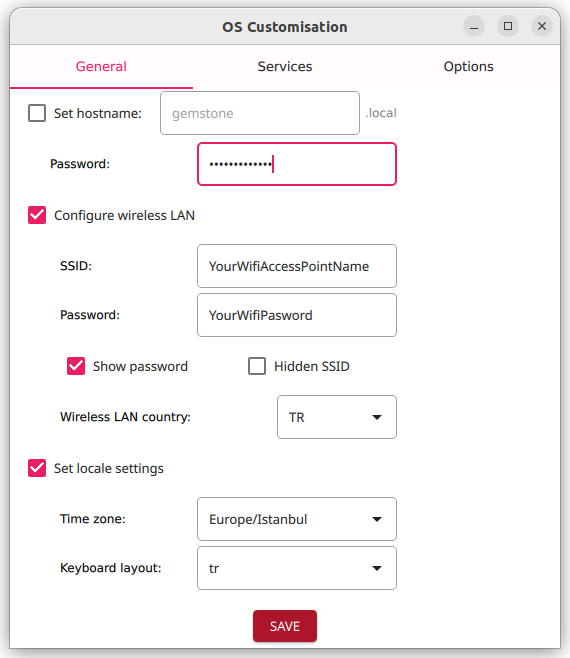 * Enter an 8-character password in the **Password** field on the screen. This password is for the "gemstone" user
account in the Linux operating system and will be required when accessing the board.
* If you want the board to connect to a Wi-Fi network after completing the image writing process and powering
it on, check the "Configure wireless LAN" option and enter the Wi-Fi network name and password.
Note: Make sure you enter the correct Wi-Fi network name (Access Point Name) and password.
* Finally, check the **Set locale settings** option and select the keyboard language for the Gemstone board.
* Enter an 8-character password in the **Password** field on the screen. This password is for the "gemstone" user
account in the Linux operating system and will be required when accessing the board.
* If you want the board to connect to a Wi-Fi network after completing the image writing process and powering
it on, check the "Configure wireless LAN" option and enter the Wi-Fi network name and password.
Note: Make sure you enter the correct Wi-Fi network name (Access Point Name) and password.
* Finally, check the **Set locale settings** option and select the keyboard language for the Gemstone board.
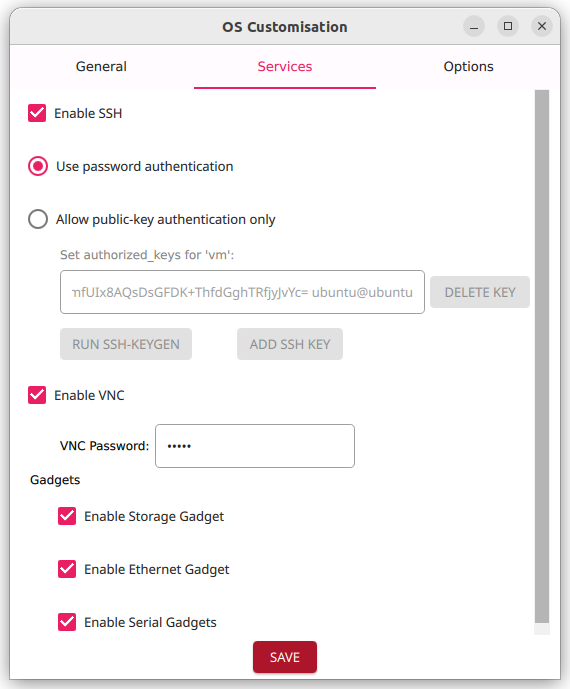 * **Enable SSH:** (Secure Shell) This option is required for Terminal connection to the board via
Ethernet, as explained later in this section. For images like Minimal and Kiosk, which lack desktop
components, Ethernet/SSH or Serial Port/Console is often used.
* **Enable VNC:** When using Desktop-type images, [t3-gem-vnc](https://github.com/t3gemstone/t3-gem-vnc) allows
you to eliminate the need for a monitor, keyboard, and mouse. This service enables you to connect to
the board's desktop via a browser by connecting the board's Ethernet cable to your computer.
* **Gadgets:** When you connect your Gemstone board to your computer via USB Type-C, this feature allows
the board to obtain a virtual IP without needing an Ethernet cable, create a serial port, and use
the board's disk as storage (similar to connecting a phone to your computer).
After customization, click the **Save** button to proceed to the next step.
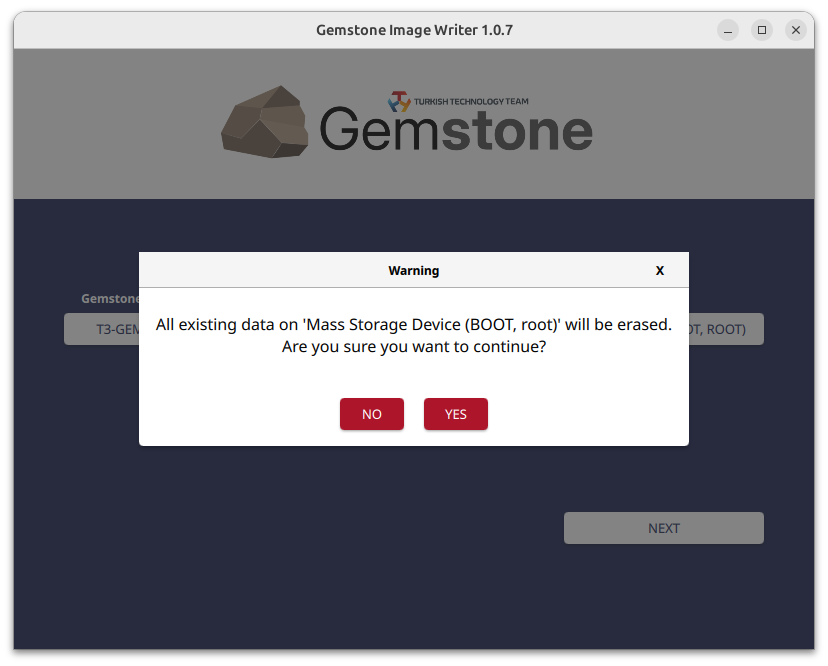
#### 1.2.7. Start the writing process
After completing all the above steps, you will be asked to confirm before starting the image writing
process, and the copying process will begin.
* **Enable SSH:** (Secure Shell) This option is required for Terminal connection to the board via
Ethernet, as explained later in this section. For images like Minimal and Kiosk, which lack desktop
components, Ethernet/SSH or Serial Port/Console is often used.
* **Enable VNC:** When using Desktop-type images, [t3-gem-vnc](https://github.com/t3gemstone/t3-gem-vnc) allows
you to eliminate the need for a monitor, keyboard, and mouse. This service enables you to connect to
the board's desktop via a browser by connecting the board's Ethernet cable to your computer.
* **Gadgets:** When you connect your Gemstone board to your computer via USB Type-C, this feature allows
the board to obtain a virtual IP without needing an Ethernet cable, create a serial port, and use
the board's disk as storage (similar to connecting a phone to your computer).
After customization, click the **Save** button to proceed to the next step.
#### 1.2.7. Start the writing process
After completing all the above steps, you will be asked to confirm before starting the image writing
process, and the copying process will begin.

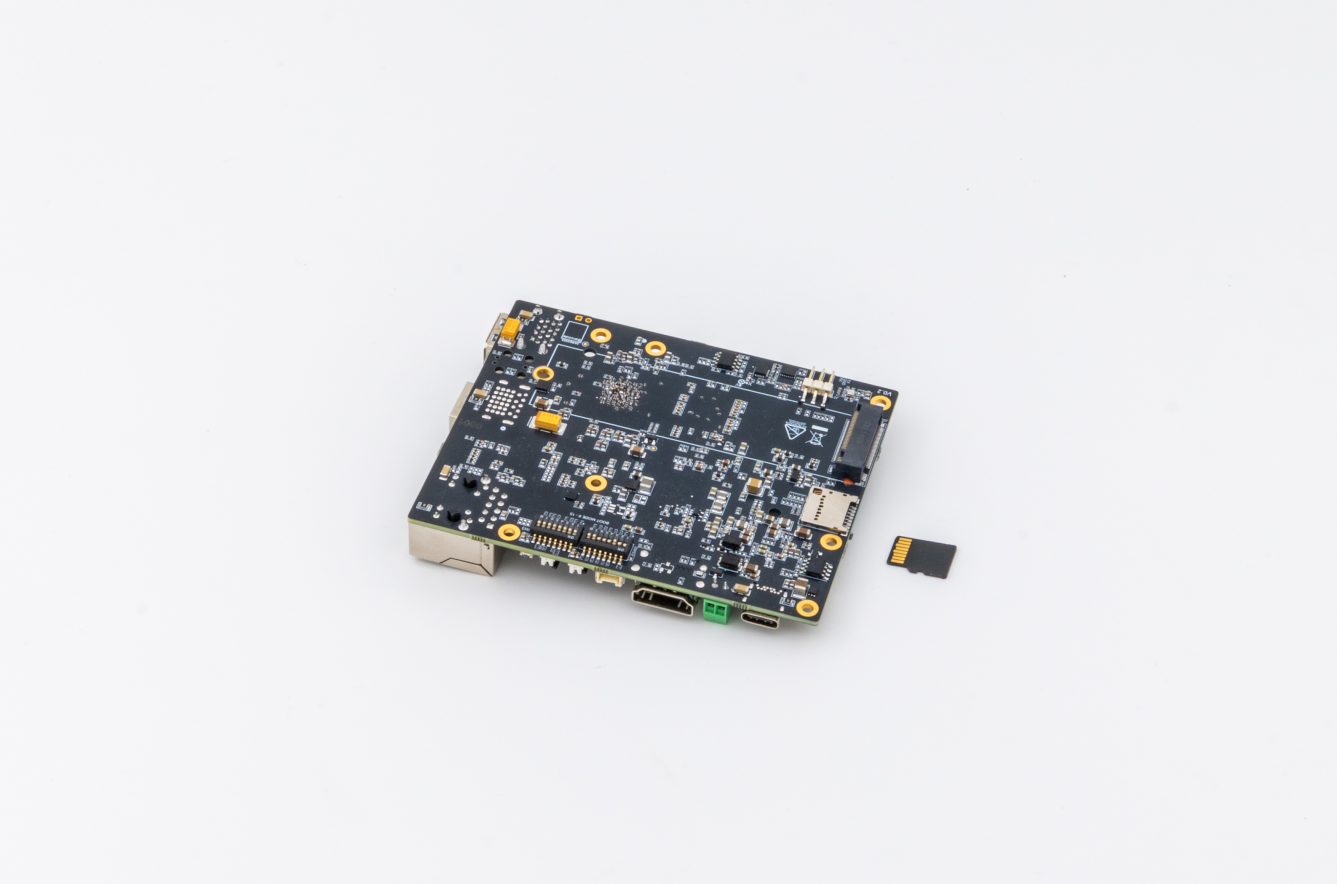
 #### 1.2.8. Insert the SD card
After the writing process is successfully completed, remove the SD card from the reader and insert it into
the Gemstone. Then, set the Bootmode pins to "SD card" as explained in the next section.
#### 1.2.8. Insert the SD card
After the writing process is successfully completed, remove the SD card from the reader and insert it into
the Gemstone. Then, set the Bootmode pins to "SD card" as explained in the next section.
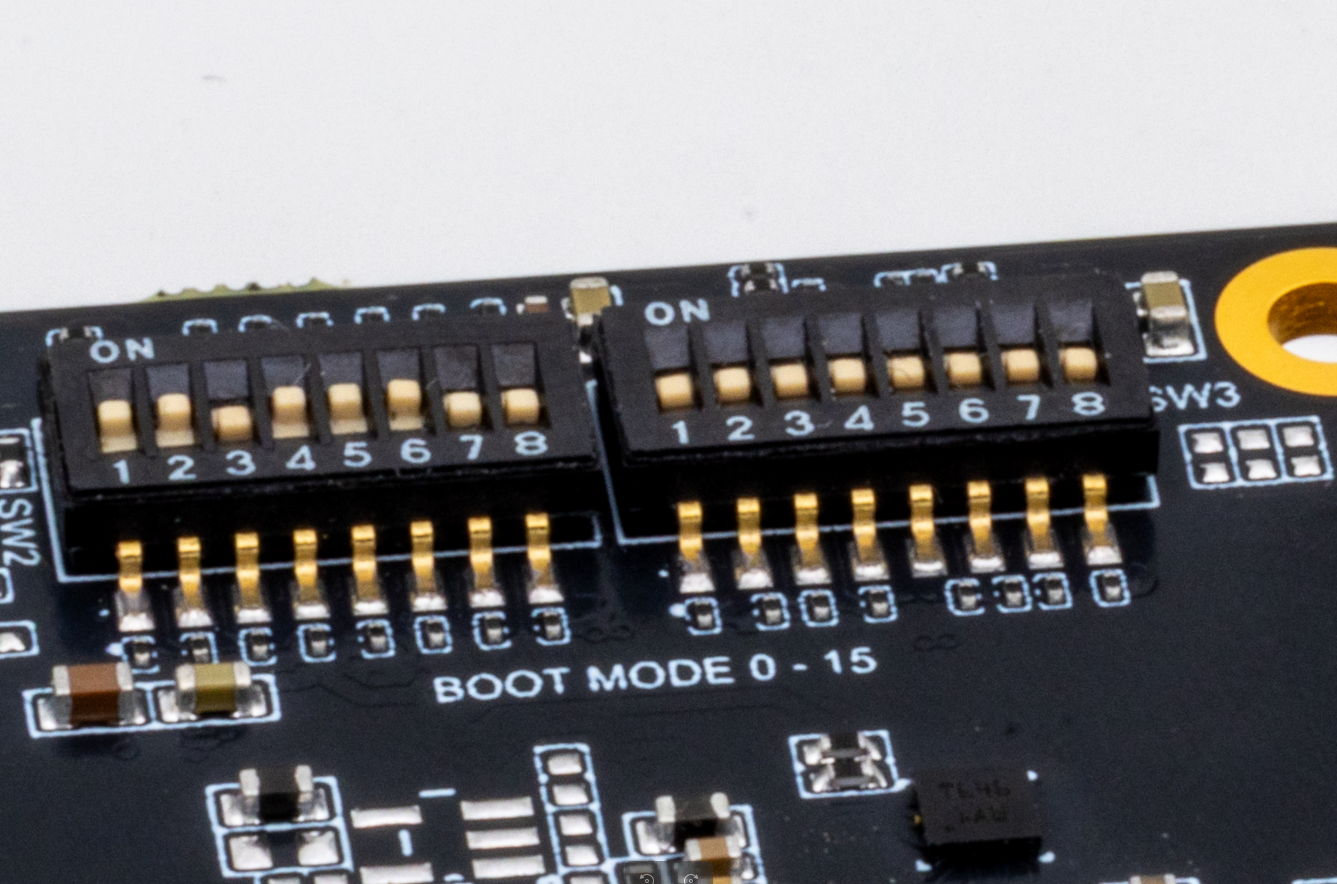
 ### 1.3. Bootmode Switch
Bootmode switch is used to determine how and where
(from which disk) the system will boot when power is first applied to the board, or for purposes
such as Debug during software development.
The table and screenshot below list all the Boot modes available on the Gemstone O1 development board. This
section explains the installation process for the SD card, while the
[use of eMMC (embedded disk on the board)](./imager/emmc) will be discussed in later sections.
The SD card is often preferred for quick testing and development activities due to its convenience, but data
loss can occur in systems with vibration. If you plan to use the board on a moving platform, eMMC is more suitable.
### 1.3. Bootmode Switch
Bootmode switch is used to determine how and where
(from which disk) the system will boot when power is first applied to the board, or for purposes
such as Debug during software development.
The table and screenshot below list all the Boot modes available on the Gemstone O1 development board. This
section explains the installation process for the SD card, while the
[use of eMMC (embedded disk on the board)](./imager/emmc) will be discussed in later sections.
The SD card is often preferred for quick testing and development activities due to its convenience, but data
loss can occur in systems with vibration. If you plan to use the board on a moving platform, eMMC is more suitable.
| Boot mode |
{desc_0}
|
| SD card |

|
| eMMC |

|
| USB DFU |

|
| Ethernet |

|
| UART |

|
| Devboot |

|
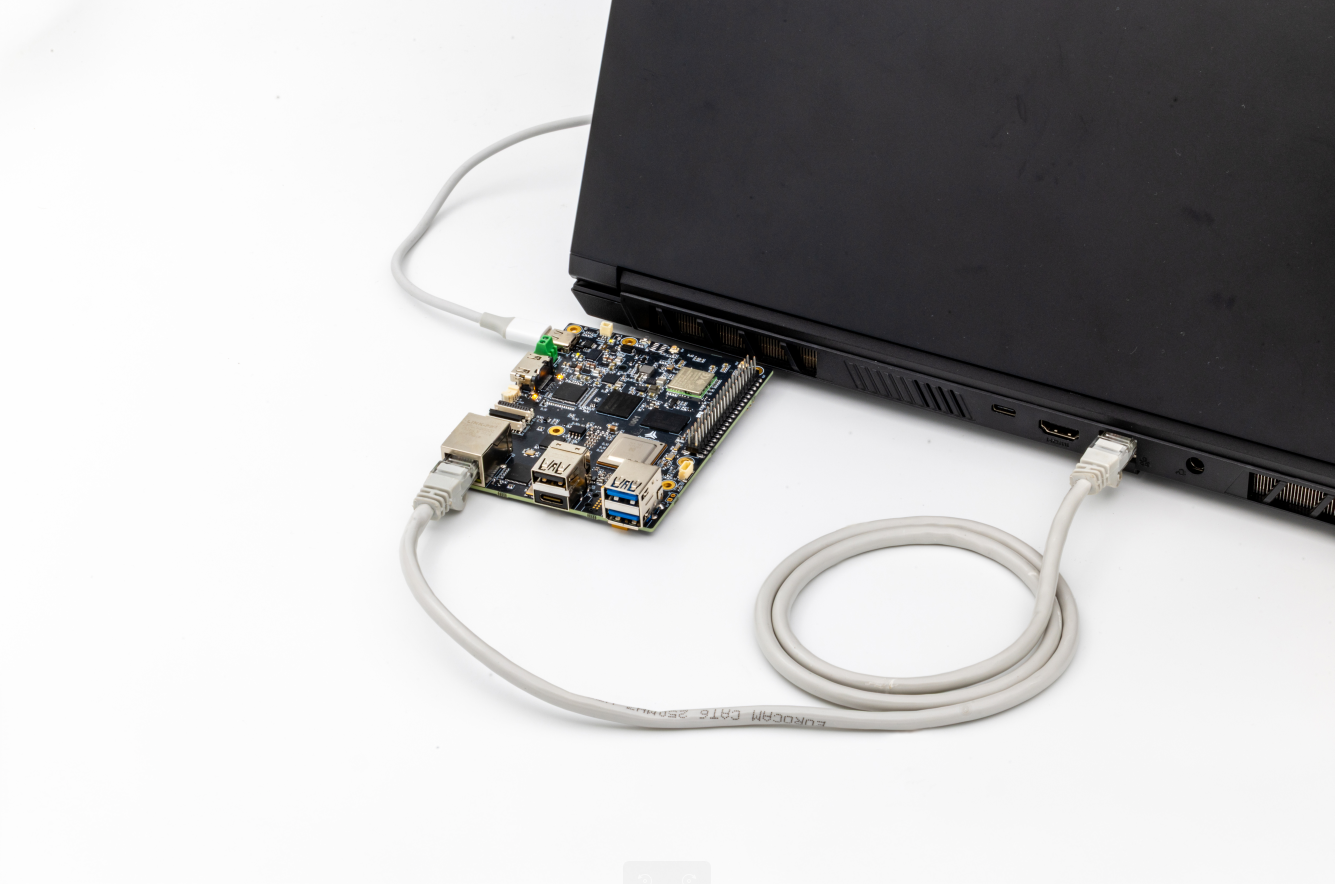
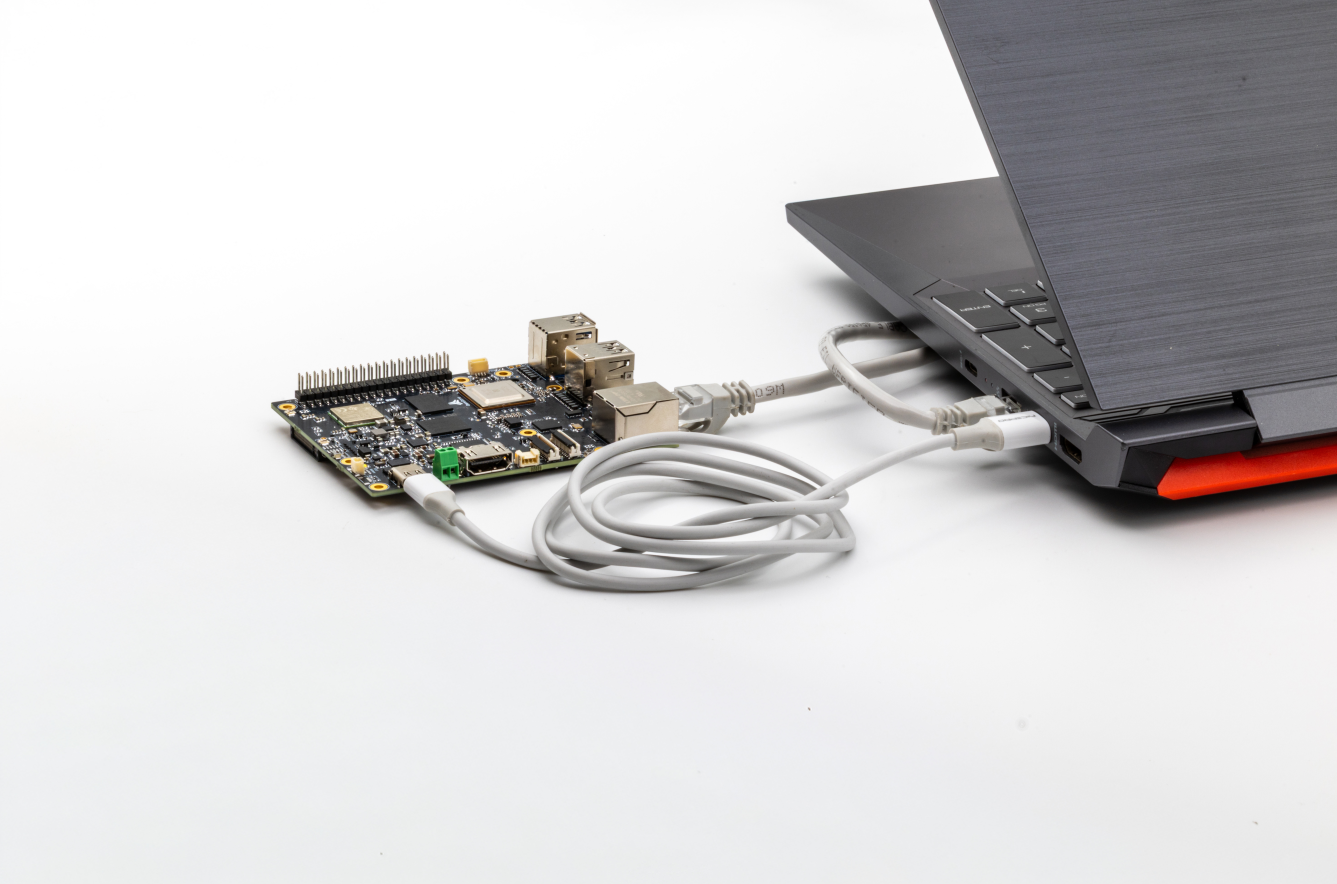
### 1.4. Connect the board to the computer
After connecting the USB Type-C and Ethernet cables from the package to your computer and the development
board as shown in the photo below, you are ready to explore the board!
 # 2. Explore Gemstone
The following steps are for using your Gemstone development board via your computer (for example, connecting
to the board's desktop via a browser or performing operations via Serial Port/Terminal command line). If you
have the option to connect a monitor, keyboard, and mouse, you can also explore the board this way!
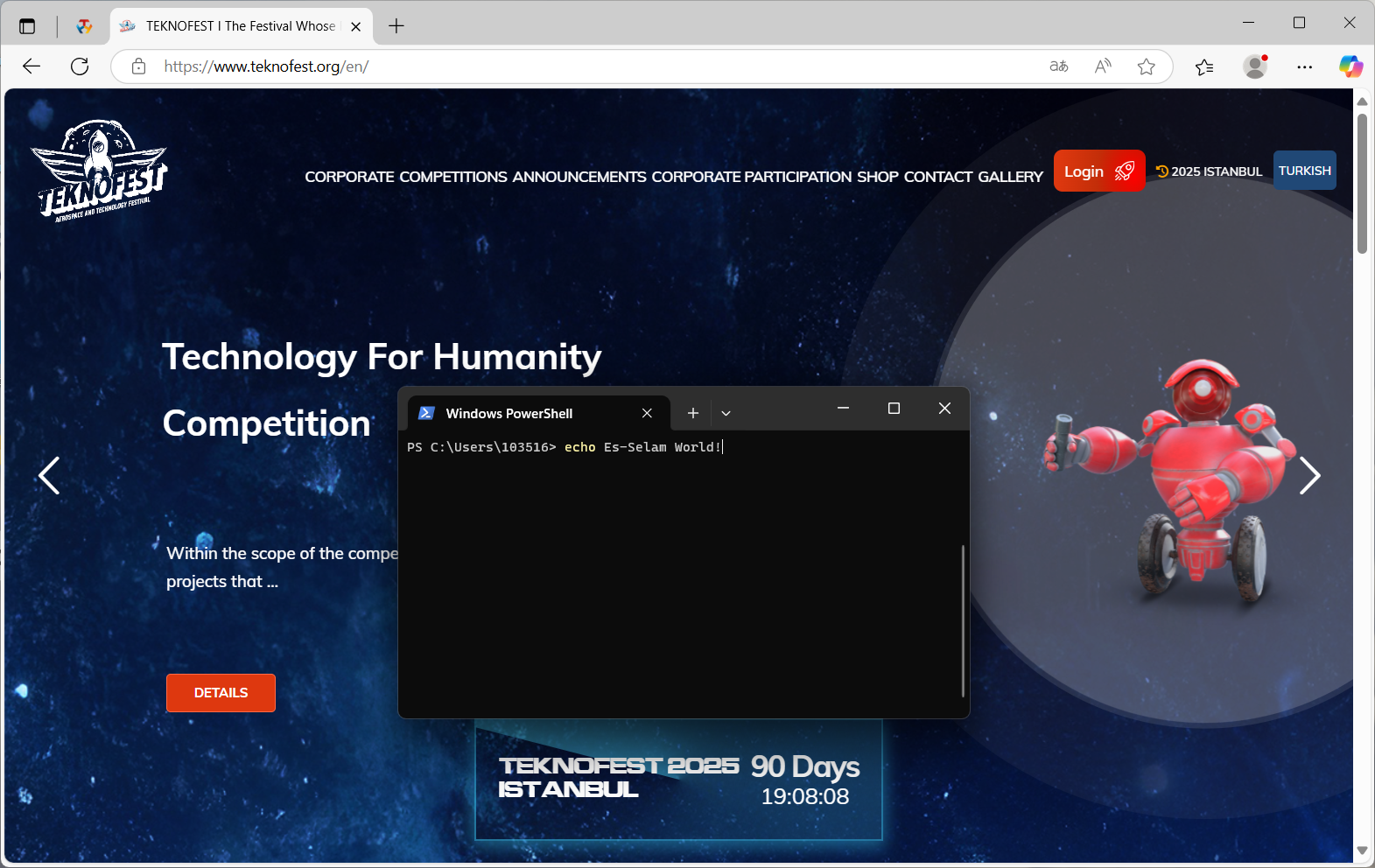
Terminal or Console refers to a method (Command Line Interface) where you can perform operations by writing
commands without a graphical interface, windows, or buttons. Examples include **CMD, Powershell** on
Windows or the **Terminal** application on Unix/POSIX-based operating systems. A sample screenshot is provided below.
# 2. Explore Gemstone
The following steps are for using your Gemstone development board via your computer (for example, connecting
to the board's desktop via a browser or performing operations via Serial Port/Terminal command line). If you
have the option to connect a monitor, keyboard, and mouse, you can also explore the board this way!
Terminal or Console refers to a method (Command Line Interface) where you can perform operations by writing
commands without a graphical interface, windows, or buttons. Examples include **CMD, Powershell** on
Windows or the **Terminal** application on Unix/POSIX-based operating systems. A sample screenshot is provided below.
 After setup, you can check whether the board has a network connection via the Ethernet and USB Type-C you connected
or, as explained in the [System Customization](./quickstart#1-2-6-sistem-özelleştir) section, if Wi-Fi settings were
configured, by observing the
green LED staying lit continuously.
When connecting the board via USB Type-C to a Windows host computer, some drivers need to be installed to
use the USB storage, USB Ethernet and USB serial port features. For instructions,
please [click here](https://www.diodes-delight.com/docs/piunora/usb-gadget/).
After setup, you can check whether the board has a network connection via the Ethernet and USB Type-C you connected
or, as explained in the [System Customization](./quickstart#1-2-6-sistem-özelleştir) section, if Wi-Fi settings were
configured, by observing the
green LED staying lit continuously.
When connecting the board via USB Type-C to a Windows host computer, some drivers need to be installed to
use the USB storage, USB Ethernet and USB serial port features. For instructions,
please [click here](https://www.diodes-delight.com/docs/piunora/usb-gadget/).
 Connect to the board using a USB TTL Serial converter.
Connect to the board via a browser (Firefox/Chrome).
Connect to the board via a Terminal/Console application.
### 2.1. Serial Port
The USB TTL converter cable is often used to connect to the board via serial port when an Ethernet connection is
not available. Normally, when you connect your Gemstone board to your computer via a USB Type-C cable, if the
"Gadgets" option under Services in the [System Customization](./quickstart#1-2-6-sistem-özelleştir) section is
checked, a serial port connection is possible without needing a TTL cable. However, if unexpected issues arise
during development and these features do not work, you can still connect to the board using a USB TTL cable.
An advantage of this method is that it allows you to view the console outputs of U-Boot, the preloader (Bootloader) on
Gemstone boards. While network initialization is required for outputs to appear over Ethernet, with TTL, outputs are
visible from the start.
The default serial terminal baud rate value is **115200**.
#### 2.1.1. Terminal/Console Application
For Terminal/Console operations, you can use [Putty](https://www.putty.org/) on Windows, Gnome Terminal on Linux,
or Terminal on macOS. This documentation will use [Tabby.sh](https://tabby.sh/), an application that works on all
three operating systems.
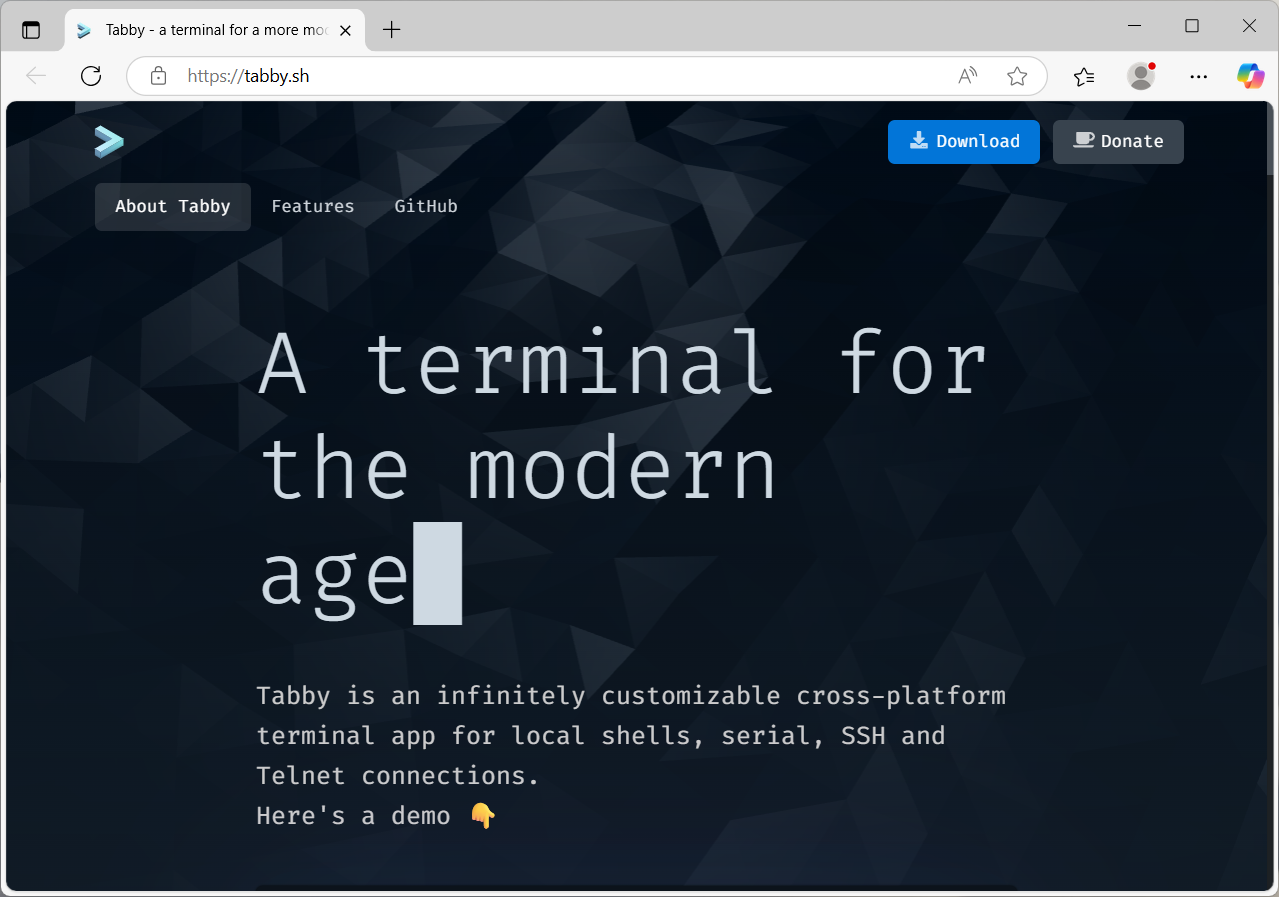
#### 2.1.2. Download the application
Go to [Tabby.sh](https://tabby.sh/) and click the **Download** button to download the software suitable for your
operating system.
Connect to the board using a USB TTL Serial converter.
Connect to the board via a browser (Firefox/Chrome).
Connect to the board via a Terminal/Console application.
### 2.1. Serial Port
The USB TTL converter cable is often used to connect to the board via serial port when an Ethernet connection is
not available. Normally, when you connect your Gemstone board to your computer via a USB Type-C cable, if the
"Gadgets" option under Services in the [System Customization](./quickstart#1-2-6-sistem-özelleştir) section is
checked, a serial port connection is possible without needing a TTL cable. However, if unexpected issues arise
during development and these features do not work, you can still connect to the board using a USB TTL cable.
An advantage of this method is that it allows you to view the console outputs of U-Boot, the preloader (Bootloader) on
Gemstone boards. While network initialization is required for outputs to appear over Ethernet, with TTL, outputs are
visible from the start.
The default serial terminal baud rate value is **115200**.
#### 2.1.1. Terminal/Console Application
For Terminal/Console operations, you can use [Putty](https://www.putty.org/) on Windows, Gnome Terminal on Linux,
or Terminal on macOS. This documentation will use [Tabby.sh](https://tabby.sh/), an application that works on all
three operating systems.
#### 2.1.2. Download the application
Go to [Tabby.sh](https://tabby.sh/) and click the **Download** button to download the software suitable for your
operating system.
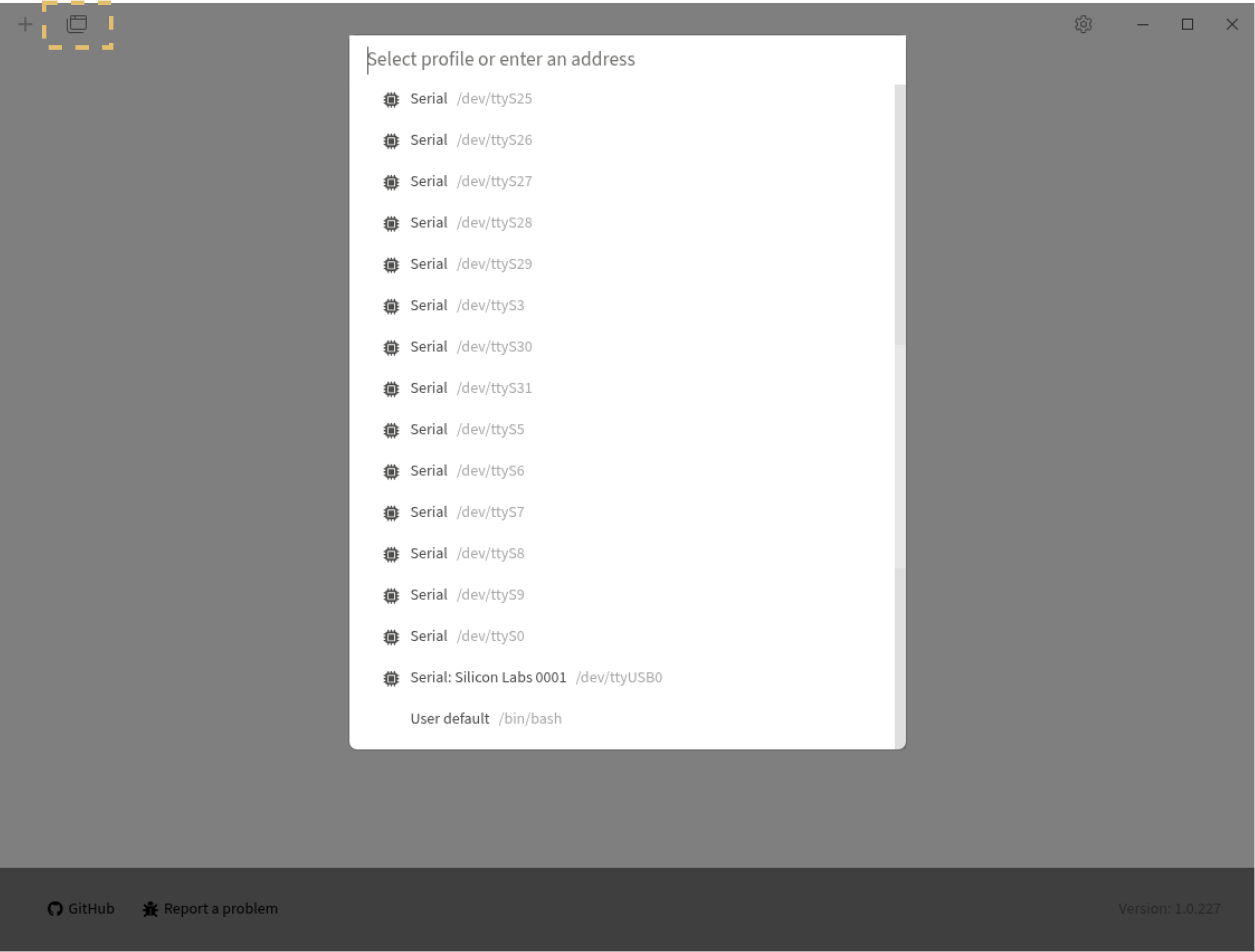
 After completing the installation, run it and select the serial port as shown in the screenshot below.
 #### 2.1.3. Connection with Putty terminal
[Go to the Putty Download page](https://www.chiark.greenend.org.uk/~sgtatham/putty/latest.html) and download the Putty installation file suitable for your operating system.
After completing the setup, run the program and connect to your board by selecting the connection type shown in the screenshot below.
#### 2.1.3. Connection with Putty terminal
[Go to the Putty Download page](https://www.chiark.greenend.org.uk/~sgtatham/putty/latest.html) and download the Putty installation file suitable for your operating system.
After completing the setup, run the program and connect to your board by selecting the connection type shown in the screenshot below.
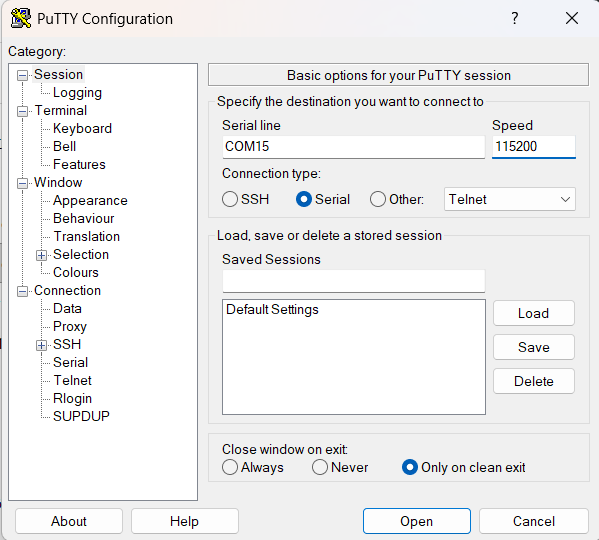 You need to identify your serial port and enter it into PuTTY. The baud rate for the connection is 115200.
For example: COM9 (for Windows devices), 115200
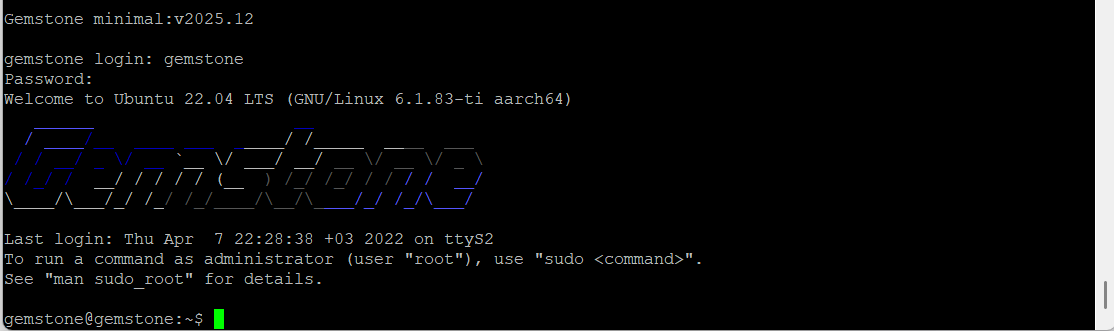
You can log in using the username and password you specified in the Gemstone Imager program.
You need to identify your serial port and enter it into PuTTY. The baud rate for the connection is 115200.
For example: COM9 (for Windows devices), 115200
You can log in using the username and password you specified in the Gemstone Imager program.
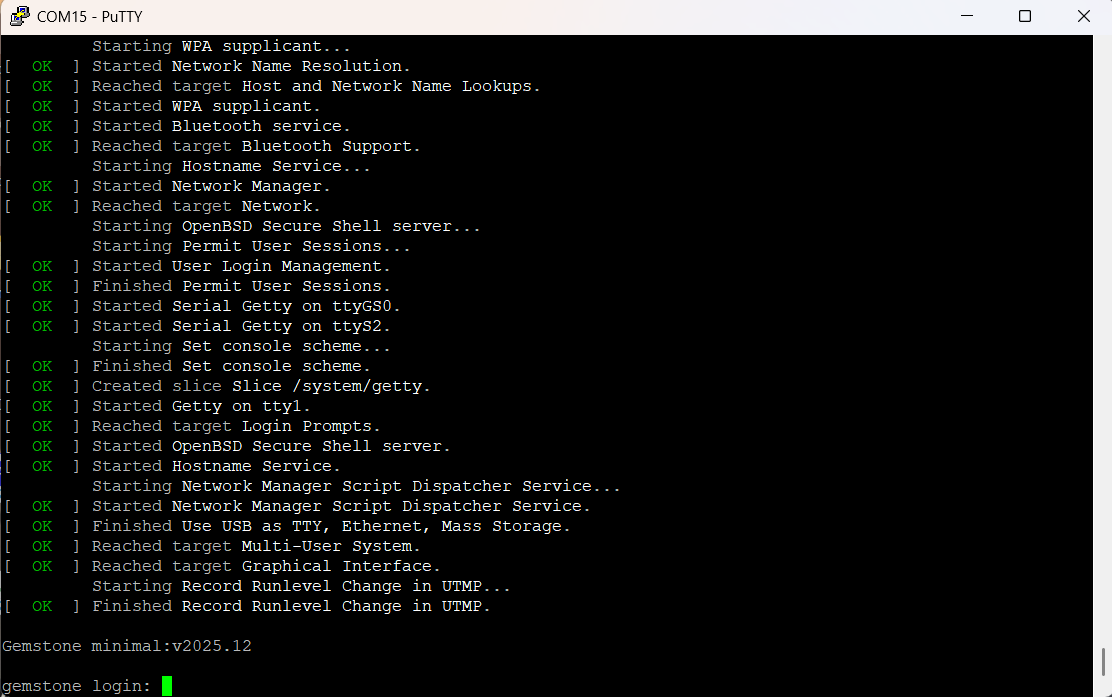 Congratulations! You have successfully established a connection between Gemstone and the terminal.
 ### 2.2. VNC remote desktop connection via browser
The VNC service is only available with the [Desktop image](./distros/desktop).
After connecting your Gemstone development board to your computer via a USB Type-C cable, you can access the
desktop via a browser using the following link.
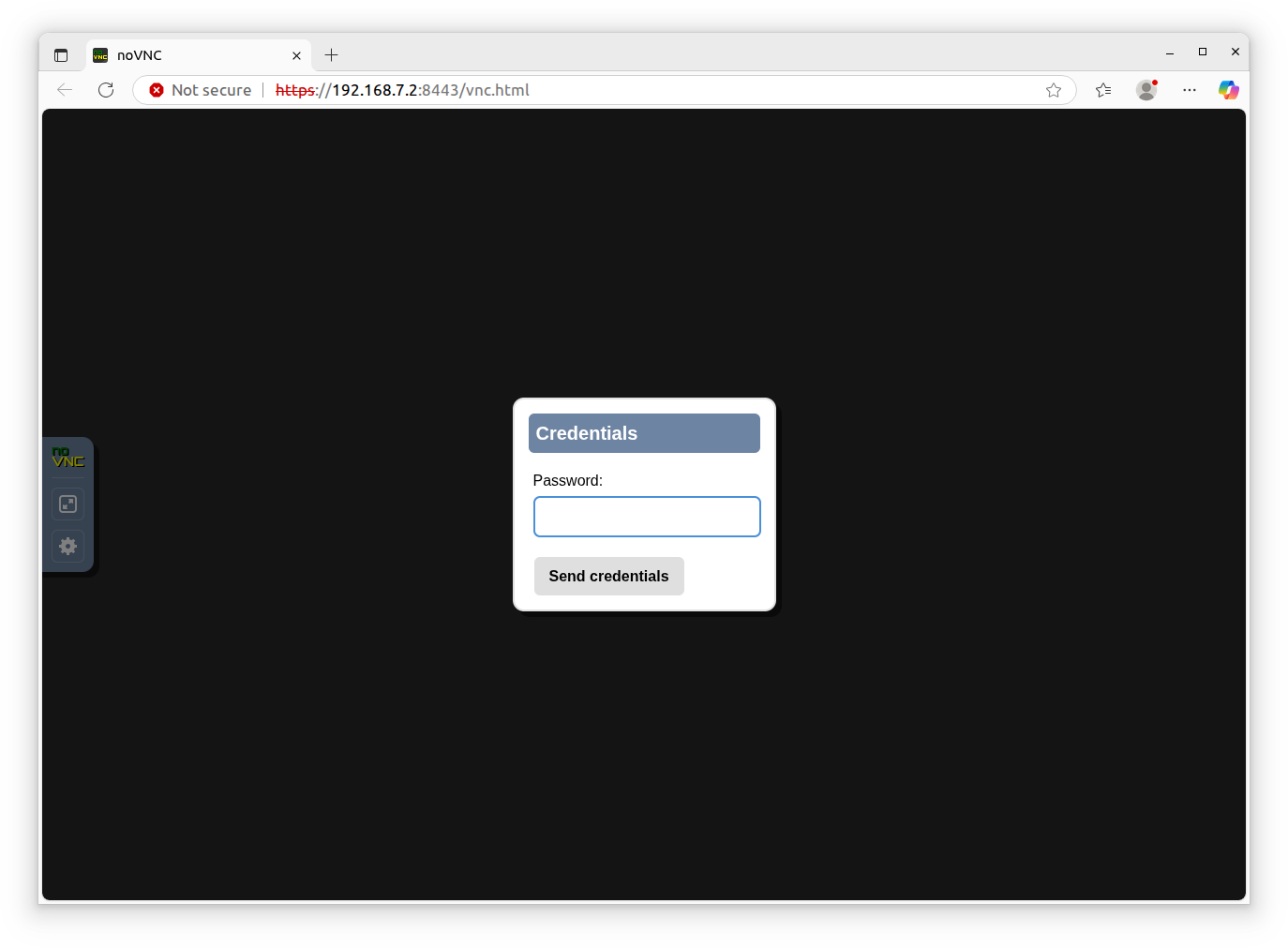
[https://192.168.7.2:8443/vnc.html](https://192.168.7.2:8443/vnc.html)
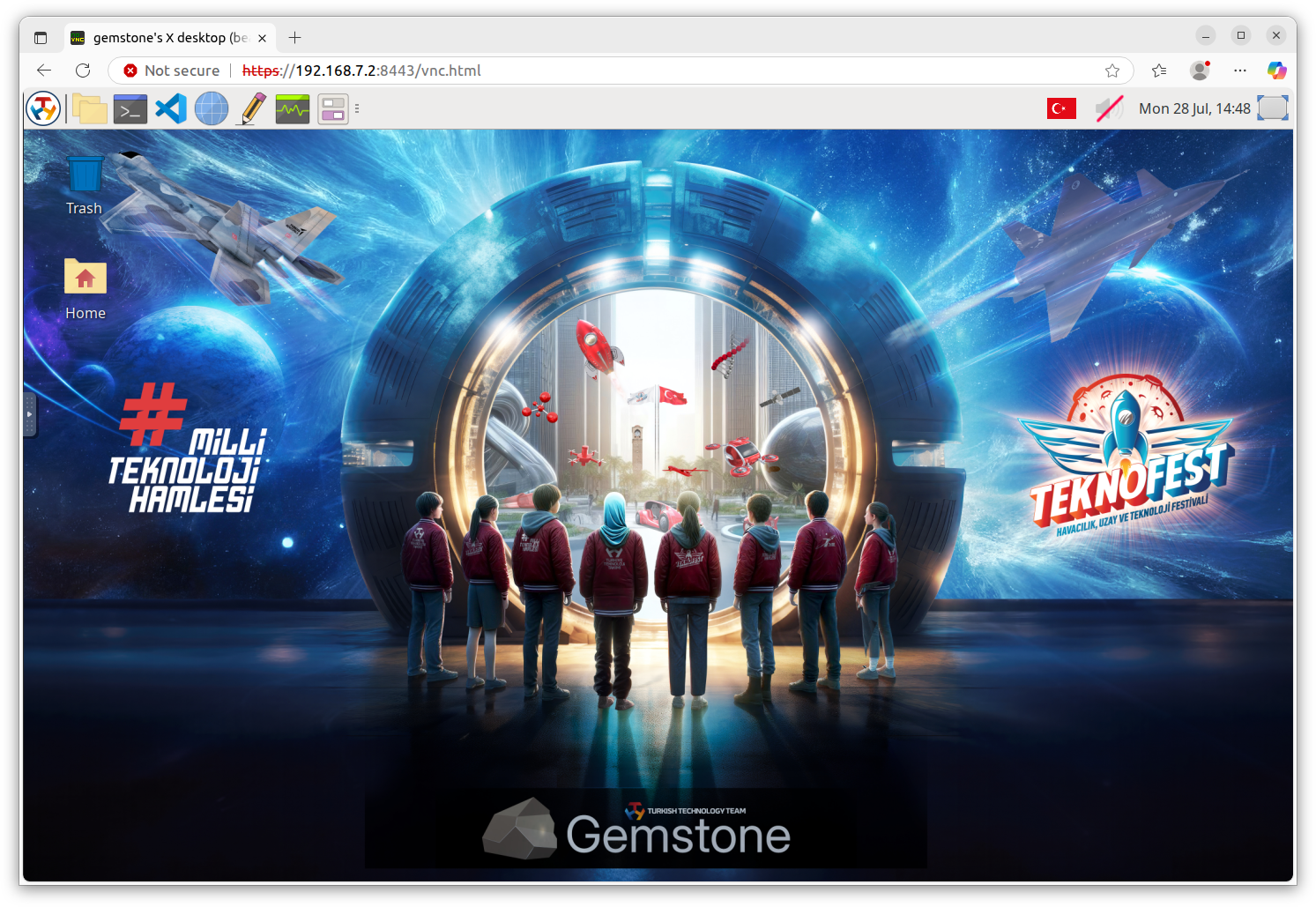
### 2.2. VNC remote desktop connection via browser
The VNC service is only available with the [Desktop image](./distros/desktop).
After connecting your Gemstone development board to your computer via a USB Type-C cable, you can access the
desktop via a browser using the following link.
[https://192.168.7.2:8443/vnc.html](https://192.168.7.2:8443/vnc.html)
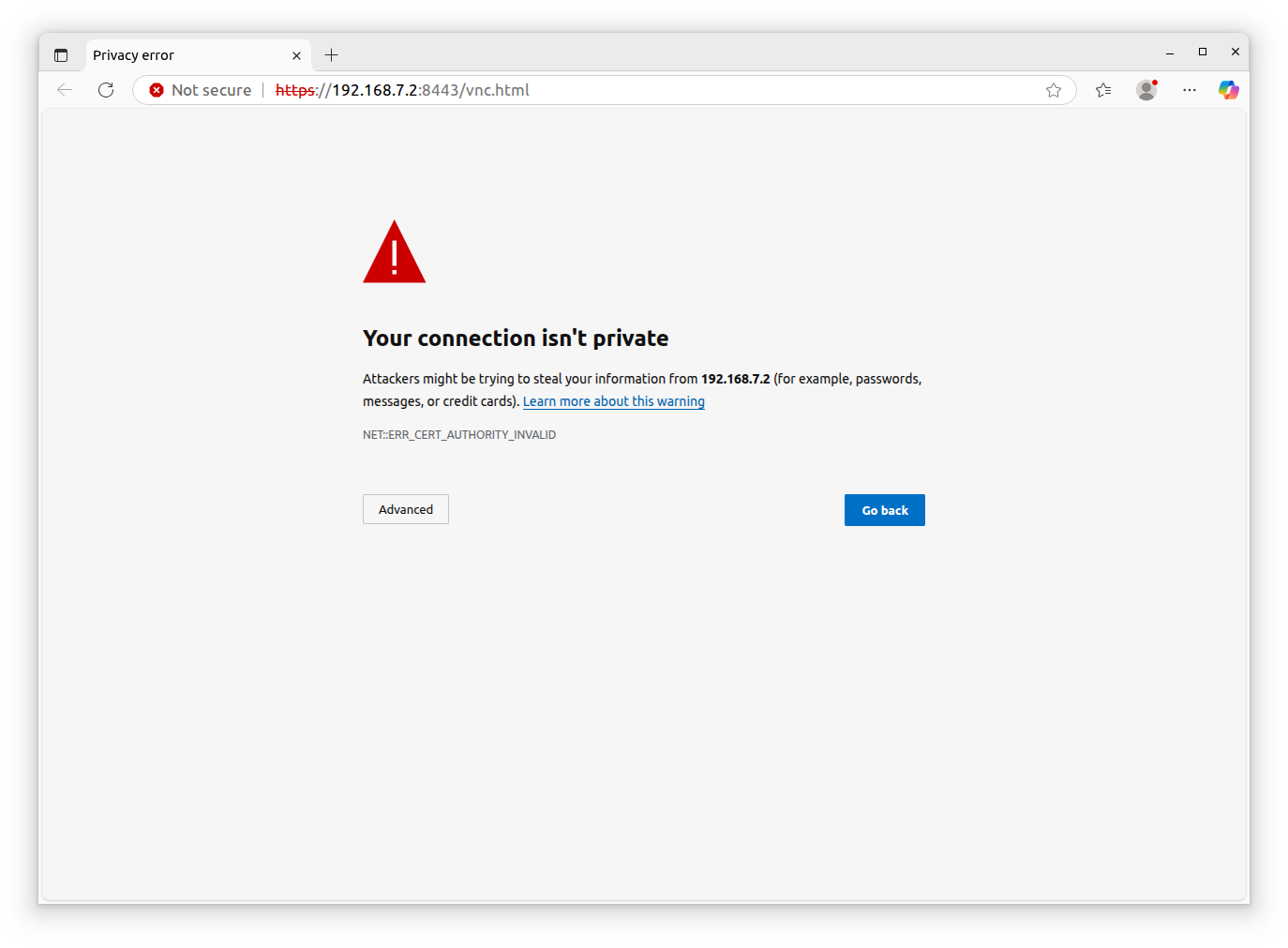 The reason for the browser's certificate error when connecting is that the VNC server uses a self-signed
certificate. This is normal.
The reason for the browser's certificate error when connecting is that the VNC server uses a self-signed
certificate. This is normal.
 ### 2.3. SSH connection over the network
For a faster and more stable console experience, it is recommended to use SSH over serial port for console access.
After connecting your Gemstone development board to your computer via a USB Type-C cable, run the following
command in the terminal.
```bash theme={"system"}
ssh gemstone@192.168.7.2
```
### 2.4. Update the Gemstone operating system
Gemstone development boards include a Debian/Ubuntu-based operating system with a customized real-time Linux kernel.
While the version you installed via GemImager is up-to-date, you can update any installed Ubuntu/Debian packages
(if available) using the following method.
Note: The following operations should be performed on the board via the Terminal icon in the top menu when
connected via remote desktop in a browser or via SSH/Console from your computer. If you have no prior
experience with Linux, you can gain experience by reading the [Getting Started section](./guides/basic) in
the [Training Guides](./guides/introduction).
```bash theme={"system"}
sudo apt update && sudo apt upgrade
```
### 2.5. Wi-Fi Connection
If you wish to connect the development board to a new WiFi network after the initial setup, rather than
during it, open a Terminal using any of the methods described above to connect to the board.
Then, run the command `sudo nmtui` and select the network information you wish to join from
the **Activate Connection** section. An example is provided in the video below.
After this process, your development board will join the specified WiFi network and obtain an
IP address. Consequently, you will be able to establish an SSH connection to the respective IP address
from your laptop/computer.
### 2.3. SSH connection over the network
For a faster and more stable console experience, it is recommended to use SSH over serial port for console access.
After connecting your Gemstone development board to your computer via a USB Type-C cable, run the following
command in the terminal.
```bash theme={"system"}
ssh gemstone@192.168.7.2
```
### 2.4. Update the Gemstone operating system
Gemstone development boards include a Debian/Ubuntu-based operating system with a customized real-time Linux kernel.
While the version you installed via GemImager is up-to-date, you can update any installed Ubuntu/Debian packages
(if available) using the following method.
Note: The following operations should be performed on the board via the Terminal icon in the top menu when
connected via remote desktop in a browser or via SSH/Console from your computer. If you have no prior
experience with Linux, you can gain experience by reading the [Getting Started section](./guides/basic) in
the [Training Guides](./guides/introduction).
```bash theme={"system"}
sudo apt update && sudo apt upgrade
```
### 2.5. Wi-Fi Connection
If you wish to connect the development board to a new WiFi network after the initial setup, rather than
during it, open a Terminal using any of the methods described above to connect to the board.
Then, run the command `sudo nmtui` and select the network information you wish to join from
the **Activate Connection** section. An example is provided in the video below.
After this process, your development board will join the specified WiFi network and obtain an
IP address. Consequently, you will be able to establish an SSH connection to the respective IP address
from your laptop/computer.
 # 3. Conclusion
This documentation will provide explanations for all software and hardware ecosystems of Gemstone development
boards, along with rich project examples, and will explain how to master topics such as the operating system
and hardware architecture. For example, if you are interested in the Real-Time Ubuntu/Debian-based Linux
distribution used for Gemstone and wonder how these systems are assembled or how robotic projects are safely
implemented in C++, we encourage you to complete all the resources mentioned throughout the documentation to
develop yourself and join the community with your contributions!
# 3. Conclusion
This documentation will provide explanations for all software and hardware ecosystems of Gemstone development
boards, along with rich project examples, and will explain how to master topics such as the operating system
and hardware architecture. For example, if you are interested in the Real-Time Ubuntu/Debian-based Linux
distribution used for Gemstone and wonder how these systems are assembled or how robotic projects are safely
implemented in C++, we encourage you to complete all the resources mentioned throughout the documentation to
develop yourself and join the community with your contributions!