> ## Documentation Index
> Fetch the complete documentation index at: https://docs.t3gemstone.org/llms.txt
> Use this file to discover all available pages before exploring further.
# Kernel
> Linux Kernel
This section will cover Linux Kernel customizations for Gemstone development boards, including topics like
activating new hardware drivers.
By the end of this section, you will have knowledge about:
* Compiling Linux Kernel for Gemstone
* Activating new hardware drivers
For Gemstone boards, the Linux kernel is compiled by Yocto, just like U-Boot. The meta-gemstone layer contains
a recipe called `linux-t3-gem-o1-rt_6.1.bb` that uses the
[T3 Gemstone Linux Git repository](https://github.com/t3gemstone/linux). If you need to switch to an older or
newer version, you can update the `SRCREV` variable in the recipe with the commit ID of the desired version and
then run the following commands to start the compilation.
All commands below will be executed inside the distrobox. Therefore, you must first run the
`devbox shell` --> `task box` commands. Additionally, to switch to the Yocto environment, you need to
run the `m:oeinit t3-gem-o1` command.
This section will use the T3-GEM-O1 board for explanation. If you are applying these steps for a different
machine, change the machine name accordingly.
```bash theme={"system"}
bitbake virtual/kernel
```
After completing the above steps, you can copy the `Image` file from
the `/build/t3-gem-o1/deploy-ti/images` folder to the `/boot` folder on your board to perform tests.
### Updating Configuration with Menuconfig
If you want to enable/disable various hardware drivers or modify kernel configuration (essentially changing
features defined in Kconfig), you can use the menuconfig interface.
```bash theme={"system"}
bitbake -c menuconfig virtual/kernel
```
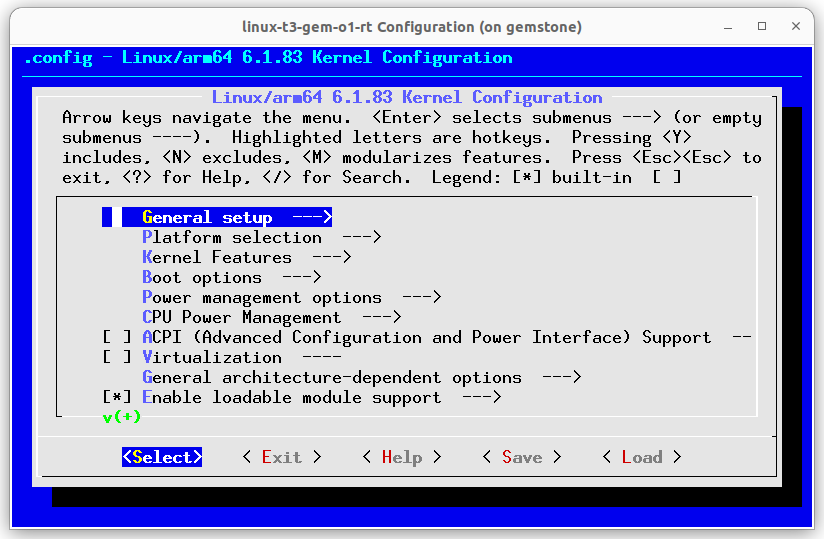 After making the desired changes, press the `ESC` key until the following window appears. Then, select
the "Yes" button.
After making the desired changes, press the `ESC` key until the following window appears. Then, select
the "Yes" button.
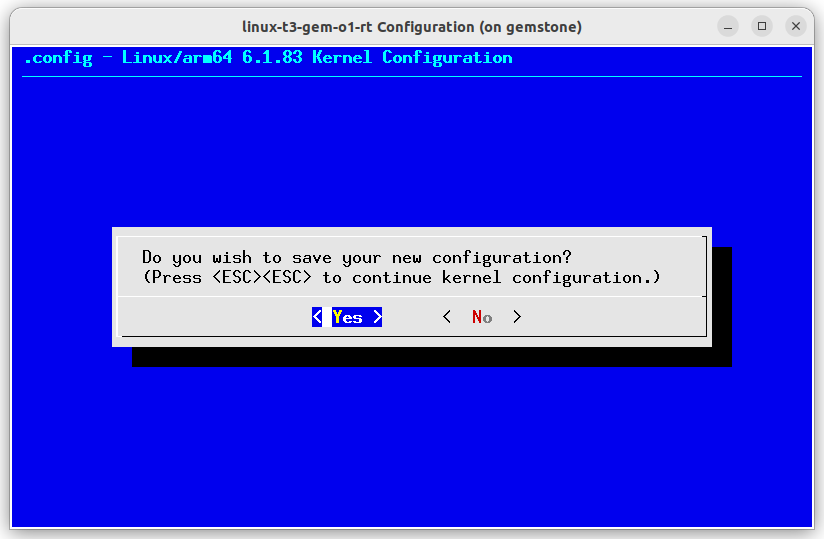 At this stage, you can recompile the kernel, but your changes will only remain on your local machine and will be
lost if you clean the build directory. To prevent this, follow the steps below.
```bash theme={"system"}
bitbake -c savedefconfig virtual/kernel
cp /home/workdir/build/tmp-musl/work/t3_gem_o1-gemstone-linux-musl/linux-t3-gem-o1-rt/6.1.83+git/defconfig \
/home/workdir/yocto/meta-gemstone/dynamic-layers/meta-ti/recipes-kernel/linux/linux-t3-gem-o1-rt-6.1/
```
The above commands will save the changes you made in the menuconfig interface to the `defconfig` file
located in `yocto/meta-gemstone/dynamic-layers/meta-ti/recipes-kernel/linux/linux-t3-gem-o1-rt-6.1/`.
```bash theme={"system"}
bitbake -c clean virtual/kernel
bitbake virtual/kernel
```
If the above commands complete successfully, the `Image` file will be generated in the
`/build/t3-gem-o1/deploy-ti/images` directory.
### Modifying Source Code
Open the `/build/tmp-musl/work-shared/t3-gem-o1/kernel-source` folder in your text editor.
After making the desired changes, compile the kernel using the following commands. To avoid losing your
changes, you can create your own fork of the [T3 Gemstone Linux repository](https://github.com/t3gemstone/linux)
and push your changes there.
```bash theme={"system"}
bitbake virtual/kernel
```
After the compilation is complete, copy the generated files in the `/build/t3-gem-o1/deploy-ti/images`
directory to the `/boot` directory on the SD card. If you have fixed an issue or added a new feature, you can create
a pull request to the [T3 Gemstone Linux repository](https://github.com/t3gemstone/linux) so the community can
benefit from it.
At this stage, you can recompile the kernel, but your changes will only remain on your local machine and will be
lost if you clean the build directory. To prevent this, follow the steps below.
```bash theme={"system"}
bitbake -c savedefconfig virtual/kernel
cp /home/workdir/build/tmp-musl/work/t3_gem_o1-gemstone-linux-musl/linux-t3-gem-o1-rt/6.1.83+git/defconfig \
/home/workdir/yocto/meta-gemstone/dynamic-layers/meta-ti/recipes-kernel/linux/linux-t3-gem-o1-rt-6.1/
```
The above commands will save the changes you made in the menuconfig interface to the `defconfig` file
located in `yocto/meta-gemstone/dynamic-layers/meta-ti/recipes-kernel/linux/linux-t3-gem-o1-rt-6.1/`.
```bash theme={"system"}
bitbake -c clean virtual/kernel
bitbake virtual/kernel
```
If the above commands complete successfully, the `Image` file will be generated in the
`/build/t3-gem-o1/deploy-ti/images` directory.
### Modifying Source Code
Open the `/build/tmp-musl/work-shared/t3-gem-o1/kernel-source` folder in your text editor.
After making the desired changes, compile the kernel using the following commands. To avoid losing your
changes, you can create your own fork of the [T3 Gemstone Linux repository](https://github.com/t3gemstone/linux)
and push your changes there.
```bash theme={"system"}
bitbake virtual/kernel
```
After the compilation is complete, copy the generated files in the `/build/t3-gem-o1/deploy-ti/images`
directory to the `/boot` directory on the SD card. If you have fixed an issue or added a new feature, you can create
a pull request to the [T3 Gemstone Linux repository](https://github.com/t3gemstone/linux) so the community can
benefit from it.