

ugv_simulation package runs the robot in Gazebo Harmonic on the development computer. Gazebo stands in for the
hardware: its differential drive takes the speed commands, and the lidar, IMU and line sensor are simulated on the same
topics as on the robot. The rest of the software (mode manager, EKF, slam_toolbox, Nav2, line following and the web
interface) runs unchanged, so mapping, navigation and line following can be tried without the robot.
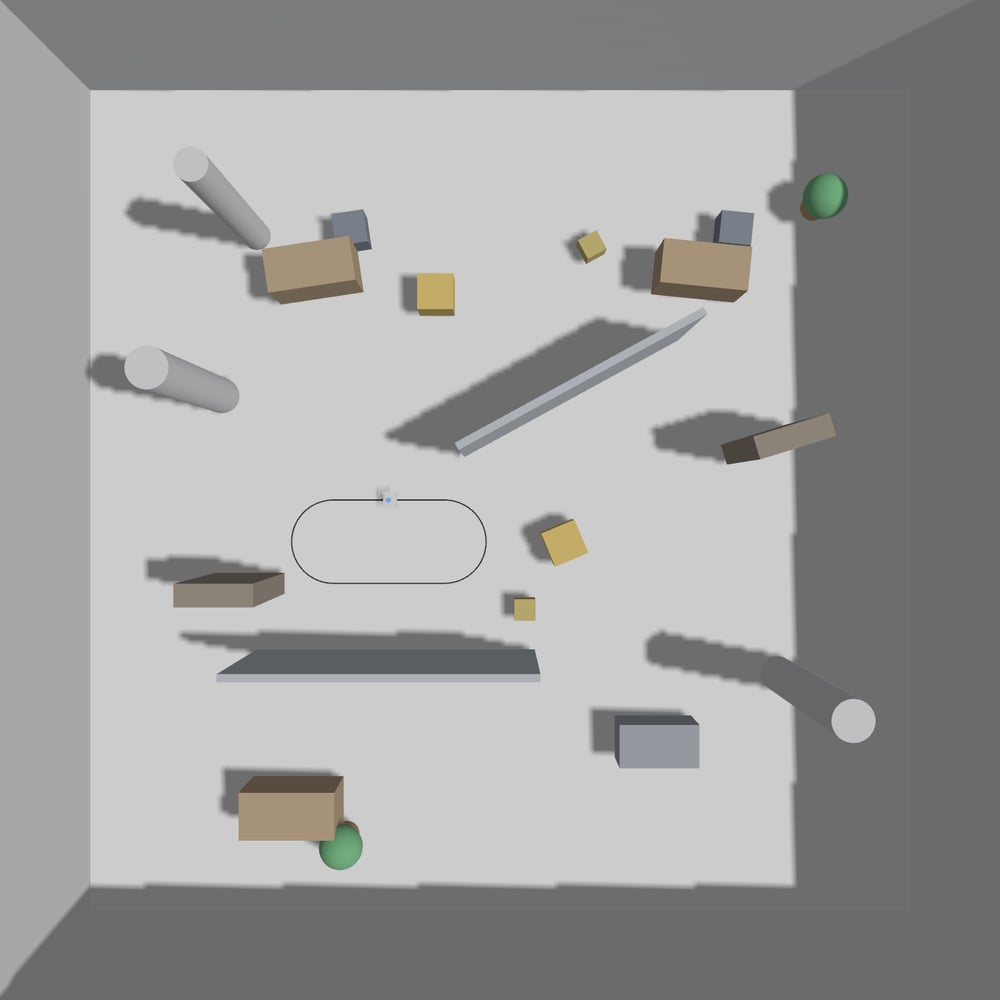
The office world from above. The line track is on the left, with the robot on it.
1. Starting the Simulation
The simulation runs in the development environment of the repository (Ubuntu 24.04 and ROS 2 Jazzy in Distrobox). Gazebo is installed only there, not on the robot. On the development computer, run the following in the repository directory:http://localhost:8000. Stop the
simulation with Ctrl+C.
task build, task sim and the other ROS tasks run inside the development environment, whose prompt starts with 🚀.
Started on the computer itself, they stop with a message asking for task box first.1.1. Arguments
Arguments are added after--, for example task sim -- nav:=true gui:=false.
2. Using the Simulation
2.1. Mapping
Switch to Manual mode in the web interface and drive with the keyboard, the on-screen buttons or a gamepad. The map grows as the robot moves. slam_toolbox adds a new scan only after the robot has moved about 0.15 m, so the map does not grow while the robot turns in place. Maps saved with the Save map panel go to.distrobox/ugv_maps in the
repository, the home directory of the development environment.
2.2. Line following
The robot starts on a black line track with two 1.6 m straights and two 0.6 m radius turns. Select the Line follow mode and the robot follows the track with the same controller and parameters (control.yaml) as on the robot. The
line sensor panel of the web interface shows the eight channels.
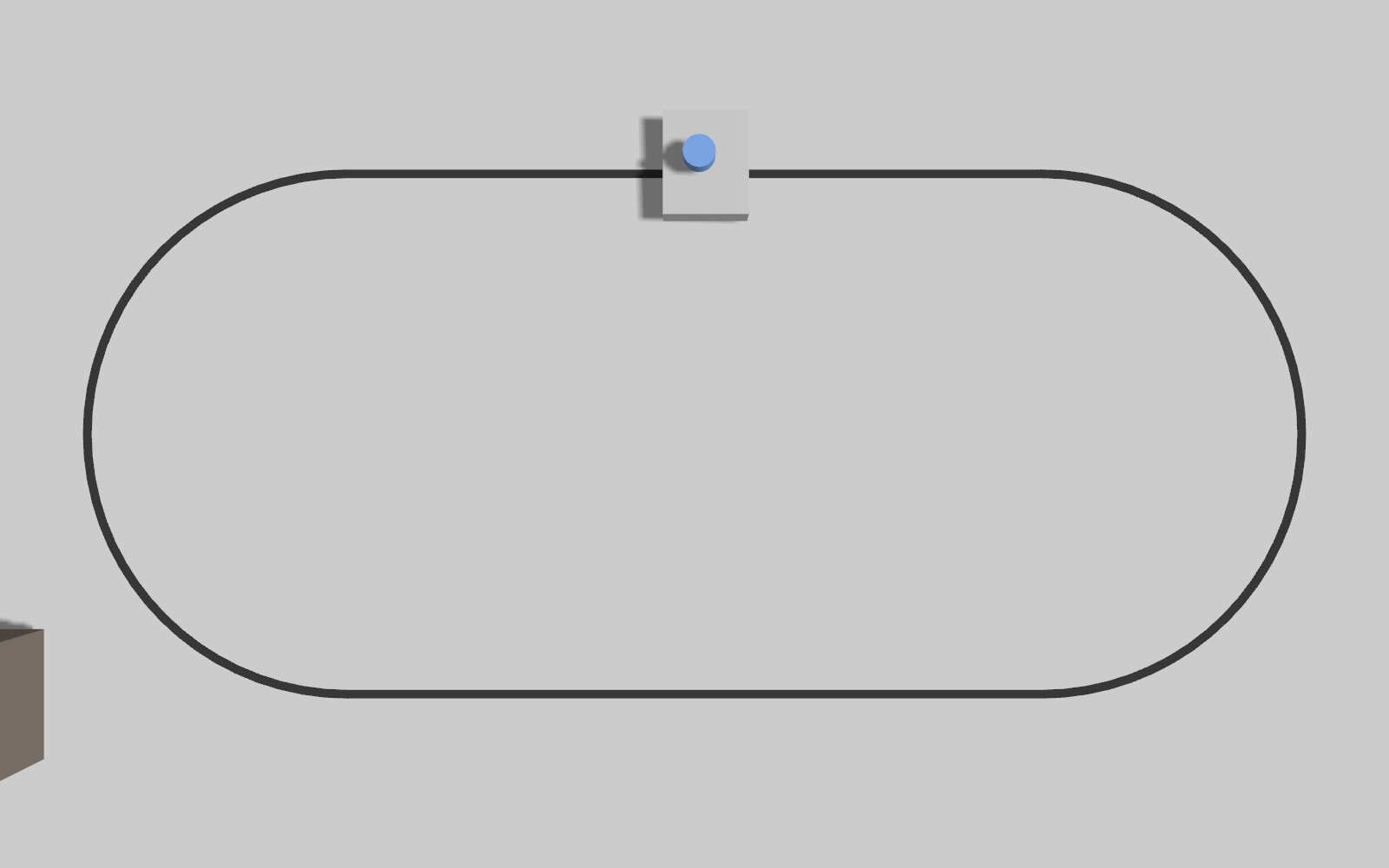
The line track and the robot at its start pose.
2.3. Navigation
Start the simulation withtask sim -- nav:=true. After building a map in Manual mode, enable Click → goal and
click a point on the map; the robot plans a path and drives there.
3. What Is Simulated
The robot model comes from
ugv_description, so changes to config/robot.yaml apply to the simulation as well; the
masses are estimates. The line sensor calibration and lidar connection panels of the web interface, and the
hw_check and line_check tools, need the hardware and do not work in the simulation.
4. Troubleshooting
Why does task sim ask for task box first?
Why does task sim ask for task box first?
The command was started on the computer itself. ROS 2 and Gazebo are only in the development environment: enter
it with
task box and run task sim there, at the prompt that starts with 🚀.Why doesn't the web interface open at http://localhost:8000?
Why doesn't the web interface open at http://localhost:8000?
Another program is using port 8000, so the simulation could not start its web server. Stop that program and start
task sim again.Why doesn't the map grow?
Why doesn't the map grow?
slam_toolbox adds a new scan only after the robot has moved about 0.15 m, so turning in place does not grow the
map. Drive the robot forward.