

In order to run the commands in this section, the driver and runtime installation must be completed. You can
verify the installation with the
dxrt-cli -s command.DX-APP Example Applications
DX-APP contains ready-to-use C++ and Python templates for tasks such as object detection, classification, pose estimation, segmentation, depth estimation and face recognition.1
Cloning the Project
2
Installing the Dependencies
Run the script that installs the build tools and the OpenCV library.
3
Downloading the Models and Sample Videos
The models and videos used in the example applications are downloaded with the The models are downloaded into the
setup.sh script.assets/models directory and the videos into assets/videos.4
Building the Project
bin directory.5
Running the Examples
You can use the demo script to try all of the examples through a menu.It is also possible to run a specific example directly.
Common Command Line Options
All of the examples in DX-APP use the same command line options.The
--image, --video, --camera and --rtsp options are alternatives to each other and only one of them
can be used. When none of them is specified, a sample image appropriate for the task is selected
automatically.Synchronous and Asynchronous Templates
The example applications are provided in two forms,_sync and _async.
- Synchronous (
_sync) templates execute the pre-processing, inference and post-processing steps sequentially. They are suitable for working on a single image and for debugging. - Asynchronous (
_async) templates allow the CPU to prepare frame numberN+1while the NPU is processing frame numberN. They should be preferred in order to maximize the frame rate on video streams.
Video Processing with DX-STREAM
DX-STREAM is the set of plugins that adds DEEPX NPU support to the GStreamer framework. Thanks to this, images coming from a camera, a video file or an RTSP stream can be processed within a pipeline.Plugin Elements
You can inspect the installed plugins and their properties with the
gst-inspect-1.0 tool.
Example Pipeline
The pipeline below reads a video file, performs object detection with a YOLO model, draws the results onto the frames and saves them into a video file./home/gemstone/output.avi. You can access it through this file.
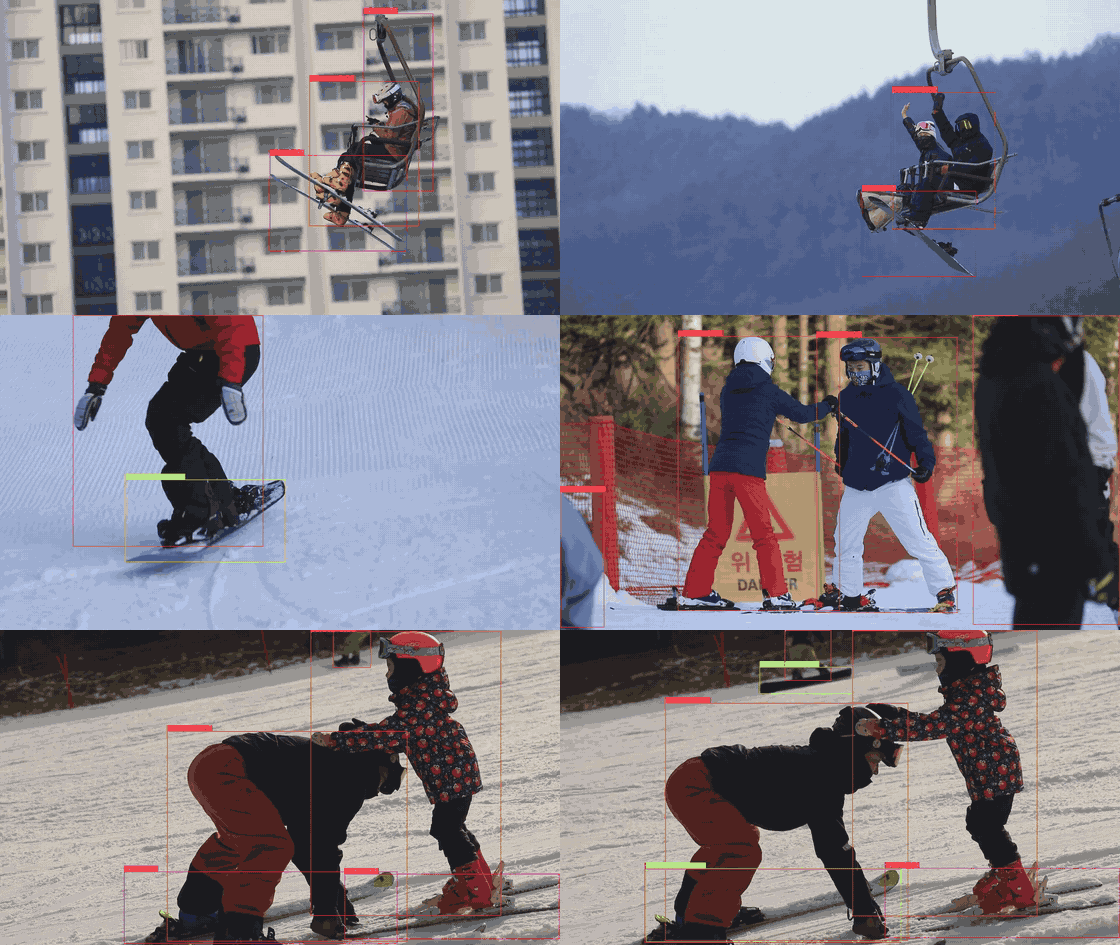
The output of the example pipeline: the objects detected with YOLOv7 are drawn onto the frames.
The image above was created with its resolution and duration reduced so that it could be shared as a GIF in
the documentation. The actual output produced by the pipeline is at the resolution of the source video and
at full length.
Reads and decodes the video source. The path of the file to be processed is given in the
uri property.Resizes the frames according to the
resize-width and resize-height values. The preprocess-id value is
used to match the element with the subsequent dxinfer element.Runs the
.dxnn model specified with model-path on the NPU.Decodes the model output using the shared library specified with
library-file-path. The library to be used
varies depending on the model family.Draws the detection results onto the frame.
Converts the frames into the color format expected by the encoder, compresses them as JPEG with the
quality=85 value and merges the resulting frames into an AVI container.Writes the generated video to the file specified with
location.The
queue elements allow the pipeline to work asynchronously. When these elements are removed, the frame
rate decreases because each stage waits for the previous one to finish.Adding Object Tracking
When thedxtracker element is added after object detection, an identity (track ID) is assigned to the
detected objects across frames.
Resources
DX-APP
Example application templates
DX-STREAM
GStreamer plugins and ready-made pipelines
DX-RT
Runtime source code and API examples
DX Model Zoo
Pre-compiled model repository
deepx-npu-sdk
Build recipes producing the kernel module, DX-RT runtime and GStreamer plugin Debian packages for
T3 Gemstone
DEEPX Model Zoo
The official model repository where pre-compiled
.dxnn models are listed and can be downloaded